This is the full developer documentation for Herdr
# Herdr documentation
> Install, learn, and configure Herdr. Start on the path that matches you — no multiplexer experience required.
## Pick your path
[Section titled “Pick your path”](#pick-your-path)
New to terminal multiplexers?
You don’t need to learn shortcuts to start. Herdr is mouse-first: click panes, drag borders, split and switch from right-click menus.
[Quick start →](/docs/quick-start/)
Coming from tmux or zellij?
You already know the model. The prefix is `ctrl+b`, panes persist, detach and reattach work the way you expect.
[Concepts →](/docs/concepts/) · [Keybindings →](/docs/configuration/#keybindings)
## Or let your agent introduce you
[Section titled “Or let your agent introduce you”](#or-let-your-agent-introduce-you)
If you already run an AI coding agent, let it handle the onboarding. Paste this prompt:
```text
Help me understand and set up Herdr. Read https://herdr.dev/agent-guide.md first, then walk me through it step by step.
```
The guide covers Herdr’s concepts, setup, configuration, and common fixes, so your agent can answer from the docs instead of improvising.
## Core guides
[Section titled “Core guides”](#core-guides)
Agents
See supported agents, detection behavior, integrations, custom labels, and direct attach.
[Understand agents →](/docs/agents/)
Connecting machines
Keep Local and saved SSH machines in one window, with a combined agent list and independent reconnects.
[Connect your machines →](/docs/connecting-machines/)
Session state
Understand detach, restart restore, pane history replay, native agent resume, and live handoff.
[Compare state paths →](/docs/session-state/)
Configuration
Configure keybindings, themes, sidebar behavior, notifications, scrollback, and advanced options.
[Configure Herdr →](/docs/configuration/)
API
Control Herdr from scripts, tools, and agents through the CLI and local socket API.
[Read the API guide →](/docs/socket-api/)
Plugins
Author local executable workflow plugins with manifest actions and event hooks.
[Write a plugin →](/docs/plugins/)
Marketplace
Share plugins from GitHub today and tag your repo to be listed when the marketplace launches.
[Publish a plugin →](/docs/marketplace/)
# Add Herdr support to your agent
> Report your coding agent's state and resume command to Herdr from your own code, without adding native support to Herdr.
If you build a coding agent, you can make it a first-class citizen in Herdr from your own code. You don’t need a pull request to Herdr, and you don’t need to wait for a Herdr release.
Once your agent reports to Herdr, users get:
* your agent’s name and `idle`, `working`, or `blocked` state in the sidebar and in `herdr agent list`
* notifications when it finishes or needs a decision
* `herdr agent wait` and other automation that waits on agent state
* the same session back in the same pane after a Herdr server restart
Herdr owns the integrations for agents whose vendors don’t ship one. If you maintain your agent, owning the integration yourself means you can fix it on your own release schedule.
## How it works
[Section titled “How it works”](#how-it-works)
Every process in a Herdr pane inherits these environment variables:
| Variable | Meaning |
| ------------------- | ------------------------------------ |
| `HERDR_ENV` | `1` inside Herdr |
| `HERDR_PANE_ID` | The pane your agent runs in |
| `HERDR_BIN_PATH` | The Herdr binary that owns this pane |
| `HERDR_SOCKET_PATH` | Herdr’s API socket |
Your agent makes three kinds of reports through `"$HERDR_BIN_PATH"`:
1. **State.** Report `idle`, `working`, or `blocked` whenever it changes.
2. **Resume command.** Report the command that reopens the current session.
3. **Release.** Release the pane when your agent exits.
Only report when `HERDR_ENV=1` and the other variables are set. Outside Herdr, your integration should do nothing.
## Report state
[Section titled “Report state”](#report-state)
```bash
"$HERDR_BIN_PATH" pane report-agent "$HERDR_PANE_ID" \
--source my-agent \
--agent my-agent \
--state working \
--seq 1
```
* Report `working` when a turn starts, `idle` when your agent is ready for input, and `blocked` when it needs the user to decide something. Add `--message` to explain a block.
* `--agent` is the name users see. Use your own agent’s name, not the name of an agent Herdr already supports.
* `--source` identifies your integration. Keep it stable and unique. Don’t start it with `herdr:`, because Herdr’s own integrations use that prefix.
* `--seq` is optional but recommended. It must increase with every report from your source, including across sessions and restarts of your agent. A timestamp works well. Herdr ignores reports whose number is not higher than the last one it accepted, so late or out-of-order reports can’t overwrite newer state.
To change how your agent appears without changing its state, such as a title or custom status text, see [Custom status labels](/docs/integrations/#custom-status-labels).
## Report the resume command
[Section titled “Report the resume command”](#report-the-resume-command)
Put the command that resumes the current session after `--`. Include the options that session needs, such as the model or permission mode, so the resumed session behaves the same:
```bash
"$HERDR_BIN_PATH" pane report-agent "$HERDR_PANE_ID" \
--source my-agent \
--agent my-agent \
--state idle \
--seq 2 \
--agent-session-id "$SESSION_ID" \
-- my-agent --resume "$SESSION_ID" --model my-model
```
You can attach the command to any state report, or send it with `pane report-agent-session` when only the session changes. Report it again whenever your agent switches sessions.
After a Herdr server restart, Herdr opens the pane in the same directory and runs that command there. The command must follow these rules:
* The first word is a plain command name on the user’s `PATH`, such as `my-agent`, not a path.
* No argument contains an apostrophe or a control character.
* At most 64 arguments and 8 KiB in total.
* Your source must hold the pane first, so send a state report with `report-agent` before or along with the command. Otherwise Herdr answers with `resume_not_accepted`.
Herdr rejects a command that breaks the first three rules with `invalid_resume_argv` and does not apply that report. Users can turn off resume with `[session] resume_agents_on_restore = false`.
## Release on exit
[Section titled “Release on exit”](#release-on-exit)
```bash
"$HERDR_BIN_PATH" pane release-agent "$HERDR_PANE_ID" \
--source my-agent \
--agent my-agent \
--seq 3
```
Releasing clears your agent’s name, state, and resume command from the pane right away. Only release when the user actually quits. If your agent replaces one session with another in the same process, report the new session instead of releasing.
If your agent exits without releasing, Herdr notices once the pane is back at its idle shell prompt and clears the agent and its resume command. This usually takes a second or two. It is a safety net, not a replacement for releasing.
## Keep it out of the way
[Section titled “Keep it out of the way”](#keep-it-out-of-the-way)
* Don’t let Herdr slow your agent down. Send reports in the background or with a short timeout, and ignore failures.
* Send only the latest state. If several changes queue up while a report is in flight, drop the older ones.
* Resume commands need Herdr 0.9.2 or later. Older versions ignore them, so state reports and release keep working there.
## Use the socket directly
[Section titled “Use the socket directly”](#use-the-socket-directly)
`HERDR_BIN_PATH` and the CLI are the portable choice, including on Windows. If your agent needs direct IPC, send the equivalent `pane.report_agent`, `pane.report_agent_session`, and `pane.release_agent` requests described in the [Socket API](/docs/socket-api/#agent-state-reporting). The resume command goes in the `resume_argv` array.
## Check your integration
[Section titled “Check your integration”](#check-your-integration)
Start your agent in a Herdr pane, then check what Herdr sees:
```bash
herdr pane get "$HERDR_PANE_ID"
herdr agent list
```
To test restore without touching your normal session, use a separate named session:
1. Start `herdr --session my-agent-test`, then run your agent in a pane.
2. Stop that session with `herdr session stop my-agent-test`.
3. Start `herdr --session my-agent-test` again. The pane should run your resume command and your agent should report again.
# Agent automation
> Use Herdr's layout, pane, and agent primitives to coordinate coding agents from scripts or other agents.
Use Herdr as an automation layer for coding agents. A script can control them, or one agent can create work for other agents, inspect their state, and collect their results. Choose the primitive that matches the job.
## Three primitives
[Section titled “Three primitives”](#three-primitives)
| Primitive | Responsibility |
| ---------------------------------------------- | ----------------------------------------------------------------------------------- |
| Layout (`workspace`, `tab`, and pane topology) | Create and organize terminal locations. |
| Pane | Control a raw terminal: run commands, send input, read output, and wait for output. |
| Agent | Control a recognized coding agent by name or pane and lifecycle state. |
A pane exists whether or not it contains an agent. An agent is the recognized process currently running inside a pane. `agent start` therefore requires an existing shell pane and never creates, splits, or moves layout.
Creating a workspace also creates its first tab and root pane; creating a tab creates its root pane. Use the returned pane ID for the first process, and split only when that layout needs another terminal.
Creation commands print JSON. Capture IDs from the response instead of predicting them:
```bash
created=$(herdr workspace create --cwd ~/project --label api --no-focus)
pane_id=$(printf '%s\n' "$created" | jq -r '.result.root_pane.pane_id')
split=$(herdr pane split "$pane_id" --direction right --no-focus)
review_pane=$(printf '%s\n' "$split" | jq -r '.result.pane.pane_id')
```
`workspace create` returns `.result.workspace`, `.result.tab`, and `.result.root_pane`. `tab create` returns `.result.tab` and `.result.root_pane`. `pane split` returns the new pane as `.result.pane`.
Moving a pane to another workspace changes its workspace-qualified pane ID. After any `pane move`, continue with `.result.move_result.pane.pane_id`; the response keeps the old value at `.result.move_result.previous_pane_id`. A running process keeps its launch-time Herdr environment, but the old `HERDR_PANE_ID` remains an alias for that terminal, so `--current` stays safe. New commands can still resolve the agent by name after the move, but a wait already in progress ends with `agent_not_running`.
Use pane commands for shells, tests, servers, CI watchers, and other ordinary terminal processes. Use agent commands when Herdr needs to understand which agent is running or whether it is `working`, `blocked`, `done`, `idle`, or `unknown`.
## Agent identity and launch
[Section titled “Agent identity and launch”](#agent-identity-and-launch)
A pane ID such as `w1:p2` identifies the terminal location. An agent name such as `reviewer` is a convenient alias for the current agent in that pane. Names must match `[a-z][a-z0-9_-]{0,31}` and be unique among live agents. The alias is cleared when that agent exits, is released, or is replaced; it does not permanently rename the pane.
Agent commands accept either a unique live name or the pane ID that currently hosts the agent.
An available shell pane is at its interactive shell prompt: the shell itself owns the foreground, with no foreground command, editor, or agent running. Return the pane to its prompt before calling `agent start`.
`--kind` selects a supported agent and its canonical executable. Supported kinds are `pi`, `claude`, `codex`, `gemini`, `cursor`, `devin`, `agy`, `cline`, `omp`, `mastracode`, `opencode`, `copilot`, `kimi`, `kiro`, `droid`, `amp`, `grok`, `hermes`, `kilo`, `qodercli`, `qwen`, `letta`, `maki`, and `muse`. Arguments after `--` are passed unchanged to that executable.
Successful `agent start` returns only after Herdr detects the expected agent in the same terminal and marks it ready for interactive input. If detection reports `blocked` during startup, the command returns `agent_not_ready` immediately. The name remains available for `agent read` and `agent send-keys`, and becomes ready for prompts after detection reports `idle`. Startup waits for 30 seconds by default; `--timeout` must be greater than 3000 and no more than 300000 milliseconds.
```bash
herdr agent start reviewer --kind codex --pane "$review_pane" -- -m gpt-5.4
```
Agents launched manually are detected automatically and can be addressed by pane ID. Give one a name when a stable human-readable target is useful:
```bash
herdr agent get w1:p2
herdr agent rename w1:p2 reviewer
```
## Choose the control surface
[Section titled “Choose the control surface”](#choose-the-control-surface)
| Goal | Command |
| ------------------------------------------- | ------------------ |
| Run a shell command and submit it | `pane run` |
| Send literal text without Enter | `pane send-text` |
| Send terminal keys or modifier chords | `pane send-keys` |
| Wait for text or a regular expression | `pane wait-output` |
| Start a supported agent in an existing pane | `agent start` |
| Submit a prompt, optionally waiting for it | `agent prompt` |
| Send keys to an agent’s interactive UI | `agent send-keys` |
| Wait for agent lifecycle state | `agent wait` |
`agent prompt` submits text plus encoded Enter and honors the terminal’s live bracketed-paste mode. It can prompt an agent that is already working. If the agent is already `blocked`, it returns `agent_blocked` without sending terminal input; inspect the dialog and use `agent send-keys` for a deliberate response. Use `agent send-keys` for interactions such as `esc`, `up`, `enter`, or `ctrl+c`; `escape` is accepted as an alias for `esc`. Use the pane input commands when you deliberately want raw terminal control.
Pane input addresses the terminal regardless of its current occupant. Agent input resolves the live agent and rejects the operation if that agent no longer controls the pane.
`agent prompt --wait` rejects an agent already `blocked` with `agent_blocked`, without sending input or starting a wait. Otherwise, it writes the prompt and delayed Enter as one ordered submission before waiting. On Windows, Codex receives a paste boundary before Enter so submission does not depend on prompt size. The caller timeout includes submission time. If the prompt started from another non-working state, Herdr waits up to five seconds after submission to observe `working` or `blocked`. Otherwise, it returns `agent_prompt_stalled`; if the caller timeout expires first, it returns the normal `timeout` error. This prevents unrelated `idle`, `done`, or session changes from completing the wait. After Herdr observes activity, it waits for the requested settled status. It does not track individual turns. If the agent is already working, completion of that active turn may satisfy the wait. Standalone `agent wait` observes the current agent and returns immediately if its status already matches. Both commands default to `idle`, `done`, or `blocked`. Repeat `--until` to accept several exact states, for example `--until idle --until done`; use `--until unknown` explicitly when needed. On `agent prompt`, `--until` requires `--wait`.
`idle` and `done` both mean the agent is ready for input. The CLI/API uses the server’s seen state: `done` is idle but not yet marked seen, explicit `pane focus` / `agent focus` commands mark the target seen, and reads do not. Each TUI client tracks viewed completions independently, so a client’s Done badge can differ from the CLI or another client’s badge. `blocked` means Herdr recognized an approval or question UI. `unknown` means an agent is present but Herdr cannot classify its lifecycle confidently; it does not prove successful completion. Use exact `--until` states when that distinction matters.
Startup readiness, restoring an idle conversation, and switching agent conversations do not count as completed work. An agent that starts working immediately can finish its first task without Herdr first seeing an idle prompt. Agent responses may include `completion_seq`, identifying the current idle transition as completed work independently of who has viewed it. It matches that transition’s `state_change_seq`; startup and session changes do not set it. Older servers may omit this field. Clients connected to older servers use observed working states to guard Done badges, so they may miss a turn that starts and finishes between updates.
A timeout or `agent_prompt_stalled` does not prove that no input was sent. Read the agent before retrying to avoid submitting the same prompt twice. IDs and agent names are scoped to one server; selecting another machine in the TUI does not retarget CLI commands running in an existing pane.
`pane wait-output` does not interpret agent lifecycle. It polls the selected terminal snapshot and searches it immediately, so text that was already present can match. The default source name is `recent`; matching treats that source as unwrapped recent output from the latest 80 rendered terminal rows. `--lines` changes that row limit, and `--regex` uses Rust regular-expression syntax and matches one line at a time.
At the CLI, both `pane read` and `agent read` print terminal text directly. The default is UTF-8 text with ANSI escapes stripped; use `--format ansi` or `--ansi` to preserve terminal escapes where the source exposes them. The `detection` source is always plain text. For recent sources, `--lines N` selects the last N rendered terminal rows before optional unwrapping; without it, reads default to 80 rows. For `visible` and `detection`, omitting `--lines` returns the full snapshot, while specifying it keeps the last N newline-delimited lines. The socket API returns the text at `.result.read.text`.
## Alternate-screen history reads
[Section titled “Alternate-screen history reads”](#alternate-screen-history-reads)
Full-screen agents such as Claude Code and OpenCode render transcript history in the terminal’s alternate screen instead of Herdr’s host scrollback. For an idle, recognized agent at the bottom of its transcript, text reads from `recent` or `recent-unwrapped` automatically use the agent’s mouse-scroll interface when `--lines` requests more than the visible screen. Herdr collects overlapping pages and returns the viewport to the bottom before completing the read. The same behavior applies to `pane read` when the pane contains that agent; it requires no additional option.
Other reads remain passive. Herdr does not move the application viewport for `visible`, `detection`, or ANSI reads, output waits and subscriptions, a manually scrolled agent, a direct attachment, or an application that does not report mouse-wheel input. An explicit `agent read --lines N` that needs alternate-screen history returns `agent_not_idle` while the agent is working, blocked, or unknown; wait for idle and retry, or use `--source visible`. Other recent reads return the available screen and host scrollback as before.
If a full response is still unavailable, ask the agent to write it as Markdown in a temporary directory and reply only with the file path, then read the file directly.
Successful `agent start`, `agent prompt`, and `agent wait` commands return the current agent at `.result.agent`. `pane wait-output` returns `.result.pane_id`, `.result.matched_line`, and the matched snapshot at `.result.read`.
Wait commands have no default timeout and can wait indefinitely. On timeout or another server error, CLI commands print a JSON error to stderr and exit with status 1; invalid CLI syntax exits with status 2.
## Recipes
[Section titled “Recipes”](#recipes)
Start a helper, give it work, and wait for that work to settle:
```bash
split=$(herdr pane split --current --direction right --no-focus)
review_pane=$(printf '%s\n' "$split" | jq -r '.result.pane.pane_id')
herdr agent start reviewer --kind codex --pane "$review_pane" -- -m gpt-5.4
herdr agent prompt reviewer "Review the current diff" --wait --timeout 120000
herdr agent read reviewer --source recent-unwrapped --lines 120
```
Wait for an agent to ask for input, inspect it, and interact with its UI:
```bash
herdr agent wait reviewer --until blocked --timeout 120000
herdr agent read reviewer --source recent-unwrapped --lines 80
herdr agent send-keys reviewer esc
```
Run an ordinary process and wait for its output without treating it as an agent:
```bash
herdr pane run w1:p3 "just test --watch"
herdr pane wait-output w1:p3 --regex "passed|failed" --timeout 120000
```
See the [CLI reference](/docs/cli-reference/) for the complete command and option list. Shell completions expose the same command tree interactively.
# Agent skill file
> Install Herdr instructions for Claude Code or another coding agent.
Herdr ships a reusable agent skill file at [`skills/herdr/SKILL.md`](https://github.com/herdrdev/herdr/blob/v0.9.3/skills/herdr/SKILL.md).
Install that file into any coding agent that supports reusable skills or custom instructions. The skill teaches the agent how to control Herdr from inside a Herdr pane.
Herdr also serves a separate guide at [`herdr.dev/agent-guide.md`](https://herdr.dev/agent-guide.md) for a different job: an agent helping a human learn, set up, or troubleshoot Herdr. The skill is for an agent operating Herdr; the guide is for an agent teaching a human.
## What the skill does
[Section titled “What the skill does”](#what-the-skill-does)
The skill tells an agent to use the `herdr` CLI when `HERDR_ENV=1` is set. That means the agent is running inside a Herdr-managed pane and can safely talk to the local Herdr socket.
With the skill installed, an agent can:
* inspect workspaces, tabs, panes, and neighboring agents
* split panes and run commands without stealing focus
* read pane output and recent logs
* wait for servers, tests, or another agent to finish
* start helper agents in sibling panes
The skill is a Markdown instruction file for agents. If Herdr is already installed, run `herdr --skill` to print the release-matched copy bundled with that binary.
## Install it
[Section titled “Install it”](#install-it)
Install the skill with `npx skills`:
```bash
npx skills add herdrdev/herdr --skill herdr -g
```
If you installed the skill while it lived at the repository root, rerun this add command once instead of using `skills update`. The add command replaces the oversized copy and records the new location.
The `-g` flag installs it globally for supported agents. Omit `-g` to install it into the current project.
Use the repository copy as the manual fallback and source of truth:
```text
https://github.com/herdrdev/herdr/blob/v0.9.3/skills/herdr/SKILL.md
```
For agents with a skill system, install that file as a skill named `herdr`. For agents without a skill system, paste the file into the agent’s project or user instructions.
After installation, start the agent inside Herdr:
```bash
herdr
claude
```
Or use any other coding agent in a Herdr pane so `HERDR_ENV=1` is available to the agent process.
## Safety rule
[Section titled “Safety rule”](#safety-rule)
The skill starts with one guardrail: if `HERDR_ENV=1` is not set, the agent should stop and say it is not running inside a Herdr-managed pane.
This prevents an agent outside Herdr from trying to control a session it does not own.
## Agent-facing reference
[Section titled “Agent-facing reference”](#agent-facing-reference)
The full command guide lives in the skill file itself. It covers pane IDs, `pane split`, `pane run`, `pane read`, `pane wait-output`, `agent wait`, workspace and tab commands, and coordination recipes.
Read the source file here:
[Open `SKILL.md` on GitHub →](https://github.com/herdrdev/herdr/blob/v0.9.3/skills/herdr/SKILL.md)
# Agents
> See which coding agents work with Herdr, either supported by Herdr or supporting Herdr themselves, and how agent state works.
Herdr is built for running more than one coding agent at a time. Each agent stays in a real terminal pane with its shell, logs, prompts, and running processes intact. Herdr tracks which panes contain agents, rolls their state up to tabs and workspaces, and lets you jump straight to the pane that needs attention instead of polling every terminal by hand.
To coordinate agents from scripts or from another agent, see [Agent automation](/docs/agent-automation/).
## Supported agents
[Section titled “Supported agents”](#supported-agents)
Agents get Herdr support in one of two ways: Herdr supports them, or they support Herdr themselves. Either way you see each agent’s `idle`, `working`, and `blocked` state, get notified when it finishes or needs you, and can wait on it from scripts.
Other agents still run normally in Herdr panes. They just show up as plain terminals.
### Supported by Herdr
[Section titled “Supported by Herdr”](#supported-by-herdr)
Herdr recognizes these agents and reads their state from what they draw on screen. To get the same session back after a Herdr server restart, install the agent’s integration with `herdr integration install `. See [Integrations](/docs/integrations/) for what each one installs.
| Agent | Integration | Notes |
| ------------------ | ----------------- | ------------------------------ |
| Claude Code | `claude` | |
| Codex | `codex` | |
| GitHub Copilot CLI | `copilot` | |
| Cursor Agent CLI | `cursor` | |
| OpenCode | `opencode` | also reports state |
| Pi | `pi` | also reports state |
| OMP | `omp` | state requires the integration |
| Droid | `droid` | |
| Devin CLI | `devin` | |
| Kimi Code CLI | `kimi` | also reports state |
| Kilo Code CLI | `kilo` | also reports state |
| Hermes Agent | `hermes` | |
| Qoder CLI | `qodercli` | |
| Qwen Code | `qwen` | |
| Letta Code | `letta` | CLI install only |
| MastraCode | `mastracode` | state requires the integration |
| Grok CLI | `grok` | |
| Antigravity CLI | `antigravity-cli` | |
| Amp | none | state only |
| Kiro CLI | none | state only |
| Maki | none | state only |
| Gemini CLI | none | state only, less tested |
| Cline | none | state only, less tested |
### Supported by the agent
[Section titled “Supported by the agent”](#supported-by-the-agent)
These agents report their own state to Herdr. There is nothing to install; run them in a Herdr pane.
* [Command Code](https://commandcode.ai)
* [Crush](https://github.com/charmbracelet/crush)
* [Kiro CLI](https://kiro.dev/cli/)
* [Muse Code](https://dev.meta.ai/products/muse-code)
* [Prime Agent](https://github.com/PrimeIntellect-ai/prime-agent)
An agent that also reports its resume command comes back in the same session after a Herdr server restart.
If you build a coding agent, [Add Herdr support to your agent](/docs/add-herdr-support/) shows how to join this list. It takes a few calls to Herdr’s CLI or socket, and no change to Herdr.
## How status works
[Section titled “How status works”](#how-status-works)
For agents Herdr supports, Herdr finds the agent’s process in each pane and reads the live bottom of the pane, not the part you scrolled to. Rules in a detection manifest decide whether that screen means `idle`, `working`, or `blocked`. When an integration also reports state, Herdr uses those reports instead of reading the screen.
For agents that support Herdr, the agent’s own reports decide the state.
## VMs and sandbox wrappers
[Section titled “VMs and sandbox wrappers”](#vms-and-sandbox-wrappers)
On Linux and macOS, a host-visible wrapper can hide the real agent process from Herdr. Set `HERDR_AGENT=` on the wrapper command to tell Herdr which existing agent screen manifest to use. For example, run `HERDR_AGENT=claude fence -- claude` on Linux or `HERDR_AGENT=claude nono run --profile claude-code -- claude` on macOS. The hint applies only to that foreground process. Herdr cannot see it if you set it only inside a VM or container. Avoid exporting it globally unless every inherited foreground process should be treated as that agent.
Some restricted Linux runtimes do not expose a terminal foreground process group. Start the Herdr server with `HERDR_PROCESS_DETECTION=child-groups` to opt into direct child-process-group inference when native detection is unavailable. Native detection remains preferred, and the default `native` mode never performs this inference. The opt-in mode is best effort: a newer background job can be mistaken for the foreground job. The variable is read by the server and requires a restart; set it in the remote server environment rather than on an attaching client.
## Blocked state
[Section titled “Blocked state”](#blocked-state)
Blocked detection is deliberately strict for screen-manifest agents. Herdr only marks `blocked` when the live bottom-buffer snapshot matches known visible approval, question, or permission UI. If no manifest rule matches for a known agent other than Codex, Herdr falls back to `idle` and labels that fallback as `default_known_agent_idle_fallback` in explain output. Codex falls back to `unknown` because its title and composer can look the same during an active turn and after a response.
For those other agents, unusual new prompts may initially show as `idle` instead of `blocked` until Herdr learns that screen shape. The misclassification affects only the visible status and waits. It should not make Herdr send input or take destructive action.
For Codex, a visible spinner or live activity timer can establish `working`, and a visible approval prompt can establish `blocked`. When Codex’s terminal title shows no spinner, Herdr reports `idle`. Codex stays `unknown` only when no rule matches, for example when Codex sets no terminal title, and waits for `idle` or completion may then time out. Managed startup uses the initial composer only to determine when it can accept a prompt; that observation does not change turn status.
## Detection manifests
[Section titled “Detection manifests”](#detection-manifests)
Bundled manifests live inside Herdr. Herdr also checks herdr.dev for remote manifest updates and applies valid per-agent rule updates automatically without requiring a Herdr restart. Remote manifests are stored in Herdr’s state directory. Set `[update] manifest_check = false` to disable background remote manifest checks.
Local overrides can replace a remote or bundled manifest from the platform config directory:
```text
~/.config/herdr/agent-detection/.toml
```
Local overrides always win. Without a local override, Herdr uses the newer compatible manifest between the cached remote manifest and the bundled manifest in the running binary. On debug builds, the same config helper may use a development directory such as `herdr-dev`. Invalid override files are ignored with a warning and Herdr falls back to the cached remote or bundled manifest for that agent.
Remote manifests patch detection rules for agents Herdr already knows how to identify. Adding a completely new agent still requires a Herdr binary update for process detection, labels, and integration behavior.
The running server loads active manifests into memory on startup. Automatic remote manifest updates reload that in-memory cache after new rules are written. Run `herdr server update-agent-manifests` to fetch remote manifest updates immediately and reload the running server. After editing a local override manually, restart Herdr or run `herdr server reload-agent-manifests` to apply the file to the running server.
Use `herdr agent explain` when a pane shows the wrong state:
```bash
herdr agent explain
herdr agent explain --file screen.txt --agent codex --json
```
Live explain is evaluated by the running server, so it reflects the active manifest cache. The explain output shows the agent, final state, whether screen detection was skipped by a full lifecycle authority, manifest source and version, cached remote version, local override shadowing, remote update status, matched rule, visible evidence flags, matcher and region evidence for evaluated rules, skipped-update reason for transcript viewers, and the idle fallback reason when no rule matched.
Herdr can run inside tmux as the outer terminal environment. Agent detection does not inspect tmux sessions launched inside a Herdr pane. If a shell framework auto-enters tmux inside Herdr, Herdr sees `tmux` as the pane process instead of the agent behind it.
If your shell automatically attaches to tmux whenever `TMUX` is unset, update its startup rule to exclude Herdr panes. Reattaching the outer tmux session from inside a Herdr pane can recursively shrink the terminal and make it flicker. Add the `HERDR_ENV` check to your existing condition before it runs tmux:
```zsh
if [[ -z ${TMUX:-} && ${HERDR_ENV:-} != 1 ]]; then
tmux new-session -A -s my-session
fi
```
## State rollups
[Section titled “State rollups”](#state-rollups)
The sidebar rolls state upward.
A blocked agent makes its pane, tab, and workspace look blocked. A working agent makes the workspace look active. A done agent stays visible until you view it.
This is the main Herdr workflow: start several agents, let them work in parallel, and use the sidebar to see which project needs a decision, which one is still running, and which one is ready to review.
## Custom agent labels
[Section titled “Custom agent labels”](#custom-agent-labels)
You can rename an agent target for display:
```bash
herdr agent rename w1:p1 reviewer
herdr agent rename reviewer --clear
```
Targets accept a unique live agent name or the pane ID that currently hosts the agent. Terminal IDs and bare agent-kind labels are not accepted.
## Custom status labels
[Section titled “Custom status labels”](#custom-status-labels)
Integrations report lifecycle state as semantic state only. Add display customization separately with pane metadata tokens.
```bash
herdr pane report-agent w1:p1 \
--source custom:indexer \
--agent docs-bot \
--state working
herdr pane report-metadata w1:p1 \
--source custom:indexer-display \
--token summary=indexing
```
`state` controls waits, notifications, and rollups. The `summary` token is display-only and can be used as `$summary` in an Agent sidebar row.
Agent sidebar rows can also opt into `terminal_title` or `terminal_title_stripped`; neither appears in the default rows. The first shows the latest safety-normalized OSC 0/2 terminal title. The second removes one recognized leading activity or spinner glyph and following whitespace. Herdr owns these values on the server; they are ephemeral across a cold restart and remain independent of metadata titles and semantic agent state. Spinner animation can therefore update the raw title without producing a pane update when the stripped text stays the same.
## Attach directly to an agent
[Section titled “Attach directly to an agent”](#attach-directly-to-an-agent)
Attach your current terminal to one agent terminal instead of the full Herdr UI:
```bash
herdr agent attach reviewer
```
Detach with `ctrl+b q`. Send a literal `ctrl+b` with `ctrl+b ctrl+b`.
Scroll with the mouse wheel or plain page up/page down. Normal input jumps back to the bottom.
Use `--takeover` if another direct attach client already owns input:
```bash
herdr agent attach reviewer --takeover
```
Use `herdr terminal attach ` when you want the same direct attach behavior for a non-agent terminal.
# CLI reference
> Herdr commands for sessions, workspaces, tabs, panes, notifications, agents, waits, integrations, and status.
Herdr’s CLI talks to the running server over the same local socket API used by integrations and agents.
Most commands print JSON responses for deterministic automation in scripts.
## Launch and status
[Section titled “Launch and status”](#launch-and-status)
```bash
herdr # launch or attach to the default session
herdr --remote workbox # attach through SSH, using local keybindings
herdr --default-config # print default config
herdr update # download and install from the configured channel
herdr completion zsh # generate a zsh completion script
herdr channel show # print stable or preview
herdr channel set preview # opt into preview builds
herdr channel set stable # return a direct install to stable
herdr --version # print version
```
Optional launch and update settings:
* Add `--session ` to use a named session instead of the default.
* Add `--remote-keybindings server` to remote attach to use server keybindings instead of local ones.
* Experimental live handoff requires explicit `--handoff` on `herdr --remote` or `herdr update`. It is not the normal setup or connection path; see [Updates](/docs/install/#update).
Status commands:
```bash
herdr status
herdr status server
herdr status client
```
API schema commands:
```bash
herdr api schema
herdr api schema --json
herdr api schema --output herdr-api.schema.json
```
`herdr api schema` prints a short summary of the socket protocol schema bundled with the installed binary. Use `--json` for the full JSON Schema document, or `--output PATH` to write that document to a file.
## Saved SSH machines
[Section titled “Saved SSH machines”](#saved-ssh-machines)
```bash
herdr machine list
herdr machine add workbox
herdr machine add workbox --label "Build machine"
herdr machine rename --label "New name"
herdr machine disable
herdr machine enable
herdr machine remove
```
In an interactive terminal, `machine add` discovers running sessions and lets you choose when several are running. No running sessions, or no Herdr installation, uses `default`; failed queries against an installed binary require an explicit choice. Add `--remote-session ` to skip discovery. Non-interactive commands use `default` unless that flag is supplied. `machine list` accepts optional `--json` for scripts. See [Connecting machines](/docs/connecting-machines/) for the full setup and connection guide.
`machine add` checks the remote installation’s capabilities, installs or updates with approval only when needed, and starts the requested session’s background server before saving. Compatible release versions do not need to match. Run setup in an interactive terminal when installation or restart approval is required; failed or cancelled setup does not save a profile. Replacing a running server requires explicit approval with a default answer of No, and stops its pane processes. `machine add` never enables experimental handoff implicitly.
Changes apply automatically to open local Herdr clients, normally within a second. Added or enabled machines connect in the background; renaming does not reconnect. Removing or disabling disconnects only that machine and leaves its remote sessions running. Removing the machine you are viewing returns to Local, or shows Local as unavailable until it reconnects. Each profile stores an opaque ID, label, SSH target, explicit remote session, and enabled state in client state. Herdr does not store passwords, private keys, or other SSH credentials.
Use `herdr machine status [] [--json]` for fresh, noninteractive SSH and remote Herdr checks. `reachable` describes this check, not a TUI’s current connection. Use `herdr machine reconnect ` in a terminal for SSH authentication and verification; it does not install or update Herdr. Open clients retry failed connections within 30 seconds. Clicking `! auth` or `! error` shows the latest error and CLI guidance; collapsed sidebars show `!`. See [Recovering SSH authentication](/docs/connecting-machines/#recovering-ssh-authentication) for platform limits. For remote setup, use `herdr --remote workbox`, adding `--session ` only for a named session.
Workspace, tab, pane IDs, and agent names belong to a single server. Selecting a machine in the UI does not retarget CLI commands. Use the global **prefix** `--machine ` to route API commands to a saved SSH machine:
```bash
herdr --machine "Build machine" agent list
herdr --machine pane list
herdr --machine "Build machine" agent prompt w1:p1 "review this change"
herdr --machine "Build machine" worktree create --cwd /srv/project --branch review
```
The selector must match an enabled saved profile ID or a unique, case-sensitive label, not an arbitrary SSH hostname. The saved remote session is used; combining `--machine` with `--session` or `--remote` is an error. Without the prefix, commands retain their existing local session/socket behavior.
Supported commands are `workspace`, `worktree`, `tab`, `pane`, `notification`, `agent` (except `attach` and local `explain --file`), `api snapshot`, `status server`, and API-backed plugin commands (`link`, `unlink`, `enable`, `disable`, `list`, `action`, `log`, `pane`). Server commands support `stop`, `reload-config`, `agent-manifests`, and `reload-agent-manifests`. Local installation/configuration commands, plugin installation, session management, and interactive terminal attachment are not forwarded.
Requests and responses travel through the JSON API over non-interactive SSH; API payloads are not interpolated into the SSH shell command. No open TUI is required, and the bridge never installs, starts, or restarts a server. Update the local CLI and remote Herdr installation to support machine forwarding, and keep the running remote server’s API protocol compatible. Authentication, unavailable machines, and incompatible versions fail without falling back to Local. Requests are not automatically retried after connection failure.
Local pane IDs are not inherited by remote commands. Use explicit remote IDs; `--current` cannot refer to the caller’s local pane. Remote worktree paths must be absolute, `~`, or start with `~/` (expanded on the server); plugin link paths must be absolute. The prefix targets one machine at a time; combined listings and routing through another TUI’s connections are not included.
## Shell completions
[Section titled “Shell completions”](#shell-completions)
```bash
herdr completion zsh
herdr completions zsh
herdr completion bash
herdr completion fish
herdr completion powershell
herdr completion elvish
```
`completion` prints the script to stdout. `completions` is an alias. For a temporary zsh session, load the script directly:
```bash
source <(herdr completion zsh)
```
For a persistent zsh setup, write the generated `_herdr` function somewhere on your `fpath` before `compinit` runs:
```bash
mkdir -p ~/.zfunc
herdr completion zsh > ~/.zfunc/_herdr
```
Then make sure your `.zshrc` contains:
```zsh
fpath=(~/.zfunc $fpath)
autoload -Uz compinit
compinit
```
## Server
[Section titled “Server”](#server)
```bash
herdr server
herdr server stop
herdr server reload-config
herdr server agent-manifests [--json]
herdr server update-agent-manifests [--json]
herdr server reload-agent-manifests
```
`herdr server` runs the headless server explicitly. Use it for supervised or service-style setups. `reload-config` applies reloadable settings without restarting panes. `agent-manifests` shows the active agent detection manifest sources, cached remote versions, and last remote update results. `update-agent-manifests` fetches remote manifest updates immediately, reloads them into the running server, and prints the updated manifest status; pass `--json` for the raw status response. `reload-agent-manifests` reloads agent detection manifests into the running server after local override edits.
## Notifications
[Section titled “Notifications”](#notifications)
```bash
herdr notification show [--body TEXT] [--position top-left|top-right|bottom-left|bottom-right] [--sound none|done|request]
```
`notification show` uses the configured `[ui.toast]` delivery. `--position` only affects in-app Herdr toasts. `--sound` defaults to `none`; `done` and `request` play the existing finished and needs-attention sounds only when the notification is shown.
## Sessions
[Section titled “Sessions”](#sessions)
```bash
herdr session list [--json]
herdr session attach <name>
herdr session stop <name> [--json]
herdr session delete <name> [--json]
```
Use `default` as the session name when you need to stop the default session explicitly.
## Workspaces
[Section titled “Workspaces”](#workspaces)
```bash
herdr workspace list
herdr workspace create [--cwd PATH] [--label TEXT] [--env KEY=VALUE] [--focus] [--no-focus]
herdr workspace get <workspace_id>
herdr workspace focus <workspace_id>
herdr workspace rename <workspace_id> <label>
herdr workspace report-metadata <workspace_id> --source ID [--token NAME=VALUE] [--clear-token NAME] [--seq N] [--ttl-ms N]
herdr workspace close <workspace_id> [--group]
```
Create a workspace without stealing focus:
```bash
herdr workspace create --cwd ~/project --label api --no-focus
```
A workspace is a top-level project or work context. Creating one also creates its first tab and root pane. The JSON response exposes their IDs as `.result.workspace.workspace_id`, `.result.tab.tab_id`, and `.result.root_pane.pane_id`.
## Worktrees
[Section titled “Worktrees”](#worktrees)
```bash
herdr worktree list [--workspace ID | --cwd PATH] [--trust-repository]
herdr worktree create [--workspace ID | --cwd PATH] [--branch NAME] [--base REF] [--path PATH] [--label TEXT] [--focus] [--no-focus] [--trust-repository]
herdr worktree open [--workspace ID | --cwd PATH] (--path PATH | --branch NAME) [--label TEXT] [--focus] [--no-focus] [--trust-repository]
herdr worktree remove --workspace ID [--force] [--trust-repository]
```
Worktrees are normal Herdr workspaces with Git checkout provenance. `worktree create` creates a Git worktree checkout, opens it as a workspace, and groups it with the parent repo workspace. If `--branch` names an existing local branch, Herdr checks it out; otherwise it creates the branch from `--base` or `HEAD`. Without `--path`, Herdr creates the checkout under `<worktrees.directory>/<repo>/<branch-slug>`.
`workspace close` closes only Herdr state. Closing a primary workspace while linked-worktree workspaces are open requires `--group`; without it, the command leaves the group open and returns `workspace_group_close_required`. To delete the checkout, run `worktree remove`. It runs `git worktree remove`, never deletes the branch, and requires `--force` when Git refuses a dirty checkout.
Git rejects repositories owned by another user by default. If you have independently verified the repository, pass `--trust-repository` to trust its resolved path for that command only. Herdr does not change your Git configuration.
## Tabs
[Section titled “Tabs”](#tabs)
```bash
herdr tab list [--workspace <workspace_id>]
herdr tab create [--workspace <workspace_id>] [--cwd PATH] [--label TEXT] [--env KEY=VALUE] [--focus] [--no-focus]
herdr tab get <tab_id>
herdr tab focus <tab_id>
herdr tab rename <tab_id> <label>
herdr tab close <tab_id>
```
A tab is another terminal layout inside a workspace. Without `--workspace`, `tab create` uses the active workspace and fails if none exists. Its JSON response exposes `.result.tab.tab_id` and `.result.root_pane.pane_id`. Closing a workspace’s last tab also closes the workspace, matching the TUI close-tab action. If `confirm_close` is enabled and closing the tab would also close a whole worktree group, `tab close` returns a `confirmation_required` error instead.
With `ui.confirm_close` enabled, the TUI asks for confirmation before closing a workspace’s last tab from a keybinding or the tab menu. Ordinary CLI/API tab closes remain immediate.
Workspace and tab creation, and pane splitting, leave focus unchanged by default. `--focus` selects the new layout; `--no-focus` states the default explicitly. Without `--cwd`, new terminals follow the configured `terminal.new_cwd` policy, which follows the source pane or workspace by default. Each `--env KEY=VALUE` adds or replaces that variable in the new root shell.
## Panes
[Section titled “Panes”](#panes)
```bash
herdr pane list [--workspace <workspace_id>]
herdr pane current [--pane ID|--current]
herdr pane get <pane_id>
herdr pane layout [--pane ID|--current]
herdr pane process-info [--pane ID|--current]
herdr pane neighbor --direction left|right|up|down [--pane ID|--current]
herdr pane edges [--pane ID|--current]
herdr pane focus --direction left|right|up|down [--pane ID|--current]
herdr pane resize --direction left|right|up|down [--amount FLOAT] [--pane ID|--current]
herdr pane zoom [<pane_id>|--pane ID|--current] [--toggle|--on|--off]
herdr pane rename <pane_id> <label>|--clear
herdr pane input [<pane_id>|--pane ID|--current] --right-click herdr|pane
herdr pane split [<pane_id>|--pane ID|--current] --direction right|down [--ratio FLOAT] [--cwd PATH] [--env KEY=VALUE] [--right-click herdr|pane] [--focus] [--no-focus]
herdr pane swap --direction left|right|up|down [--pane ID|--current]
herdr pane swap --source-pane ID --target-pane ID
herdr pane move <pane_id> --tab <tab_id> --split right|down [--target-pane ID] [--ratio FLOAT] [--focus|--no-focus]
herdr pane move <pane_id> --new-tab [--workspace ID] [--label TEXT] [--focus|--no-focus]
herdr pane move <pane_id> --new-workspace [--label TEXT] [--tab-label TEXT] [--focus|--no-focus]
herdr pane close <pane_id>
```
For pane commands that accept `--current`, Herdr uses the calling pane’s `HERDR_PANE_ID` when the command runs inside a Herdr pane. For `pane split`, an explicit pane id or `--pane ID` splits that pane. An omitted target splits the calling pane when `HERDR_PANE_ID` is available, otherwise the focused pane. `--current` requires a calling pane and errors when `HERDR_PANE_ID` is unavailable. The split response exposes the new pane ID as `.result.pane.pane_id`.
`pane input --right-click pane` forwards unmodified right-click gestures to a mouse-reporting pane application. `herdr` restores the default pane menu. Right-clicking the pane frame still opens Herdr’s menu. `pane split --right-click pane` applies the same policy to the new pane at creation.
After `pane move`, use `.result.move_result.pane.pane_id` for later commands. A cross-workspace move changes the workspace-qualified pane ID; the prior value remains at `.result.move_result.previous_pane_id`. The running process keeps its launch-time `HERDR_PANE_ID`, `HERDR_TAB_ID`, and `HERDR_WORKSPACE_ID`; Herdr retains the old pane ID as an alias for that terminal, so pane commands using `--current` still resolve it. A live agent name follows the terminal and continues to resolve after the move.
Read output:
```bash
herdr pane read <pane_id> [--source visible|recent|recent-unwrapped|detection] [--lines N] [--format text|ansi] [--ansi] [--raw]
herdr pane read <pane_id> --source visible --ansi
herdr pane read <pane_id> --source recent-unwrapped --lines 120
```
`pane read` prints UTF-8 terminal text directly. ANSI escapes are stripped by default; use `--format ansi` or `--ansi` to preserve them where the source exposes styling. The `detection` source is always plain text. For recent sources, `--lines N` selects the last N rendered terminal rows before optional unwrapping; without it, reads default to 80 rows. For `visible` and `detection`, omitting `--lines` returns the full snapshot, while specifying it keeps the last N newline-delimited lines. `agent read` uses the same output and line behavior.
Send input:
```bash
herdr pane send-text <pane_id> <text>
herdr pane send-keys <pane_id> <key> [key ...]
herdr pane run <pane_id> <command>
```
`<key>` uses Herdr key-combo syntax: plain printable keys such as `a`, special keys such as `enter`, `tab`, `esc`, `backspace`, `left`, `right`, `up`, and `down`, modifier chords such as `ctrl+h`, `control+j`, `alt+x`, and `shift+tab`, function keys such as `f1`, and named punctuation such as `minus`, `plus`, and `backtick`. Legacy `C-c` and `c-c` are accepted as aliases for `ctrl+c`. `esc` is the canonical spelling; `escape` is also accepted.
`pane run` honors live bracketed-paste mode and submits text plus Enter atomically. Prefer it over `send-text` plus `send-keys Enter` for commands; the separate send operations remain low-level and non-submitting.
Report agent state from custom hooks:
```bash
herdr pane report-agent <pane_id> \
--source ID \
--agent LABEL \
--state idle|working|blocked|unknown \
[--message TEXT] \
[--seq N] \
[--agent-session-id ID] \
[--agent-session-path PATH] \
[-- RESUME_COMMAND...]
herdr pane report-agent-session <pane_id> \
--source ID \
--agent LABEL \
[--seq N] \
[--agent-session-id ID] \
[--agent-session-path PATH] \
[--session-start-source SOURCE] \
[-- RESUME_COMMAND...]
herdr pane release-agent <pane_id> \
--source ID \
--agent LABEL \
[--seq N]
```
`report-agent-session` updates native session identity without reporting lifecycle state. `release-agent` ends that source’s lifecycle authority when its agent process exits.
Arguments after `--` are the command Herdr runs to resume this session after a server restart. The first argument must be a plain command name on `PATH`, and no argument may contain an apostrophe.
`pane get`, `pane list`, `agent get`, and `agent list` include a read-only `agent_session` object when an official integration has reported a native session reference. If no native session reference is stored, the field is omitted.
Those commands include `foreground_cwd` when Herdr can resolve the cwd of the foreground process controlling the pane. The `cwd` field remains the pane/workspace cwd used for labels and follow-cwd behavior.
`pane get` and `pane list` include `scroll` when terminal scroll metrics are available. `scroll.offset_from_bottom == 0` means the pane is at the bottom of its scrollback.
Report display-only pane metadata without taking over semantic state:
```bash
herdr pane report-metadata <pane_id> \
--source ID \
[--agent LABEL] \
[--applies-to-source ID] \
[--title TEXT|--clear-title] \
[--display-agent TEXT|--clear-display-agent] \
[--state-label STATUS=TEXT] \
[--clear-state-labels] \
[--token NAME=VALUE] \
[--clear-token NAME] \
[--seq N] \
[--ttl-ms N]
```
`STATUS` is one of `idle`, `working`, `blocked`, `done`, or `unknown`. `--agent` and `--applies-to-source` guard only `--title`, `--display-agent`, and `--state-label`. They do not guard token patches; token reporters own clearing or TTL refresh. Use `--display-agent` to change the visible name.
Metadata text is normalized before storage. Herdr trims surrounding whitespace, removes control characters, and caps `--title`, `--display-agent`, each `--state-label`, and token values at 80 characters. Empty normalized token values clear that key.
`--token` patches one named display value; `--clear-token` removes one. Unmentioned tokens remain unchanged. Pane tokens are available to Agent sidebar rows as `$name`; workspace tokens are available to Space rows. TTL applies independently to the token keys updated by that call.
`--source` and `--applies-to-source` must be 80 characters or fewer and may contain only ASCII letters, digits, colon, dot, underscore, and hyphen. `--ttl-ms` makes metadata expire automatically and must be between `1` and `86400000` milliseconds. Omit it for metadata that should stay until replaced, cleared, or the pane closes. `--seq` lets Herdr ignore stale reports from the same `--source`; stale reports are accepted by the API but ignored by pane state. A pane or workspace accepts sequenced token reports from at most 32 distinct sources during its lifetime; clearing or expiry does not release those source slots.
## Agents
[Section titled “Agents”](#agents)
For the pane-versus-agent model and complete orchestration examples, see [Agent automation](/docs/agent-automation/).
```bash
herdr agent list
herdr agent get <target>
herdr agent read <target> [--source visible|recent|recent-unwrapped|detection] [--lines N] [--format text|ansi] [--ansi]
herdr agent send-keys <target> <key> [key ...]
herdr agent prompt <target> <text> [--wait] [--until STATUS]... [--timeout MS]
herdr agent rename <target> <name>|--clear
herdr agent focus <target>
herdr agent wait <target> [--until STATUS]... [--timeout MS]
herdr agent attach <target> [--takeover]
herdr agent start <name> --kind KIND --pane ID [--timeout MS] [-- <agent-args...>]
herdr agent explain <target> [--json|--verbose]
herdr agent explain --file PATH --agent LABEL [--json|--verbose]
```
Agent targets are either a unique live agent name or the pane ID that currently hosts the agent. Terminal IDs and bare agent-kind labels are not agent targets. Agents started through `agent start` require a name; manually launched agents remain unnamed and use their pane ID.
`agent start` activates an existing available shell pane: the pane’s interactive shell must own the foreground, with no foreground command, editor, or agent running. Topology must be created separately. Names are unique among live agents and must match `[a-z][a-z0-9_-]{0,31}`. The kind selects Herdr’s canonical interactive executable, while arguments after `--` are passed to that executable. Supported kinds are `pi`, `claude`, `codex`, `gemini`, `cursor`, `devin`, `agy`, `cline`, `omp`, `mastracode`, `opencode`, `copilot`, `kimi`, `kiro`, `droid`, `amp`, `grok`, `hermes`, `kilo`, `qodercli`, `qwen`, `letta`, `maki`, and `muse`. A name follows the current pane occupant and is cleared when that agent exits, is released, or is replaced. Temporary detection uncertainty does not clear it.
A successful start returns only after the expected agent owns the same terminal and is ready for interactive input. If detection reports `blocked` during startup, the command returns `agent_not_ready` immediately. The name remains available for `agent read` and `agent send-keys`, and becomes ready for prompts after detection reports `idle`. The default startup timeout is 30000 milliseconds; explicit values must be greater than 3000 and no more than 300000.
`agent prompt` honors live bracketed-paste mode and writes text followed by delayed Enter as one ordered submission, including while the agent is working. Success without `--wait` acknowledges the writes, not the start of a turn. On Windows, Codex receives a paste boundary before Enter so submission does not depend on prompt size; the caller timeout includes submission time. If the agent is already `blocked`, it returns `agent_blocked` without sending input. With `--wait`, a prompt sent from another non-working state has up to five seconds after submission to produce an observed `working` or `blocked` state or Herdr returns `agent_prompt_stalled`; if the caller timeout expires first, Herdr returns the normal `timeout` error. This prevents unrelated `idle`, `done`, or session changes from completing the wait. After activity is observed, it waits for the first requested settled status. It does not track individual turns. If the agent is already working, completion of that active turn may satisfy the wait. `--until` narrows the matching states and is rejected unless `--wait` is also present. Standalone `agent wait` returns immediately when the current status matches. Both default to `idle`, `done`, or `blocked`; use `--until unknown` explicitly when needed.
`idle` and `done` both mean ready for input. The CLI/API uses the server’s seen state: `done` is idle but not yet marked seen, explicit `pane focus` / `agent focus` commands mark the target seen, and reads do not. Each TUI client tracks viewed completions independently, so its Done badge can differ from the CLI or another client. `blocked` means Herdr recognized an approval or question UI. `unknown` means an agent is present but Herdr cannot classify it confidently, not that its work succeeded.
`agent send-keys` sends logical terminal keys such as `enter`, `up`, `esc`, or `ctrl+c`. Herdr validates every key before writing any bytes. `agent read` reads the resolved terminal stream, and `agent rename` names an already detected agent.
`agent explain` asks the running server to classify the same bottom-buffer detection snapshot used by screen detection, so live output reflects the server’s active manifest cache. Because this uses the `agent.explain` socket method, restart or hand off to an updated server after upgrading Herdr before using live explain. Use `--file PATH --agent LABEL` to explain a saved fixture locally instead. The default output shows the agent, final state, manifest source and version, matched rule with its region evidence, and any fallback, skip, or warning reasons. Add `--verbose` for visible evidence flags, cached remote version, local override shadowing, remote update status, and the full evaluated-rules list with matcher and region evidence. Add `--json` for issue reports or tests.
Use `pane send-text`, `pane send-keys`, `pane run`, and `terminal attach` for ordinary terminals, servers, tests, shells, or low-level terminal control. Use `pane run` when you want to submit a command with Enter.
## Direct terminal attach
[Section titled “Direct terminal attach”](#direct-terminal-attach)
```bash
herdr terminal attach <terminal_id> [--takeover]
herdr terminal session control <target> [--takeover] [--cols N] [--rows N]
herdr terminal session observe <target> [--cols N] [--rows N]
herdr terminal title set <title>
herdr terminal title clear
```
Detach from direct attach with `ctrl+b q`. Send literal `ctrl+b` with `ctrl+b ctrl+b`. `terminal session control` opens a writable live terminal stream for a pane, terminal, or agent target. It prints the same newline-delimited `terminal.frame` and `terminal.closed` records as observe mode. It reads newline-delimited JSON commands on stdin: `terminal.input`, `terminal.resize`, `terminal.scroll`, `terminal.mouse`, and `terminal.release`. One controller can own a terminal at a time; use `--takeover` to replace it. `terminal.mouse` sends one mouse event at a zero-based cell of the controller’s viewport, for example `{"type":"terminal.mouse","action":"down","button":"left","column":12,"row":5}`. `action` is `down`, `up`, `drag`, or `move`; `button` is `left` (default), `right`, or `middle`; `modifiers` is optional and combines Shift = 1, Ctrl = 2, and Alt = 4 (default 0). A click is `down` followed by `up`. Herdr encodes the event for the application’s mouse mode and drops it when the application has not enabled mouse reporting, so a plain shell never receives stray input. `move` reaches only applications that track all mouse motion. `terminal session observe` opens a read-only live terminal stream for a pane, terminal, or agent target. It prints newline-delimited JSON `terminal.frame` records with base64-encoded ANSI bytes, then a `terminal.closed` record when the server closes the stream. Multiple observers can watch the same terminal without taking input, resize, scroll, or takeover authority. On Linux and macOS, an observer is disconnected if a socket write makes no progress for 30 seconds. A stalled stream can end without a final `terminal.closed` record; the pane and other clients keep running. Quiet panes do not trigger this timeout. `terminal title clear` hands the outer terminal window title back to `ui.window_title`.
## Output waits
[Section titled “Output waits”](#output-waits)
Wait for output in a pane:
```bash
herdr pane wait-output <pane_id> (--match <text> | --regex <pattern>) [--source visible|recent|recent-unwrapped] [--lines N] [--timeout MS] [--raw]
```
Use `pane wait-output` for normal commands and servers. Use `agent wait` for coding agents.
`pane wait-output` checks the selected snapshot immediately, including output that already exists, then polls until it matches. The default source name is `recent`; matching treats it as unwrapped recent output from the latest 80 rendered terminal rows. `--lines` changes that row limit. `--match` finds a literal substring on one line, and `--regex` uses Rust regular-expression syntax and also matches one line at a time.
A timeout or `agent_prompt_stalled` does not prove the prompt was never delivered. Inspect the agent before retrying.
`pane wait-output` and `agent wait` wait indefinitely when `--timeout` is omitted. For `agent prompt --wait`, the settled-state wait is indefinite after activity is observed or when the prompt starts in `working`; a non-working prompt still returns `agent_prompt_stalled` after five seconds without observed activity. A timeout or server error is emitted as JSON on stderr with exit status 1. CLI usage errors exit with status 2.
## Integrations
[Section titled “Integrations”](#integrations)
```bash
herdr integration install pi
herdr integration install omp
herdr integration install claude
herdr integration install codex
herdr integration install copilot
herdr integration install devin
herdr integration install droid
herdr integration install kimi
herdr integration install opencode
herdr integration install kilo
herdr integration install hermes
herdr integration install qodercli
herdr integration install qwen
herdr integration install letta
herdr integration install cursor
herdr integration install mastracode
herdr integration install grok
herdr integration uninstall pi
herdr integration uninstall omp
herdr integration uninstall claude
herdr integration uninstall codex
herdr integration uninstall copilot
herdr integration uninstall devin
herdr integration uninstall droid
herdr integration uninstall kimi
herdr integration uninstall opencode
herdr integration uninstall kilo
herdr integration uninstall hermes
herdr integration uninstall qodercli
herdr integration uninstall qwen
herdr integration uninstall letta
herdr integration uninstall cursor
herdr integration uninstall mastracode
herdr integration uninstall grok
herdr integration status [--outdated-only]
```
## Plugins
[Section titled “Plugins”](#plugins)
Plugin commands install and run local executable workflow plugins. A plugin is a manifest plus out-of-process commands; Herdr owns the host surface and plugins own their implementation language.
Install, list, and remove plugins:
```bash
herdr plugin install <owner>/<repo>[/subdir...] [--ref REF] [--yes]
herdr plugin list [--plugin ID] [--json]
herdr plugin uninstall <plugin_id|owner/repo[/subdir...]>
herdr plugin enable <plugin_id>
herdr plugin disable <plugin_id>
```
`plugin install` accepts GitHub shorthand only, such as `ogulcancelik/herdr-plugin-examples/worktree-bootstrap`. It uses `git`, shows a trust preview in interactive terminals, runs supported manifest build commands, and stores GitHub installs in a Herdr-managed directory. Use `--yes` for noninteractive installs. Reinstalling a GitHub-managed plugin replaces that managed checkout. Installing over a locally linked plugin is refused. Plugin manifests must declare `min_herdr_version`; install and link fail when the plugin requires a newer Herdr binary. `plugin list` is human-readable by default; pass `--json` for the raw API response.
Plugin installation and enabled state are global to the current user. A plugin installed, linked, enabled, or disabled through one Herdr session is immediately available with the same state in every session.
Local development:
```bash
herdr plugin link <path> [--disabled]
herdr plugin unlink <plugin_id>
```
`plugin link` accepts a plugin directory containing `herdr-plugin.toml` or a direct manifest path. Use it while authoring or testing a plugin from a local checkout. `plugin unlink` unregisters the plugin and leaves files alone. `plugin uninstall` unregisters a plugin and also removes Herdr-managed GitHub checkout files. For GitHub installs, uninstall accepts either the plugin id or the same `owner/repo[/subdir...]` shorthand used by install. Actions, event hooks, panes, and link handlers are declared in the manifest; runtime action registration is not part of v1.
Config directory:
```bash
herdr plugin config-dir <plugin_id>
```
`plugin config-dir` prints the plugin’s config directory. It creates the directory if needed and seeds it from legacy plugin config locations when present. Use it in setup docs and shell scripts to point users at a stable path for `.env` files and other user-editable config, separate from the managed plugin checkout.
Actions:
```bash
herdr plugin action list [--plugin ID]
herdr plugin action invoke <action_id> [--plugin ID]
```
`plugin action invoke` starts the manifest command for an installed, enabled, platform-compatible plugin action and prints the started command log record in the JSON response. Use the qualified action id (`plugin.id.action`) when more than one plugin uses the same action id. Local action ids cannot contain dots, so qualified ids remain unambiguous even when plugin ids contain dots.
Logs:
```bash
herdr plugin log list [--plugin ID] [--limit N]
```
Managed terminal panes:
```bash
herdr plugin pane open --plugin ID --entrypoint ID [--placement overlay|popup|split|tab|zoomed] [--width SIZE] [--height SIZE] [--workspace ID] [--target-pane PANE] [--direction right|down] [--cwd PATH] [--env KEY=VALUE] [--focus|--no-focus]
herdr plugin pane focus <pane_id>
herdr plugin pane close <pane_id>
```
`plugin pane open` requires the plugin to be linked, enabled, and compatible with the current platform. It starts a manifest-declared `[[panes]]` command as a Herdr-managed terminal pane. The manifest default is `overlay`, which opens a temporary zoomed overlay over the active pane. It can also open as a split, a new tab, a zoomed pane, or a session-modal `popup` that does not change the tab layout. `--width` and `--height` set the outer popup dimensions in terminal cells or percentages such as `80%`; omitted dimensions default to half the terminal size, and values smaller than the popup minimum are clamped. A popup is not a Herdr pane, does not export `HERDR_PANE_ID`, and does not participate in pane or agent APIs. Native non-terminal plugin panes are outside plugin v1.
New panes identify as `TERM_PROGRAM=herdr`, with `TERM_PROGRAM_VERSION` set to Herdr’s version. They keep `TERM=xterm-256color` and `COLORTERM=truecolor`. Herdr removes inherited outer-terminal session markers (iTerm2, WezTerm, Kitty, Windows Terminal, tmux, screen, and Zellij), iTerm2’s `LC_TERMINAL` identity, and known Claude Code, Codex, and OMP session markers before applying explicit launch environment values. This prevents new panes from claiming the terminal or agent session that originally started the server. Ordinary environment variables, including API keys and display settings, remain inherited rather than being replaced with the attaching client’s environment. SSH-agent forwarding has its own reconnect handling. Existing pane processes are unchanged by this cleanup.
`--env KEY=VALUE` can be repeated on process-launching commands. It applies to the newly launched process only. Herdr-managed variables such as `HERDR_SOCKET_PATH`, `HERDR_BIN_PATH`, `HERDR_ENV`, `HERDR_WORKSPACE_ID`, `HERDR_TAB_ID`, `HERDR_PANE_ID`, `HERDR_PLUGIN_ID`, `HERDR_PLUGIN_ROOT`, `HERDR_PLUGIN_CONFIG_DIR`, `HERDR_PLUGIN_STATE_DIR`, `HERDR_PLUGIN_ENTRYPOINT_ID`, and `HERDR_PLUGIN_CONTEXT_JSON` stay authoritative when they conflict with caller-provided env.
## Read sources
[Section titled “Read sources”](#read-sources)
| Source | Meaning |
| ------------------ | ------------------------------------------------------- |
| `visible` | Current rendered screen. Best for UI feedback loops. |
| `recent` | Recent scrollback with terminal wrapping. |
| `recent-unwrapped` | Recent scrollback without soft wrapping. Best for logs. |
| `detection` | Bottom-buffer snapshot used by agent screen detection. |
These meanings apply to reads. For `pane wait-output` only, both `recent` and `recent-unwrapped` search the unwrapped recent snapshot; `recent` remains the default spelling.
## Environment variables
[Section titled “Environment variables”](#environment-variables)
| Variable | Purpose |
| ------------------------- | ------------------------------------------------------------------------------ |
| `HERDR_CONFIG_PATH` | Override the config file path. |
| `HERDR_SESSION` | Select a named session for CLI commands. |
| `HERDR_SOCKET_PATH` | Low-level socket path override. |
| `HERDR_PROCESS_DETECTION` | Linux process detection strategy: `native` (default) or opt-in `child-groups`. |
| `HERDR_ENV` | Set to `1` inside Herdr-managed pane processes. |
| `HERDR_PANE_ID` | Public pane id for the running pane process. |
| `HERDR_TAB_ID` | Public tab id for the running pane process. |
| `HERDR_WORKSPACE_ID` | Public workspace id for the running pane process. |
| `HERDR_LOG` | Set log filter, for example `HERDR_LOG=herdr=debug`. |
| `HERDR_DISABLE_SOUND` | Disable sound playback even when sound notifications are enabled. |
# Concepts
> Understand Herdr workspaces, tabs, panes, agents, sessions, and modes.
Herdr is a terminal workspace manager. It keeps real terminal processes running and adds structure around them.
## Workspace
[Section titled “Workspace”](#workspace)
A workspace is the top-level project container. Use one workspace per repo, task, or investigation.
A workspace owns tabs and panes. Its sidebar state rolls up from the agents inside it, so you can see which project needs attention.
## Tab
[Section titled “Tab”](#tab)
A tab is a layout inside a workspace. Use tabs to separate views like `agents`, `logs`, `server`, or `review`.
Tabs are addressable from the CLI and socket API.
## Pane
[Section titled “Pane”](#pane)
A pane is a real terminal. Herdr renders the terminal output, sends input back to the process, and preserves the pane across client detach.
Panes can be split right or down. They can be renamed manually, read from the CLI, sent input, and closed.
## Mouse UI
[Section titled “Mouse UI”](#mouse-ui)
Herdr is mouse-native. You can click panes, tabs, workspaces, and agents. You can drag split borders, select text, and use right-click menus. Everything below is also reachable by mouse; keyboard bindings are an optional layer.
If you prefer keyboard-only control, or you want Herdr to stop capturing mouse input, disable mouse capture:
```toml
[ui]
mouse_capture = false
```
## Agent
[Section titled “Agent”](#agent)
An agent is a process Herdr recognizes inside a pane. Herdr detects agents from foreground processes, screen manifests, and optional integrations.
Agent states are:
| State | Meaning |
| --------- | ----------------------------------------------------- |
| `blocked` | The agent needs input, approval, or a decision. |
| `working` | The agent is actively running. |
| `done` | The agent finished and you have not looked at it yet. |
| `idle` | The agent is finished or waiting and has been seen. |
| `unknown` | Herdr cannot confidently classify the state. |
Each client tracks which completions it has displayed. Viewing a completion in one client does not clear another client’s Done badge. CLI/API statuses use the server’s seen state, so they need not match a particular client’s badge; both `idle` and `done` mean ready for input.
## Session
[Section titled “Session”](#session)
A session is a persistent Herdr server namespace. The default `herdr` command attaches to the default session.
Named sessions are separate runtime namespaces:
```bash
herdr session list
herdr session attach work
herdr session attach side-project
```
Use workspaces first. Use named sessions when you need completely separate panes, sockets, and persisted runtime state.
## Client and server
[Section titled “Client and server”](#client-and-server)
By default, Herdr runs as a background server plus one or more attached clients.
The server owns panes and process state. The client is the terminal UI attached to that server.
With one attached client, all tabs follow its size as before. With multiple clients, each can view its own workspace and tab. Different viewed tabs follow their respective clients; when clients view the same tab, the last one to focus, select, or interact with it controls that tab’s pane sizes.
Detach the client with `ctrl+b q`. The server and agents continue running.
If you want to end the session and stop its panes, stop the server:
```bash
herdr server stop
```
## Modes
[Section titled “Modes”](#modes)
Herdr has terminal mode, prefix mode, and navigate mode.
Terminal mode sends keys to the focused pane. Prefix mode waits for one Herdr action after the prefix key. Navigate mode is the persistent workspace navigation surface.
Press the prefix key, default `ctrl+b`, then an action key such as `c` for a new tab or `w` for workspace navigation. See [Keyboard](/docs/keyboard/) if the prefix idea is new to you.
# Config reference
> Every canonical config.toml key, with types, defaults, and allowed values.
Browse every canonical key Herdr reads from `config.toml` in a flat, filterable list. For setup guidance and the reasoning behind these options, see [Configuration](/docs/configuration/).
Print the full commented default config at any time:
```bash
herdr --default-config
```
Custom command bindings (`[[keys.command]]`) are user-defined tables and are not listed per key here; see [Custom command keybindings](/docs/configuration/#custom-command-keybindings).
filter keys, e.g. sidebar, prefix, sound…
210 keys
## General
* `onboarding` boolean default `unset`
Show first-run setup on startup. Missing or true shows onboarding; continuing from onboarding writes onboarding = false.
## Server
* `server.headless_cols` integer default `120`
Virtual terminal width used for layout and newly created panes when no client is attached. Must be greater than zero.
* `server.headless_rows` integer default `40`
Virtual terminal height used for layout and newly created panes when no client is attached. Must be greater than zero.
## Theme
* `theme.name` string default `"catppuccin"`
Built-in theme name.
* `theme.auto_switch` boolean default `false`
Follow host terminal light/dark appearance and switch between theme names.
* `theme.dark_name` string default `unset`
Theme name used when \`auto\_switch\` selects a dark appearance.
* `theme.light_name` string default `unset`
Theme name used when \`auto\_switch\` selects a light appearance.
* `theme.custom.accent` color default `unset`
Override the accent color token on top of the base theme. Accepts hex, named colors, rgb(r,g,b), or reset aliases.
* `theme.custom.panel_bg` color default `unset`
Override the panel\_bg color token on top of the base theme. Accepts hex, named colors, rgb(r,g,b), or reset aliases.
* `theme.custom.sidebar_bg` color default `unset`
Set the desktop sidebar background without changing other panel surfaces. Accepts hex, named colors, rgb(r,g,b), or reset aliases.
* `theme.custom.active_row_bg` color default `unset`
Set the active Space and focused Agent row background without changing separators or scrollbar tracks. Accepts hex, named colors, rgb(r,g,b), or reset aliases.
* `theme.custom.selection_bg` color default `unset`
Set the Navigate-mode cursor row background in the sidebar without changing other selection surfaces. Accepts hex, named colors, rgb(r,g,b), or reset aliases.
* `theme.custom.surface0` color default `unset`
Override the surface0 color token on top of the base theme. Accepts hex, named colors, rgb(r,g,b), or reset aliases.
* `theme.custom.surface1` color default `unset`
Override the surface1 color token on top of the base theme. Accepts hex, named colors, rgb(r,g,b), or reset aliases.
* `theme.custom.surface_dim` color default `unset`
Override the surface\_dim color token on top of the base theme. Accepts hex, named colors, rgb(r,g,b), or reset aliases.
* `theme.custom.overlay0` color default `unset`
Override the overlay0 color token on top of the base theme. Accepts hex, named colors, rgb(r,g,b), or reset aliases.
* `theme.custom.overlay1` color default `unset`
Override the overlay1 color token on top of the base theme. Accepts hex, named colors, rgb(r,g,b), or reset aliases.
* `theme.custom.text` color default `unset`
Override the text color token on top of the base theme. Accepts hex, named colors, rgb(r,g,b), or reset aliases.
* `theme.custom.subtext0` color default `unset`
Override the subtext0 color token on top of the base theme. Accepts hex, named colors, rgb(r,g,b), or reset aliases.
* `theme.custom.mauve` color default `unset`
Override the mauve color token on top of the base theme. Accepts hex, named colors, rgb(r,g,b), or reset aliases.
* `theme.custom.green` color default `unset`
Override the green color token on top of the base theme. Accepts hex, named colors, rgb(r,g,b), or reset aliases.
* `theme.custom.yellow` color default `unset`
Override the yellow color token on top of the base theme. Accepts hex, named colors, rgb(r,g,b), or reset aliases.
* `theme.custom.red` color default `unset`
Override the red color token on top of the base theme. Accepts hex, named colors, rgb(r,g,b), or reset aliases.
* `theme.custom.blue` color default `unset`
Override the blue color token on top of the base theme. Accepts hex, named colors, rgb(r,g,b), or reset aliases.
* `theme.custom.teal` color default `unset`
Override the teal color token on top of the base theme. Accepts hex, named colors, rgb(r,g,b), or reset aliases.
* `theme.custom.peach` color default `unset`
Override the peach color token on top of the base theme. Accepts hex, named colors, rgb(r,g,b), or reset aliases.
* `theme.custom.light.accent` color default `unset`
Override the accent color token when auto\_switch selects a light appearance. Applied after theme.custom. Accepts hex, named colors, rgb(r,g,b), or reset aliases.
* `theme.custom.light.panel_bg` color default `unset`
Override the panel\_bg color token when auto\_switch selects a light appearance. Applied after theme.custom. Accepts hex, named colors, rgb(r,g,b), or reset aliases.
* `theme.custom.light.sidebar_bg` color default `unset`
Override the sidebar\_bg color token when auto\_switch selects a light appearance. Applied after theme.custom. Accepts hex, named colors, rgb(r,g,b), or reset aliases.
* `theme.custom.light.active_row_bg` color default `unset`
Override the active\_row\_bg color token when auto\_switch selects a light appearance. Applied after theme.custom. Accepts hex, named colors, rgb(r,g,b), or reset aliases.
* `theme.custom.light.selection_bg` color default `unset`
Override the selection\_bg color token when auto\_switch selects a light appearance. Applied after theme.custom. Accepts hex, named colors, rgb(r,g,b), or reset aliases.
* `theme.custom.light.surface0` color default `unset`
Override the surface0 color token when auto\_switch selects a light appearance. Applied after theme.custom. Accepts hex, named colors, rgb(r,g,b), or reset aliases.
* `theme.custom.light.surface1` color default `unset`
Override the surface1 color token when auto\_switch selects a light appearance. Applied after theme.custom. Accepts hex, named colors, rgb(r,g,b), or reset aliases.
* `theme.custom.light.surface_dim` color default `unset`
Override the surface\_dim color token when auto\_switch selects a light appearance. Applied after theme.custom. Accepts hex, named colors, rgb(r,g,b), or reset aliases.
* `theme.custom.light.overlay0` color default `unset`
Override the overlay0 color token when auto\_switch selects a light appearance. Applied after theme.custom. Accepts hex, named colors, rgb(r,g,b), or reset aliases.
* `theme.custom.light.overlay1` color default `unset`
Override the overlay1 color token when auto\_switch selects a light appearance. Applied after theme.custom. Accepts hex, named colors, rgb(r,g,b), or reset aliases.
* `theme.custom.light.text` color default `unset`
Override the text color token when auto\_switch selects a light appearance. Applied after theme.custom. Accepts hex, named colors, rgb(r,g,b), or reset aliases.
* `theme.custom.light.subtext0` color default `unset`
Override the subtext0 color token when auto\_switch selects a light appearance. Applied after theme.custom. Accepts hex, named colors, rgb(r,g,b), or reset aliases.
* `theme.custom.light.mauve` color default `unset`
Override the mauve color token when auto\_switch selects a light appearance. Applied after theme.custom. Accepts hex, named colors, rgb(r,g,b), or reset aliases.
* `theme.custom.light.green` color default `unset`
Override the green color token when auto\_switch selects a light appearance. Applied after theme.custom. Accepts hex, named colors, rgb(r,g,b), or reset aliases.
* `theme.custom.light.yellow` color default `unset`
Override the yellow color token when auto\_switch selects a light appearance. Applied after theme.custom. Accepts hex, named colors, rgb(r,g,b), or reset aliases.
* `theme.custom.light.red` color default `unset`
Override the red color token when auto\_switch selects a light appearance. Applied after theme.custom. Accepts hex, named colors, rgb(r,g,b), or reset aliases.
* `theme.custom.light.blue` color default `unset`
Override the blue color token when auto\_switch selects a light appearance. Applied after theme.custom. Accepts hex, named colors, rgb(r,g,b), or reset aliases.
* `theme.custom.light.teal` color default `unset`
Override the teal color token when auto\_switch selects a light appearance. Applied after theme.custom. Accepts hex, named colors, rgb(r,g,b), or reset aliases.
* `theme.custom.light.peach` color default `unset`
Override the peach color token when auto\_switch selects a light appearance. Applied after theme.custom. Accepts hex, named colors, rgb(r,g,b), or reset aliases.
* `theme.custom.dark.accent` color default `unset`
Override the accent color token when auto\_switch selects a dark appearance. Applied after theme.custom. Accepts hex, named colors, rgb(r,g,b), or reset aliases.
* `theme.custom.dark.panel_bg` color default `unset`
Override the panel\_bg color token when auto\_switch selects a dark appearance. Applied after theme.custom. Accepts hex, named colors, rgb(r,g,b), or reset aliases.
* `theme.custom.dark.sidebar_bg` color default `unset`
Override the sidebar\_bg color token when auto\_switch selects a dark appearance. Applied after theme.custom. Accepts hex, named colors, rgb(r,g,b), or reset aliases.
* `theme.custom.dark.active_row_bg` color default `unset`
Override the active\_row\_bg color token when auto\_switch selects a dark appearance. Applied after theme.custom. Accepts hex, named colors, rgb(r,g,b), or reset aliases.
* `theme.custom.dark.selection_bg` color default `unset`
Override the selection\_bg color token when auto\_switch selects a dark appearance. Applied after theme.custom. Accepts hex, named colors, rgb(r,g,b), or reset aliases.
* `theme.custom.dark.surface0` color default `unset`
Override the surface0 color token when auto\_switch selects a dark appearance. Applied after theme.custom. Accepts hex, named colors, rgb(r,g,b), or reset aliases.
* `theme.custom.dark.surface1` color default `unset`
Override the surface1 color token when auto\_switch selects a dark appearance. Applied after theme.custom. Accepts hex, named colors, rgb(r,g,b), or reset aliases.
* `theme.custom.dark.surface_dim` color default `unset`
Override the surface\_dim color token when auto\_switch selects a dark appearance. Applied after theme.custom. Accepts hex, named colors, rgb(r,g,b), or reset aliases.
* `theme.custom.dark.overlay0` color default `unset`
Override the overlay0 color token when auto\_switch selects a dark appearance. Applied after theme.custom. Accepts hex, named colors, rgb(r,g,b), or reset aliases.
* `theme.custom.dark.overlay1` color default `unset`
Override the overlay1 color token when auto\_switch selects a dark appearance. Applied after theme.custom. Accepts hex, named colors, rgb(r,g,b), or reset aliases.
* `theme.custom.dark.text` color default `unset`
Override the text color token when auto\_switch selects a dark appearance. Applied after theme.custom. Accepts hex, named colors, rgb(r,g,b), or reset aliases.
* `theme.custom.dark.subtext0` color default `unset`
Override the subtext0 color token when auto\_switch selects a dark appearance. Applied after theme.custom. Accepts hex, named colors, rgb(r,g,b), or reset aliases.
* `theme.custom.dark.mauve` color default `unset`
Override the mauve color token when auto\_switch selects a dark appearance. Applied after theme.custom. Accepts hex, named colors, rgb(r,g,b), or reset aliases.
* `theme.custom.dark.green` color default `unset`
Override the green color token when auto\_switch selects a dark appearance. Applied after theme.custom. Accepts hex, named colors, rgb(r,g,b), or reset aliases.
* `theme.custom.dark.yellow` color default `unset`
Override the yellow color token when auto\_switch selects a dark appearance. Applied after theme.custom. Accepts hex, named colors, rgb(r,g,b), or reset aliases.
* `theme.custom.dark.red` color default `unset`
Override the red color token when auto\_switch selects a dark appearance. Applied after theme.custom. Accepts hex, named colors, rgb(r,g,b), or reset aliases.
* `theme.custom.dark.blue` color default `unset`
Override the blue color token when auto\_switch selects a dark appearance. Applied after theme.custom. Accepts hex, named colors, rgb(r,g,b), or reset aliases.
* `theme.custom.dark.teal` color default `unset`
Override the teal color token when auto\_switch selects a dark appearance. Applied after theme.custom. Accepts hex, named colors, rgb(r,g,b), or reset aliases.
* `theme.custom.dark.peach` color default `unset`
Override the peach color token when auto\_switch selects a dark appearance. Applied after theme.custom. Accepts hex, named colors, rgb(r,g,b), or reset aliases.
## Terminal
* `terminal.default_shell` string default `""`
Executable used for new interactive panes. Empty means SHELL, then /bin/sh; on Windows, pwsh.exe when present on PATH, otherwise powershell.exe.
* `terminal.shell_mode` enum default `"auto"`
Startup mode for new interactive pane shells. `auto``login``non_login`
* `terminal.new_cwd` enum default `"follow"`
CWD policy for new interactive panes, tabs, and workspaces. `follow``home``current``path`
* `terminal.kitty_graphics` boolean default `true`
Render pane images in Kitty graphics-compatible outer terminals. Applications use the standard Kitty graphics protocol through pane terminal output; the external socket pane-overlay API is no longer available. Set false to disable graphics rendering. Restart the server or reattach the client after changing it. In remote sessions, server configuration controls Kitty graphics parsing while local client configuration controls outer-terminal output.
## Updates
* `update.channel` enum default `"stable" ("preview" for Windows preview builds)`
Update channel used by background version checks and herdr update. Stable Windows builds default to stable; existing Windows preview installs stay on preview until explicitly switched. Homebrew, mise, and Nix installs ignore the preview channel. `stable``preview`
* `update.version_check` boolean default `true`
Check herdr.dev for new Herdr versions in the background.
* `update.manifest_check` boolean default `true`
Check herdr.dev for remote agent-detection manifest updates in the background. Bundled manifests and local overrides still apply.
## Keybindings
* `keys.prefix` keybinding default `"ctrl+b"`
Prefix key(s) to enter prefix mode (e.g. "ctrl+b", "f12", "esc", or an array to accept several).
* `keys.help` keybinding default `"prefix+?"`
Open keybinding help.
* `keys.settings` keybinding default `"prefix+s"`
Open settings.
* `keys.new_workspace` keybinding default `"prefix+shift+n"`
Create a new workspace.
* `keys.new_worktree` keybinding default `"prefix+shift+g"`
Create a Git worktree from the selected workspace.
* `keys.open_worktree` keybinding default `unset`
Open an existing Git worktree from the selected workspace. Unset by default.
* `keys.remove_worktree` keybinding default `unset`
Delete the selected managed worktree checkout after confirmation. Unset by default.
* `keys.rename_workspace` keybinding default `"prefix+shift+w"`
Rename the selected workspace.
* `keys.close_workspace` keybinding default `"prefix+shift+d"`
Close the selected workspace.
* `keys.workspace_picker` keybinding default `"prefix+w"`
Open the workspace navigation surface.
* `keys.goto` keybinding default `"prefix+g"`
Open the session navigator.
* `keys.navigate_workspace_up` keybinding default `"up"`
Move workspace selection up in navigate mode.
* `keys.navigate_workspace_down` keybinding default `"down"`
Move workspace selection down in navigate mode.
* `keys.navigate_pane_left` keybinding default `"h"`
Focus the pane to the left in navigate mode. Left arrow is always an alias.
* `keys.navigate_pane_down` keybinding default `"j"`
Focus the pane below in navigate mode.
* `keys.navigate_pane_up` keybinding default `"k"`
Focus the pane above in navigate mode.
* `keys.navigate_pane_right` keybinding default `"l"`
Focus the pane to the right in navigate mode. Right arrow is always an alias.
* `keys.detach` keybinding default `"prefix+q"`
Detach the current client from its Herdr server.
* `keys.reload_config` keybinding default `"prefix+shift+r"`
Reload config.toml in the running app/server.
* `keys.open_notification_target` keybinding default `"prefix+o"`
Focus the currently visible notification target.
* `keys.previous_workspace` keybinding default `unset`
Select the previous workspace. Unset by default.
* `keys.next_workspace` keybinding default `unset`
Select the next workspace. Unset by default.
* `keys.previous_agent` keybinding default `unset`
Focus the previous agent shown in the agent panel. Unset by default.
* `keys.next_agent` keybinding default `unset`
Focus the next agent shown in the agent panel. Unset by default.
* `keys.focus_agent` keybinding default `unset`
Focus an agent by index 1-9. Unset by default.
* `keys.remote_image_paste` string default `"ctrl+v"`
Local-client shortcut that sends a clipboard image to a remote Herdr session.
* `keys.new_tab` keybinding default `"prefix+c"`
Create a new tab in the active workspace.
* `keys.rename_tab` keybinding default `"prefix+shift+t"`
Rename the active tab.
* `keys.previous_tab` keybinding default `"prefix+p"`
Select the previous tab.
* `keys.next_tab` keybinding default `"prefix+n"`
Select the next tab.
* `keys.move_tab_previous` keybinding default `unset`
Move the active tab one position toward the front. Unset by default.
* `keys.move_tab_next` keybinding default `unset`
Move the active tab one position toward the back. Unset by default.
* `keys.switch_tab` keybinding default `"prefix+1..9"`
Switch to tab 1-9.
* `keys.switch_workspace` keybinding default `unset`
Switch to workspace 1-9 from prefix mode. Unset by default.
* `keys.close_tab` keybinding default `"prefix+shift+x"`
Close the active tab.
* `keys.rename_pane` keybinding default `"prefix+shift+p"`
Rename the focused pane.
* `keys.edit_scrollback` keybinding default `"prefix+e"`
Open the focused pane scrollback in $EDITOR.
* `keys.clear_pane` keybinding default `unset`
Clear the focused pane screen and scrollback, keeping the current cursor line and its visible soft-wrapped rows. Sends no input to the running program and does nothing on the alternate screen (for example, Vim). Unset by default; for example, clear\_pane = "prefix+ctrl+k".
* `keys.copy_mode` keybinding default `"prefix+["`
Enter keyboard copy mode for the focused pane.
* `keys.focus_pane_left` keybinding default `"prefix+h"`
Focus the pane to the left.
* `keys.focus_pane_down` keybinding default `"prefix+j"`
Focus the pane below.
* `keys.focus_pane_up` keybinding default `"prefix+k"`
Focus the pane above.
* `keys.focus_pane_right` keybinding default `"prefix+l"`
Focus the pane to the right.
* `keys.swap_pane_left` keybinding default `"prefix+shift+h"`
Swap the focused pane with the pane to the left.
* `keys.swap_pane_down` keybinding default `"prefix+shift+j"`
Swap the focused pane with the pane below.
* `keys.swap_pane_up` keybinding default `"prefix+shift+k"`
Swap the focused pane with the pane above.
* `keys.swap_pane_right` keybinding default `"prefix+shift+l"`
Swap the focused pane with the pane to the right.
* `keys.cycle_pane_next` keybinding default `"prefix+tab"`
Cycle to the next pane.
* `keys.cycle_pane_previous` keybinding default `"prefix+shift+tab"`
Cycle to the previous pane.
* `keys.last_pane` keybinding default `unset`
Focus the last focused pane across workspaces and tabs. Unset by default.
* `keys.split_vertical` keybinding default `"prefix+v"`
Split pane vertically (side by side).
* `keys.split_horizontal` keybinding default `"prefix+minus"`
Split pane horizontally (stacked).
* `keys.close_pane` keybinding default `"prefix+x"`
Close the focused pane.
* `keys.zoom` keybinding default `"prefix+z"`
Toggle zoom for the focused pane. The legacy key name \`fullscreen\` is accepted as an alias.
* `keys.resize_mode` keybinding default `"prefix+r"`
Enter resize mode.
* `keys.resize_pane_left` keybinding default `unset`
Resize the focused pane toward the left. Unset by default.
* `keys.resize_pane_down` keybinding default `unset`
Resize the focused pane downward. Unset by default.
* `keys.resize_pane_up` keybinding default `unset`
Resize the focused pane upward. Unset by default.
* `keys.resize_pane_right` keybinding default `unset`
Resize the focused pane toward the right. Unset by default.
* `keys.toggle_sidebar` keybinding default `"prefix+b"`
Toggle sidebar collapse.
* `keys.indexed.tabs` string default `unset`
Modifier combo for tab shortcuts 1-9. Unset by default.
* `keys.indexed.workspaces` string default `unset`
Modifier combo for workspace shortcuts 1-9. Unset by default.
* `keys.indexed.agents` string default `unset`
Modifier combo for agent shortcuts 1-9. Unset by default.
## UI and sidebar
* `ui.sidebar_width` integer default `26`
Default expanded sidebar width in columns. Auto-scales based on workspace names.
* `ui.sidebar_min_width` integer default `18`
Minimum sidebar width (columns) when expanded.
* `ui.sidebar_max_width` integer default `36`
Maximum sidebar width (columns) when expanded.
* `ui.sidebar_start_collapsed` boolean default `false`
Start Herdr with the sidebar collapsed. Changes take effect on the next launch.
* `ui.sidebar_collapsed_mode` enum default `compact`
Collapsed sidebar presentation. `compact``hidden`
* `ui.mobile_width_threshold` integer default `64`
Terminal width at or below which Herdr uses the mobile single-column layout.
* `ui.mouse_capture` boolean default `true`
Capture mouse input for Herdr's mouse UI.
* `ui.copy_on_select` boolean default `true`
Automatically copy text selected by mouse drag or double-click. When disabled, Ctrl+C or a host-forwarded Cmd+C copies and clears the retained selection.
* `ui.host_cursor` enum default `auto`
Host cursor policy. `auto``native``drawn`
* `ui.right_click_passthrough_modifier` string default `""`
Modifier that lets right-click gestures pass through to pane apps. Empty disables it. Accepts ctrl, alt, cmd, super, meta, hyper, or a + separated combination; shift is rejected because many terminals reserve Shift+mouse.
* `ui.redraw_on_focus_gained` boolean default `true`
Force a full host-terminal redraw when the outer terminal regains focus.
* `ui.mouse_scroll_lines` integer default `3`
Lines to scroll per mouse wheel notch.
* `ui.confirm_close` boolean default `true`
Ask for confirmation before closing a workspace.
* `ui.prompt_new_tab_name` boolean default `true`
Ask for a tab name before creating a new tab.
* `ui.prompt_new_workspace_name` boolean default `false`
Ask for a workspace name before interactive TUI creation.
* `ui.pane_borders` enum default `"auto"`
Draw borders around split panes. auto draws them only for split panes, always also frames a lone pane (only while pane\_outer\_borders is enabled, since every edge of a lone pane is an outer edge), off disables them. Legacy booleans still parse: true maps to auto and false maps to off. `auto``always``off`
* `ui.pane_outer_borders` boolean default `true`
Draw borders along the outside edge of the pane area. Disable with pane gaps disabled for tmux-style internal splitters without an outside frame.
* `ui.pane_scrollbars` boolean default `true`
Draw interactive scrollbars beside terminal panes. Disable to reclaim the scrollbar column and keep it out of terminal-native selections.
* `ui.pane_gaps` boolean default `true`
Keep split panes visually separated instead of sharing divider borders.
* `ui.show_agent_labels_on_pane_borders` boolean default `false`
Show agent labels in split pane borders when no manual pane label is set.
* `ui.hide_tab_bar_when_single_tab` boolean default `false`
Hide the tab row when the workspace has one tab.
* `ui.tab_bar_position` enum default `"top"`
Place the desktop tab row above or below the terminal panes. `top``bottom`
* `ui.tab_bar_right` array default `[]`
Configure ordered right-aligned tab bar entries. Supported types are zoom, hostname, datetime, text, and command. `zoom``hostname``datetime``text``command`
* `ui.tab_bar_right_separator` string default `" "`
Text inserted between visible right-aligned tab bar entries.
* `ui.window_title` string default `"{hostname}: {workspace}"`
Title Herdr writes to the terminal it runs in. Tokens: {hostname}, {workspace}, {tab}, {pane}, {terminal\_title}. Empty leaves the outer title alone.
* `ui.agent_panel_sort` enum default `"spaces"`
Agent sidebar ordering. Saved values are "spaces" or "priority"; "workspaces" is accepted as an alias for "spaces". `spaces``priority`
* `ui.status_indicators` enum default `"dots"`
Choose compact color dots or distinct static symbols for agent states. `dots``symbols`
* `ui.sidebar.agents.row_gap` integer default `0`
Blank terminal rows between expanded Agent sidebar entries. Set to 1 to restore the previous spacing.
* `ui.sidebar.agents.rows` list of token rows default `[["state_icon", "machine", "workspace", "tab"], ["agent"]]`
Default expanded Agent sidebar layout. Entries may be token strings or inline { token, fg, bold, dim, rules } style tables. Text-valued built-ins and $name metadata tokens accept up to 16 ordered rules using equals, contains, starts\_with, gt, or lt; the first match overrides specified styles. Text conditions optionally accept ignore\_case for ASCII matching; numeric conditions require full finite numbers. state\_icon accepts fixed styles only. At most 16 rows and 16 tokens per row.
* `ui.sidebar.agents.rows_by_agent` table of token rows default `{}`
Complete Agent-row overrides keyed by strict canonical agent id. Agents without an override use ui.sidebar.agents.rows.
* `ui.sidebar.spaces.row_gap` integer default `0`
Blank terminal rows between worktree groups and unrelated top-level Spaces. Worktree parents and their indented children remain packed.
* `ui.sidebar.spaces.rows` list of token rows default `[["state_icon", "workspace"], ["branch", "git_status"]]`
Expanded Space sidebar layout. Entries may be token strings or inline { token, fg, bold, dim, rules } style tables. Text-valued built-ins and $name metadata tokens accept up to 16 ordered rules using equals, contains, starts\_with, gt, or lt; the first match overrides specified styles. Text conditions optionally accept ignore\_case for ASCII matching; numeric conditions require full finite numbers. state\_icon and git\_status accept fixed styles only. At most 16 rows and 16 tokens per row.
* `ui.accent` color default `"cyan"`
Accent color for highlights, borders, and navigation UI. Accepts hex (#89b4fa), named colors (cyan, blue), or RGB (rgb(137,180,250)).
## Notifications
* `ui.toast.delivery` enum default `"off"`
Popup notification delivery. off disables popups, herdr shows in-app toasts, terminal asks the outer terminal for a desktop notification, system asks the OS notification service directly. `off``herdr``terminal``system`
* `ui.toast.delay_seconds` integer default `1`
Seconds to wait before sending finished or needs-input agent notifications. Herdr notifies only if the pane is still in the same state when the delay expires. 0 is instant; valid values are 0 through 3600.
* `ui.toast.herdr.position` enum default `"bottom-right"`
In-app toast position, relative to the full Herdr frame. `top-left``top-right``bottom-left``bottom-right`
* `ui.toast.clipboard.enabled` boolean default `true`
Show the copied-to-clipboard popup after a mouse copy.
* `ui.toast.clipboard.position` enum default `"bottom-center"`
Copied-to-clipboard popup position. `top-left``top-center``top-right``bottom-left``bottom-center``bottom-right`
## Sound
* `ui.sound.enabled` boolean default `true`
Play sounds when agents change state in background workspaces.
* `ui.sound.path` path default `unset`
Optional mp3 file path used for all notification sounds. Relative paths are resolved from the config file's directory.
* `ui.sound.done_path` path default `unset`
Optional mp3 file path for "done" notifications. Relative paths are resolved from the config file's directory.
* `ui.sound.request_path` path default `unset`
Optional mp3 file path for "request" notifications. Relative paths are resolved from the config file's directory.
* `ui.sound.agents.pi` enum default `"default"`
Sound override for detected Pi agents. `default``on``off`
* `ui.sound.agents.claude` enum default `"default"`
Sound override for detected Claude Code agents. `default``on``off`
* `ui.sound.agents.codex` enum default `"default"`
Sound override for detected Codex agents. `default``on``off`
* `ui.sound.agents.gemini` enum default `"default"`
Sound override for detected Gemini CLI agents. `default``on``off`
* `ui.sound.agents.cursor` enum default `"default"`
Sound override for detected Cursor Agent CLI agents. `default``on``off`
* `ui.sound.agents.devin` enum default `"default"`
Sound override for detected Devin agents. `default``on``off`
* `ui.sound.agents.agy` enum default `"default"`
Sound override for detected Agy agents. `default``on``off`
* `ui.sound.agents.cline` enum default `"default"`
Sound override for detected Cline agents. `default``on``off`
* `ui.sound.agents.open_code` enum default `"default"`
Sound override for detected OpenCode agents. `default``on``off`
* `ui.sound.agents.github_copilot` enum default `"default"`
Sound override for detected GitHub Copilot CLI agents. `default``on``off`
* `ui.sound.agents.kimi` enum default `"default"`
Sound override for detected Kimi Code CLI agents. `default``on``off`
* `ui.sound.agents.kiro` enum default `"default"`
Sound override for detected Kiro agents. `default``on``off`
* `ui.sound.agents.droid` enum default `"off"`
Sound override for detected Droid agents. `default``on``off`
* `ui.sound.agents.amp` enum default `"default"`
Sound override for detected Amp agents. `default``on``off`
* `ui.sound.agents.grok` enum default `"default"`
Sound override for detected Grok CLI agents. `default``on``off`
* `ui.sound.agents.hermes` enum default `"default"`
Sound override for detected Hermes Agent agents. `default``on``off`
* `ui.sound.agents.kilo` enum default `"default"`
Sound override for detected Kilo Code CLI agents. `default``on``off`
* `ui.sound.agents.qodercli` enum default `"default"`
Sound override for detected Qoder CLI agents. `default``on``off`
* `ui.sound.agents.qwen` enum default `"default"`
Sound override for detected Qwen Code agents. `default``on``off`
* `ui.sound.agents.letta` enum default `"default"`
Sound override for detected Letta Code agents. `default``on``off`
* `ui.sound.agents.maki` enum default `"default"`
Sound override for detected Maki agents. `default``on``off`
* `ui.sound.agents.muse` enum default `"default"`
Sound override for detected Muse agents. `default``on``off`
## Session
* `session.resume_agents_on_restore` boolean default `true`
Resume supported AI-agent panes into their native conversation sessions when restoring a Herdr session.
* `session.startup_per_agent_delay_ms` integer default `100`
Milliseconds between automatic agent restores after a server restart. The first agent starts without this delay; 0 disables spacing. Does not delay manual launches or explicit terminal attaches. Restart the server to apply.
## Worktrees
* `worktrees.directory` string default `"~/.herdr/worktrees"`
Root directory under which Herdr creates \<repo>/\<branch-slug> checkouts.
## Remote
* `remote.manage_ssh_config` boolean default `true`
Add keepalive fallbacks and private connection reuse for \`herdr --remote\`. Set false to run plain ssh unchanged.
## Advanced
* `advanced.scrollback_limit_bytes` integer default `10000000`
Maximum scrollback buffer size in bytes retained per pane terminal. The legacy key name \`scrollback\_lines\` is accepted as an alias.
## Experimental
* `experimental.allow_nested` boolean default `false`
Allow launching herdr inside an existing herdr pane.
* `experimental.kitty_graphics` boolean default `unset`
Deprecated compatibility key for terminal.kitty\_graphics. Existing true and false values remain supported; terminal.kitty\_graphics takes precedence when both are set.
* `experimental.pane_history` boolean default `false`
Persist pane screen history to session-history.json.
* `experimental.reveal_hidden_cursor_for_cjk_ime` boolean default `false`
Expose the focused pane's cursor anchor to the outer terminal even when the pane requested \`?25l\`, so macOS native input methods keep tracking the candidate window when TUIs paint their own cursor (Claude Code, pi, codex, etc.). Default: false. When the pane reports no cursor position, falls back to the pane's top-left so a stable IME anchor is always available. Trade-off when enabled: an extra hardware cursor will be visible in the outer terminal for apps that hide the cursor without painting a replacement (vim normal mode, etc.). See #149.
* `experimental.cjk_ime_agents` list of strings default `[]`
Restrict \`reveal\_hidden\_cursor\_for\_cjk\_ime\` to focused panes whose detected agent matches one of these names (case-insensitive). Empty list means apply to any focused pane. Unknown agent names are ignored; if the list contains no valid names, the reveal does not apply. Accepted names: pi, claude, codex, gemini, cursor, devin, cline, opencode, copilot, kimi, kiro, droid, amp, grok, hermes, kilo, qodercli, qoder, qwen, qwen-code, letta, letta-code, maki.
* `experimental.cjk_ime_cursor_shape` enum default `"steady_block"`
Cursor shape rendered for the IME anchor when \`reveal\_hidden\_cursor\_for\_cjk\_ime\` is enabled. `block``steady_block``underline``steady_underline``bar``steady_bar`
* `experimental.switch_ascii_input_source_in_prefix` boolean default `false`
While prefix mode is active, temporarily switch the host input source to an ASCII-capable mode so prefix commands are read as ASCII even when an IME is active, then restore the previous input source when prefix mode exits. On macOS this selects the ASCII-capable keyboard layout; on Windows it switches the IME to English (ASCII) input. Windows support is currently limited to the Korean IME; with an IME for any other language, the input source is left unchanged. macOS and Windows only; a no-op elsewhere and a best-effort no-op if the switch fails.
No keys match this filter.
# Configuration
> Configure Herdr keybindings, themes, sidebar behavior, notifications, and advanced options.
Herdr works without a config file. Add one when you want custom keys, themes, sidebar layouts, notifications, or advanced behavior.
The [Config reference](/docs/config-reference/) lists every setting and keybinding, with types, defaults, and allowed values. This page covers setup, common recipes, and configuration structures that need more explanation than a reference row.
## Config file
[Section titled “Config file”](#config-file)
Herdr reads config from:
```text
Linux and macOS: ~/.config/herdr/config.toml
Windows: %APPDATA%\herdr\config.toml
```
Run `herdr --help` to see the resolved config path for your system.
Print the full default config:
```bash
herdr --default-config
```
Save it as your config if you want a complete starting point:
```bash
herdr --default-config > ~/.config/herdr/config.toml
```
If a config value is invalid, Herdr falls back to a safe default and shows a startup warning.
Herdr shows first-run setup when `onboarding` is missing or true. Continuing from onboarding writes `onboarding = false` and opens settings on the integrations tab. Set `onboarding = false` to skip that flow after setup.
```toml
onboarding = false
```
## Reload config
[Section titled “Reload config”](#reload-config)
Reload a running server after editing `config.toml`:
```bash
herdr server reload-config
```
You can also open the global menu in Herdr and choose `reload config`.
Reload applies most UI settings without restarting panes. Startup-only settings still need a restart.
Themes, sidebar layouts, copy behavior, and other presentation settings come from the client’s local config, including when viewing an SSH machine. Pane defaults, worktrees, integrations, and custom commands belong to the server where the panes run. The UI’s `reload config` action reloads both the client’s local settings and the selected server’s config. Local keybindings reload too; `--remote-keybindings server` instead uses the selected server’s keybindings.
## Headless terminal size
[Section titled “Headless terminal size”](#headless-terminal-size)
When no client is attached, the server uses a 120×40 virtual terminal for layout and newly created panes. Change that fallback for headless orchestration with:
```toml
[server]
headless_cols = 160
headless_rows = 50
```
With one attached client, all tabs follow its size. With multiple clients, each viewed tab follows the client that most recently focused, selected, or interacted with it. When all but one client detach, all tabs immediately return to the remaining client’s size. When no clients remain, existing pane PTYs retain their last size and new headless layout uses the configured fallback.
## Terminal defaults
[Section titled “Terminal defaults”](#terminal-defaults)
Set the executable Herdr uses for newly created interactive panes:
```toml
[terminal]
default_shell = "nu"
```
When unset or empty, Herdr uses `$SHELL`, then `/bin/sh` on Unix. On Windows it uses `pwsh.exe` (PowerShell 7) when it resolves on `PATH`, and otherwise the inbox `powershell.exe` (Windows PowerShell 5.1). This is an executable name or path, not a shell command line. Existing panes keep their current shell until they are recreated. Custom command keybinding strings run through `/bin/sh -c` for pane commands and `/bin/sh -lc` for detached commands on Unix; on Windows they run through `cmd.exe /d /c`.
Set how Herdr starts newly created interactive pane shells:
```toml
[terminal]
shell_mode = "auto"
```
`shell_mode = "auto"` starts login shells on macOS so login-only PATH setup such as `/usr/libexec/path_helper` and Homebrew shell initialization runs in new panes. On other platforms, it keeps the existing non-login shell behavior. Use `"login"` to force login-shell startup or `"non_login"` to force non-login startup. Command panes, detached custom command keybindings, and explicit argv launches keep their existing command execution paths.
Set the working directory policy for new panes, tabs, and workspaces:
```toml
[terminal]
new_cwd = "follow"
```
`new_cwd = "follow"` keeps the default behavior and inherits the source pane or workspace. When there is no source workspace, Herdr starts in `$HOME`. Use `"home"` to always start in `$HOME`, `"current"` to use Herdr’s process directory, or a fixed path such as `"~/Projects"`. Explicit `--cwd` values from the CLI or socket API still take precedence.
## Worktrees
[Section titled “Worktrees”](#worktrees)
Set the root directory Herdr uses for Git worktree checkouts created from the sidebar:
```toml
[worktrees]
directory = "~/.herdr/worktrees"
```
Herdr creates checkouts under `<directory>/<repo>/<branch-slug>`. For sibling-style checkouts, set this to a directory such as `~/Projects/herdr-worktrees`. Relative values are resolved to an absolute path when the app applies the config.
Worktree actions are available from Git workspace rows. `New worktree` creates a checkout. It checks out an existing local branch when the entered branch exists; otherwise, it creates the branch. It then opens the checkout as a new Herdr workspace and groups it under the source workspace. `Open worktree...` lists existing Git worktree checkouts for that repo. Choosing an already-open checkout focuses it, while choosing a closed checkout opens it in the same group.
Grouped worktrees still behave like normal Herdr workspaces: they can be focused, renamed, closed, and contain their own tabs and panes. The parent row is the original workspace. Closing the parent row closes the whole Herdr group, but it does not delete checkout folders or branches.
To delete a worktree checkout, use `Delete worktree checkout...` on a grouped child workspace. Herdr runs `git worktree remove`, first asking Git to remove safely. If Git refuses because the checkout has modified or untracked files, Herdr asks again before running the forced remove. Branches are not deleted.
## Remote attach
[Section titled “Remote attach”](#remote-attach)
Remote attach manages its SSH connection with temporary keepalives and, where supported, connection reuse by default.
```toml
[remote]
manage_ssh_config = true
```
When enabled, `herdr --remote` writes a private temporary SSH config that includes your user and system SSH configs first, then adds fallback `ServerAliveInterval` and `ServerAliveCountMax` values. Your own keepalive settings win. Linux and macOS clients also use a private per-attach OpenSSH control socket to reuse the first authenticated connection; Windows OpenSSH does not. Set `manage_ssh_config = false` to run remote attach through plain `ssh` without Herdr’s generated config or control socket.
## Keybindings
[Section titled “Keybindings”](#keybindings)
For a guided introduction to the prefix and a vetted prefix-free setup, see [Keyboard](/docs/keyboard/).
Herdr has a prefix mode similar to tmux. The default prefix is `ctrl+b`. Keybinding strings are explicit: `prefix+n` means press the configured prefix and then `n`; `ctrl+alt+n` is a direct terminal-mode shortcut.
A small keybinding override looks like this:
```toml
[keys]
prefix = "ctrl+b"
goto = "prefix+g"
new_tab = "prefix+c"
next_tab = "prefix+n"
previous_tab = "prefix+p"
focus_pane_left = "prefix+h"
navigate_workspace_down = "j"
navigate_pane_down = "ctrl+j"
split_horizontal = "prefix+minus"
```
`keys.prefix` also accepts an array when you need to enter prefix mode from more than one key, for example to share one config between macOS and a remote Linux machine:
```toml
[keys]
prefix = ["ctrl+space", "ctrl+s"]
```
Every configured prefix enters the same prefix mode and starts every `prefix+...` action. The first entry is the primary prefix shown in the status bar; the in-app help panel at `prefix+?` lists all of them.
The default keymap is prefix-first so Herdr does not steal input from shells, editors, tmux, or terminal apps. Search `keys.` in the [Config reference](/docs/config-reference/) to see every action and default binding. The in-app help panel at `prefix+?` shows the active bindings.
A binding may also be an array when one action needs multiple shortcuts:
```toml
[keys]
next_tab = ["prefix+n", "ctrl+alt+]"]
```
Optional actions are unset by default. Bind them with `prefix+` for prefix-mode behavior, or use an explicit modified chord when you intentionally want a direct shortcut. For example, tmux-style one-keystroke pane resizing without entering resize mode:
```toml
[keys]
resize_pane_left = "ctrl+shift+alt+left"
resize_pane_down = "ctrl+shift+alt+down"
resize_pane_up = "ctrl+shift+alt+up"
resize_pane_right = "ctrl+shift+alt+right"
```
Key strings accept plain keys, modifier combinations such as `ctrl+a`, `shift+n`, `alt+1`, `cmd+k`, and special keys such as `enter`, `tab`, `esc`, `left`, `right`, `up`, and `down`. Named punctuation such as `minus`, `comma`, `ampersand`, `plus`, and `backtick` is also accepted. Plain direct printable keys such as `n` are unsafe because they intercept typing; use `prefix+n` unless you intentionally want a direct binding. The `navigate_workspace_*` and `navigate_pane_*` fields are navigate-mode-only and may use plain keys such as `j` or `k`; they must not use `prefix+`, `esc`, `enter`, `tab`, `shift+tab`, `left`, `right`, or unmodified `1` through `9`. Left and right arrows are permanent aliases for pane-left and pane-right navigation. These navigate-mode shortcuts are independent from general action bindings such as `focus_pane_down = "prefix+j"`; when both use the same key, the navigate-mode shortcut wins while navigate mode is open. Alt, Cmd/Super, and punctuation with modifiers depend on your terminal and tmux settings.
If you have old custom keybindings and want the new defaults, run `herdr config reset-keys`. Herdr backs up `config.toml`, removes `[keys]` and `[[keys.command]]`, and uses built-in v2 defaults after restart or `herdr server reload-config`.
## Indexed jumps
[Section titled “Indexed jumps”](#indexed-jumps)
Indexed keybindings use `1..9` in normal keybinding fields:
```toml
[keys]
switch_tab = "prefix+1..9"
switch_workspace = "prefix+shift+1..9"
focus_agent = "prefix+alt+1..9"
```
The legacy `[keys.indexed]` table is still parsed for compatibility, but new configs should prefer the explicit action fields.
## Custom command keybindings
[Section titled “Custom command keybindings”](#custom-command-keybindings)
Custom commands use the same keybinding syntax.
```toml
[[keys.command]]
key = "prefix+alt+g"
type = "popup"
command = "lazygit"
description = "run lazygit"
width = "80%"
height = "80%"
```
`type = "popup"` opens a session-modal popup without changing the tab layout. The popup receives all terminal input, including Escape, until its command exits. `width` and `height` are optional; omit them for the default half-size popup, use numbers for terminal cells, or use strings like `"80%"` for a percentage of the terminal area. Dimensions include the popup border, and values smaller than the popup minimum are clamped. Popup commands do not receive `HERDR_PANE_ID`; use `HERDR_ACTIVE_PANE_ID` for the underlying tiled pane.
On Unix and macOS, a popup command can also provide an ad-hoc terminal without adding a split or tab:
```toml
[[keys.command]]
key = "prefix+t"
type = "popup"
command = "exec \"${SHELL:-sh}\""
description = "open scratch terminal"
width = "80%"
height = "80%"
```
On Windows, use a shell command such as `command = "powershell.exe -NoLogo"` instead. Exit the shell to close the popup and restore the tiled terminal view.
`type = "pane"` opens a temporary zoomed pane and closes it when the command exits.
`type = "shell"` runs detached in the background.
`type = "plugin_action"` invokes an installed plugin action id. Use the qualified id when action ids are not globally unique:
```toml
[[keys.command]]
key = "prefix+l"
type = "plugin_action"
command = "example.layout.apply"
description = "apply layout"
```
`description` is optional. When set, it appears in the keybind help panel (opened with `prefix+?`) instead of the default `'custom command'` label.
Custom commands receive `HERDR_SOCKET_PATH`, `HERDR_BIN_PATH`, `HERDR_ACTIVE_WORKSPACE_ID`, `HERDR_ACTIVE_TAB_ID`, `HERDR_ACTIVE_PANE_ID`, and `HERDR_ACTIVE_PANE_CWD` when those values are available. Shell commands run from the focused pane’s working directory when Herdr can detect it.
On Windows, custom command strings use `cmd.exe /d /c`, so environment variables use `%HERDR_BIN_PATH%` syntax. To run PowerShell syntax, invoke it explicitly, for example `powershell.exe -NoProfile -Command "..."`.
## Theme
[Section titled “Theme”](#theme)
Choose a built-in theme:
```toml
[theme]
name = "catppuccin"
```
Search `theme.name` in the [Config reference](/docs/config-reference/) for every built-in theme. Use `terminal` when you want Herdr UI colors to follow your host terminal’s ANSI palette.
On Unix, Herdr also re-reads the host terminal’s colors when redrawing after a resize or `SIGWINCH`. If your theme switcher changes terminal colors through OSC without a light/dark notification, send `kill -WINCH <client-pid>` after applying the new palette. Target the attached Herdr client, not the server; existing panes stay running. Direct `herdr terminal attach` sessions leave palette queries to the attached application.
To let Herdr switch its own UI theme when the host terminal reports a light/dark appearance change, enable theme auto-switching:
```toml
[theme]
name = "catppuccin"
auto_switch = true
light_name = "catppuccin-latte"
dark_name = "catppuccin"
```
`auto_switch` defaults to `false`, so existing theme configs keep manual behavior. If `light_name` or `dark_name` is omitted, Herdr uses the matching built-in sibling for the configured `name` when one exists, such as `tokyo-night`/`tokyo-night-day` or `gruvbox`/`gruvbox-light`. Manual theme selection in Settings disables `auto_switch`.
You can override individual colors:
```toml
[theme.custom]
sidebar_bg = "#181825"
active_row_bg = "#1e1e2e"
selection_bg = "#313244"
panel_bg = "reset"
accent = "#a6e3a1"
green = "#a6e3a1"
blue = "#89b4fa"
red = "#f38ba8"
yellow = "#f9e2af"
```
`sidebar_bg` optionally gives the desktop sidebar its own background. When omitted, the sidebar keeps the host terminal background. `active_row_bg` changes the active Space and focused Agent row background without affecting separators or scrollbar tracks. `selection_bg` changes the Navigate-mode cursor row background in the sidebar.
Color values accept hex, named colors, `rgb(r,g,b)`, or reset aliases like `reset`, `default`, `none`, and `transparent`.
When `auto_switch` is enabled, optional light and dark subtables layer on top of the shared custom colors:
```toml
[theme.custom]
accent = "#89b4fa"
[theme.custom.light]
panel_bg = "#eff1f5"
text = "#4c4f69"
[theme.custom.dark]
panel_bg = "#1e1e2e"
text = "#cdd6f4"
```
The active palette is applied in this order: built-in theme, `[theme.custom]`, then `[theme.custom.light]` or `[theme.custom.dark]`. Omitting the mode subtables preserves the existing shared override behavior.
## UI and sidebar
[Section titled “UI and sidebar”](#ui-and-sidebar)
The sidebar is the main Herdr dashboard. Search `ui.` in the [Config reference](/docs/config-reference/) for sizing, collapsed mode, Agent panel ordering, mouse behavior, pane borders, and other presentation settings.
`ui.pane_borders` accepts `"auto"` (the default, borders only for split panes), `"always"` (also frame a single pane), or `"off"`. A single-pane frame requires `ui.pane_outer_borders = true`, because all its edges are outer edges. Existing boolean values remain valid: `true` means `"auto"` and `false` means `"off"`.
Set `tab_bar_position = "bottom"` under `[ui]` to place the desktop tab row below the terminal panes. Prefix, Navigate, Copy, and Resize mode bars temporarily replace the bottom tab row while active. The default is `"top"`.
Configure an ordered tmux-style status area at the right edge of the tab row:
```toml
[ui]
tab_bar_right = [
{ type = "zoom" },
{ type = "hostname" },
{ type = "datetime", format = "%H:%M" },
{ type = "text", text = "prod" },
{ type = "command", command = "~/.config/herdr/status.sh", interval_seconds = 5, timeout_seconds = 2 },
]
tab_bar_right_separator = " · "
```
The status area is empty by default. Add `zoom` to show a fixed `ZOOM` pill while the active tab is zoomed; the existing per-tab `Z` markers remain independent. `hostname`, `datetime`, and `command` resolve on the Herdr server, so `herdr --remote` shows the remote machine’s values. Datetime entries use `strftime` formatting; directives that require a UTC offset or Unix timestamp, such as `%z` and `%s`, are rejected because the value is server-local wall-clock time.
Command entries run immediately and then at `interval_seconds` without blocking rendering or overlapping a previous run. The interval can be 1–31,536,000 seconds and the timeout can be 1–3,600 seconds. Herdr uses the last line of successful output, removes ESC-prefixed terminal control sequences instead of interpreting styles, clears the entry after failure, empty output, or `timeout_seconds`, and provides the same active workspace, tab, pane, socket, binary, and working-directory context as custom command keybindings. Commands are supported on Linux, macOS, and Windows, using `/bin/sh -lc` on Linux and macOS and `cmd.exe /d /c` on Windows.
Separators appear only between visible entries. Set `tab_bar_right_separator = ""` for direct concatenation. On a narrow tab row, the complete status area yields to the tabs and their controls.
### Outer terminal window title
[Section titled “Outer terminal window title”](#outer-terminal-window-title)
Herdr emulates the terminals in its panes, so an `OSC 0`/`OSC 2` title written inside a pane stops at Herdr. Herdr writes its own title to the terminal it runs in, which is what window managers and terminal tab bars read:
```toml
[ui]
window_title = "{hostname}: {workspace}"
```
Tokens are `{hostname}`, `{workspace}`, `{tab}`, `{pane}` (the focused pane’s manual name), and `{terminal_title}` (the focused pane’s own terminal title with spinner frames stripped). Write `{{` and `}}` for literal braces. A token with no value renders empty.
The title renders on the Herdr server, so `{hostname}` names the machine the panes run on, including when you attach with `herdr --remote` or run `herdr` over SSH. Set `window_title = ""` to leave the outer terminal title alone.
`client.window_title.set` overrides the configured title until `client.window_title.clear` hands it back.
Agent status uses compact colored dots by default. To distinguish blocked, working, done, idle, and unknown states by shape as well as color, choose **distinct symbols** in Settings or configure:
```toml
[ui]
status_indicators = "symbols"
```
The symbols are static, so this option does not enable spinner animation.
### Sidebar row layouts
[Section titled “Sidebar row layouts”](#sidebar-row-layouts)
The expanded desktop sidebar renders each inner array in `rows` as one line. These are the complete default layouts:
```toml
[ui.sidebar.agents]
row_gap = 0
rows = [
["state_icon", "machine", "workspace", "tab"],
["agent"],
]
[ui.sidebar.spaces]
row_gap = 0
rows = [
["state_icon", "workspace"],
["branch", "git_status"],
]
```
Agent rows accept these built-in tokens:
* `state_icon` — colored icon for the agent’s semantic state.
* `state_text` — `idle`, `working`, `blocked`, `done`, or `unknown`, including a reported display label when present.
* `machine` — machine label when the client has multiple machines; omitted for a single local machine.
* `workspace` — workspace name.
* `tab` — tab name when available.
* `pane` — pane name when available.
* `agent` — detected or reported agent display name.
* `terminal_title` — latest OSC 0/2 terminal title after safety normalization.
* `terminal_title_stripped` — the terminal title with one recognized leading activity or spinner glyph and its following whitespace removed.
* `$name` — custom pane metadata named `name`.
Space rows accept these built-in tokens:
* `state_icon` — colored icon for the space’s rolled-up agent state.
* `state_text` — text for the rolled-up agent state.
* `workspace` — workspace name.
* `branch` — Git branch when available.
* `git_status` — Git ahead and behind counts when nonzero.
* `$name` — custom workspace metadata named `name`.
Tokens render in their configured order. Herdr normally separates adjacent values with `·` and uses a single space after `state_icon`. Missing values and their separators disappear; a row disappears when none of its tokens have a value. Existing custom rows remain unchanged, so add `machine` explicitly if you want machine identity in a custom multi-machine layout. Each layout may contain at most 16 rows, with at most 16 tokens in each row.
A token entry can also be an inline style table:
```toml
[ui.sidebar.agents]
rows = [
["state_icon", { token = "workspace", bold = false }, "tab"],
[{ token = "$summary", fg = "#89b4fa", bold = true, dim = false }],
]
```
`fg` accepts strict `#RGB` or `#RRGGBB`. `bold` and `dim` accept booleans. Omitted fields preserve the token’s contextual style; explicit `false` removes that modifier. Styling applies to one occurrence, so the same token may look different in another row or agent override. A foreground override replaces all semantic foregrounds inside that occurrence: for example, styled `git_status` ahead and behind counts use one color instead of their default green and red. Token styles never change separators or row backgrounds.
Text-valued tokens also accept up to 16 ordered `rules`. Each rule contains exactly one condition—`equals`, `contains`, `starts_with`, `gt`, or `lt`—and optional `fg`, `bold`, and `dim` overrides:
```toml
[ui.sidebar.agents]
rows = [
["state_icon", "workspace", "tab"],
[{ token = "machine", fg = "#fff", rules = [{ equals = "Local", fg = "#f55" }, { equals = "Fedora", ignore_case = true, fg = "#51a2da" }] }, "agent"],
[{ token = "$load", fg = "#fff", rules = [{ gt = 80, fg = "#f55", bold = true }, { gt = 50, fg = "#fc0" }] }],
]
```
The first matching rule wins. Its specified style fields override the occurrence’s defaults; unspecified fields inherit them. If no rule matches, the defaults remain. Matching uses the full token value before display truncation. Set `hide = true` on a rule to remove the matching token and its separator; rows with no remaining tokens also disappear. For example, `{ token = "machine", fg = "#61afef", rules = [{ equals = "Local", hide = true }] }` hides the machine token when its label is exactly `Local`. This compares the label, not the connection type. With `hide = false` or omitted, the token stays visible. A rule with no overrides still stops matching and keeps the defaults.
`equals`, `contains`, and `starts_with` take strings and are case-sensitive. Add `ignore_case = true` for ASCII case-insensitive matching; non-ASCII characters remain case-sensitive. Empty strings follow ordinary string matching: empty `equals` matches only an empty value, while empty `contains` or `starts_with` matches any present value.
`gt` and `lt` take finite numeric thresholds and compare strictly greater or less, not equal. Values must parse completely as finite numbers; decimal and exponent forms work, but whitespace, units, `NaN`, and infinity do not match. `ignore_case` is not accepted on numeric rules. Comparisons use floating-point numbers, not exact large-integer arithmetic.
Rules work with text-valued built-ins and custom `$name` tokens in Agent rows, `rows_by_agent` overrides, and Space rows. Custom tokens match their reported value: `$load` reporting `"90"` selects red and bold above, `"60"` selects yellow, and `"90%"` keeps white. Unreported tokens still disappear. `state_icon` and composite `git_status` accept fixed styles only, not rules. Unknown conditions and malformed rules are rejected when loading config; regex, fuzzy matching, and scripts are not supported.
`row_gap` controls the blank terminal rows between entries, independently for the Agent and Space panels. It defaults to `0`, which packs entries together; set it to `1` to restore the previous spacing. It does not add spacing between the content lines declared in `rows`. Consecutive indented worktree children remain packed as one Space group.
Override the complete Agent layout for a known agent under `rows_by_agent`:
```toml
[ui.sidebar.agents]
rows = [
["state_icon", "agent", "state_text"],
["workspace", "tab"],
]
[ui.sidebar.agents.rows_by_agent]
claude = [
["state_icon", "agent", "state_text"],
["terminal_title_stripped"],
["workspace", "tab"],
]
```
An override replaces `rows`; it does not extend it. Override keys are case-sensitive canonical agent IDs such as `claude`, `codex`, and `pi`. Detection aliases such as `claude-code` are not accepted. Agents without an override, including custom reported agents, use `rows`.
Custom `$name` tokens are dynamic values, not literal text. Add the token to a layout, then report its value from a script or plugin:
```toml
[ui.sidebar.agents]
rows = [
["state_icon", "agent", "$model"],
["$summary"],
["workspace", "tab"],
]
```
```bash
herdr pane report-metadata <pane_id> \
--source my-agent-hook \
--token model=opus \
--token summary="reviewing authentication"
```
Use `herdr workspace report-metadata` in the same way for custom Space tokens. Unreported custom tokens disappear.
Metadata reporters provide values only; styling stays in the local sidebar configuration. See [CLI reference: report metadata](/docs/cli-reference/#panes) for limits, clearing, sequencing, and expiry.
Sidebar row settings affect only the expanded desktop sidebar. Collapsed and mobile views keep their compact layouts.
## Notifications
[Section titled “Notifications”](#notifications)
Herdr can notify you when a background agent finishes or needs input:
```toml
[ui.toast]
delivery = "herdr"
delay_seconds = 1
[ui.toast.herdr]
position = "bottom-right"
```
Choose `herdr` for an in-app toast, `terminal` for an outer-terminal notification that also works over SSH, `system` for the local OS notification service, or `off` to disable popups. Herdr suppresses popups for the active tab. Search `ui.toast` in the [Config reference](/docs/config-reference/) for positions, delay behavior, and clipboard feedback settings.
On macOS, `system` tries `terminal-notifier` first and falls back to `/usr/bin/osascript` when it is unavailable or fails. The fallback appears as Script Editor in Notification Center and cannot activate the hosting terminal. Install `terminal-notifier` with `brew install terminal-notifier`. For a supported, detected terminal, it can activate the terminal app when you click the notification. Alternatively, choose `terminal` to let a supported outer terminal own the notification.
## Sound
[Section titled “Sound”](#sound)
Sound notifications play through the local Herdr client. Custom sounds must be mp3 files; Herdr resolves relative paths from the config file’s directory.
```toml
[ui.sound]
path = "sounds/notification.mp3"
done_path = "sounds/done.mp3"
request_path = "sounds/request.mp3"
```
`path` sets one sound for all sound notifications. `done_path` and `request_path` override only the finished and needs-input sounds.
Per-agent sound overrides accept `default`, `on`, or `off`. Use detected agent labels such as `claude`, `codex`, `devin`, or `droid` as keys. Droid is muted by default.
```toml
[ui.sound.agents]
droid = "off"
claude = "on"
```
## Advanced configuration
[Section titled “Advanced configuration”](#advanced-configuration)
Search the [Config reference](/docs/config-reference/) for scrollback limits, nested launches, and other advanced or experimental settings. See [Session state and restore](/docs/session-state/) before enabling pane screen history; that guide explains the security trade-off of saving pane contents.
## Kitty graphics
[Section titled “Kitty graphics”](#kitty-graphics)
Applications and plugins integrate through the standard Kitty graphics protocol emitted in pane terminal output. Herdr renders these images by default in compatible outer terminals. The external socket pane-overlay API has been removed; there is no replacement socket image API.
Popups, menus, and notifications crop images around the area they cover; the rest of each image stays visible and the covered part returns when the overlay closes. Images do not dim with dialog backgrounds.
Herdr automatically chooses eligible file transports, with no application changes or environment switches. On local Unix Ghostty clients, it can send image data through temporary files instead of encoding it into terminal output. A small file-consumption probe checks support first. Other terminals, SSH-launched clients, and nested multiplexers retain inline output for this last-hop optimization.
For eligible local clients, native RGBA images travel from server to client as paths to Herdr-owned snapshots rather than pixel bytes. Unsupported clients and failed transfers fall back to inline delivery. Remote server paths are never forwarded to the local terminal. Herdr keeps image placement, clipping, and visibility under its control.
On Linux, whole-file, uncompressed RGBA uploads can use copy-on-write snapshots before Herdr reads their pixels. This requires filesystem support for cloning into Herdr’s private `/var/tmp` store. Unsupported filesystems, temporary-file uploads, shared memory, and other formats use the normal loader. Snapshots are limited to 16 MiB each and 64 MiB total; animation and unsupported clients read their pixels when needed. Herdr never relies on a mutable producer path after accepting an image.
PNG uploads retain full decoding and validation. Herdr does not defer corrupt-image validation to the outer terminal.
To disable Kitty graphics rendering:
```toml
[terminal]
kitty_graphics = false
```
The legacy `experimental.kitty_graphics` setting remains accepted for existing configurations. `terminal.kitty_graphics` takes precedence when both are set.
Changing this setting requires restarting the affected Herdr server or reattaching the client. In remote sessions, the server’s setting controls Kitty graphics parsing, while the local client’s setting controls output to the outer terminal.
## Agent session restore
[Section titled “Agent session restore”](#agent-session-restore)
Herdr resumes supported Agent conversations after a server restart by default:
```toml
[session]
resume_agents_on_restore = true
startup_per_agent_delay_ms = 100
```
Automatic restores start one agent at a time, 100 milliseconds apart by default, to reduce startup contention. The first eligible agent starts immediately. Set `startup_per_agent_delay_ms = 0` to disable spacing. Manual launches and explicit terminal attaches are unaffected. Restart the Herdr server to apply changes.
Only panes with a valid native session reference from an official integration can resume; other panes restore as normal shells. See [Session state and restore](/docs/session-state/) for supported Agents and persistence behavior.
## IME cursor tracking
[Section titled “IME cursor tracking”](#ime-cursor-tracking)
On macOS, AI Agent TUIs that hide the hardware cursor can prevent native input-method candidate windows from following the focused pane. Reveal a cursor anchor for those panes with:
```toml
[experimental]
reveal_hidden_cursor_for_cjk_ime = true
cjk_ime_agents = ["claude", "pi", "codex"]
```
Restricting `cjk_ime_agents` avoids showing an extra hardware cursor in unrelated applications. Search these keys in the [Config reference](/docs/config-reference/) for accepted Agent names and cursor shapes.
## Prefix input source switching
[Section titled “Prefix input source switching”](#prefix-input-source-switching)
On macOS and Windows, Herdr can temporarily switch to an ASCII-capable input source while prefix commands and prefix-launched modes are active:
```toml
[experimental]
switch_ascii_input_source_in_prefix = true
```
On macOS this switches to the current ASCII-capable keyboard layout; on Windows it switches the IME to English (ASCII) input. Herdr restores the previous input source when returning to terminal input or entering a text field. This setting has no effect on other platforms.
Windows support is Korean IME only
On Windows, support is currently limited to the Korean IME. With an IME for any other language, this setting leaves the input source unchanged.
## Environment variables
[Section titled “Environment variables”](#environment-variables)
| Variable | Purpose |
| ------------------------- | ------------------------------------------------------------------------------ |
| `HERDR_CONFIG_PATH` | Override the config file path. |
| `HERDR_SESSION` | Select a named session for CLI commands. |
| `HERDR_SOCKET_PATH` | Low-level socket path override. |
| `HERDR_PROCESS_DETECTION` | Linux process detection strategy: `native` (default) or opt-in `child-groups`. |
| `HERDR_LOG` | Set log filtering, for example `HERDR_LOG=herdr=debug`. |
| `HERDR_DISABLE_SOUND` | Disable sound playback even when `[ui.sound] enabled = true`. |
## Logs
[Section titled “Logs”](#logs)
Logs are useful when diagnosing startup warnings, integration state, or socket API behavior.
Common log files:
```text
~/.config/herdr/herdr.log
~/.config/herdr/herdr-client.log
~/.config/herdr/herdr-server.log
```
Logs rotate automatically. Include the current log and rotated siblings when reporting issues.
# Connecting machines
> Work across Local and saved SSH machines in one Herdr window, with shared agent navigation and independent reconnects.
Keep your local work and remote agents in one Herdr window. Save an SSH machine once, then switch between its workspaces and Local without opening another client. The agent list includes connected machines, so you can see where work is running and which agent needs an answer.
Each machine keeps its own Herdr server, sessions, and running processes. A lost connection to one machine does not disconnect the others.
Herdr requests SSH compression to reduce screen-update traffic on limited connections. This works with older compatible Herdr servers and does not change how typing or other input is delivered. Herdr’s `-C` option overrides `Compression no` in your SSH config. If SSH reuses an existing connection through an external ControlMaster, that connection keeps its original compression setting.
### Recovering SSH authentication
[Section titled “Recovering SSH authentication”](#recovering-ssh-authentication)
On Linux and macOS clients, when `remote.manage_ssh_config=true`, Herdr shares an approved OpenSSH connection across machine add, the sidebar, and saved-machine API commands. Run `herdr machine status [<label-or-id>] [--json]` for fresh, noninteractive checks. **Reachable** means the remote Herdr server is available now, not that every open TUI is connected. Run `herdr machine reconnect <label-or-id>` in a terminal to complete native SSH authentication and verify the saved machine. It does not install or update Herdr. Open clients recheck failed connections within 30 seconds; no restart is needed. Clicking **`! auth`**, **`! error`**, or a failed connection’s reconnecting status shows a notice with its latest error and the relevant CLI command. It never opens a credential popup. The rest of the machine row keeps its normal expand/collapse behavior.
The shared connection uses `ControlPersist 600` (10 minutes of idle time); this is not MFA validity. Active connections can remain open, while corporate policy, the SSH server, or the network may end them sooner. Local Windows recovery is not supported yet. For unmanaged SSH connections, authentication remains your responsibility: running `ssh` by itself does not grant Herdr approval unless it uses the shared ControlPath. Host-key checking is unchanged; an unknown or changed host key remains **Attention**.
## Before you connect
[Section titled “Before you connect”](#before-you-connect)
You need normal SSH access to the remote machine. Verify it first:
```bash
ssh workbox
```
`workbox` can be a host from your SSH config. You can also use a target such as `ssh://you@server:2222`.
Multi-machine connections support Linux, macOS, and Windows clients connecting to Linux or macOS servers on x86\_64 or aarch64, or Windows servers on x86\_64. Interactive setup can install or update the complete remote package after confirmation; background reconnects only discover installed packages. See [Remote attach over SSH](/docs/persistence-remote/#remote-attach-over-ssh) for SSH configuration, authentication, and custom binaries.
## Add a machine
[Section titled “Add a machine”](#add-a-machine)
Run setup in an interactive terminal so Herdr can ask before installing or replacing anything:
```bash
herdr machine add workbox
```
In an interactive terminal, Herdr discovers running sessions: it selects the only running session, or lets you choose with Up/Down and Enter when several are running. Esc or Ctrl+C cancels. If a successful query finds no running sessions, setup uses `default`. If no Herdr installation is found, setup offers to install it for `default`. If an installed binary cannot report its sessions, setup reports the error; pass `--remote-session <name>` to select a session explicitly.
The sidebar shows the default session as `workbox`, the SSH host without any `user@` prefix. Add `--label "Build machine"` to choose a different name. A machine profile targets one remote session; it does not combine every session on the host. Non-interactive commands use `default` unless `--remote-session` is supplied.
To skip discovery and use a specific session, add `--remote-session`:
```bash
herdr machine add workbox --remote-session agents
```
Without `--label`, this machine shows as `workbox/agents`. If the default name is already taken, `machine add` asks you to pass `--label`.
On Windows servers, setup also checks executables used by Herdr processes owned by the SSH user. It validates their capabilities before reuse, so a compatible running build can be used even when SSH’s `PATH` points to an older installation.
Herdr checks both the installed binary and the running server. It starts the requested background server before saving the profile. Compatible client and server versions do not have to match. Missing or incompatible installations go through an approval-based setup. When the running server needs replacement, setup asks before stopping it and its pane processes, then starts the compatible server. The default answer is No. If installation and replacement are both needed, one confirmation covers them. `machine add` does not use experimental live handoff. Cancelling or failing setup leaves the profile unsaved.
Run `herdr` to open the UI. If a local client is already open, added and enabled machines normally appear within a second and connect in the background without changing your selection. An in-progress machine switch finishes before profile changes are applied. The remote server keeps running after setup exits.
## Switch between machines
[Section titled “Switch between machines”](#switch-between-machines)
Choose a machine or one of its workspaces in the sidebar. The selected machine receives your pane input and terminal size, and supplies the visible terminal content and graphics. Other connected machines keep updating their workspace information, agent states, and notifications without streaming their pane screens.
Click the arrow beside any machine to collapse or expand its workspace list without switching away from your current workspace. This also works while that machine is reconnecting.
For keyboard navigation, press `prefix+w`, then use the workspace navigation keys (Up/Down by default) to highlight workspaces across connected machines in sidebar order. Enter activates the highlighted workspace; Esc or the prefix key cancels without switching. Compact and expanded sidebars reveal the highlighted row, including under a collapsed machine. On desktop, navigation wraps at the ends; the mobile switcher stops at the first or last workspace. Disconnected machines are skipped.
When highlighting a workspace on another machine, press Enter before using other keyboard actions. This prevents pane, tab, workspace, or custom-command shortcuts from acting on the current machine by mistake. Clicking cancels a remote desktop keyboard preview. Expanded sidebars respect each machine’s collapsed worktree groups.
Local opens immediately on startup without waiting for SSH connections. Selecting Local also cancels an unfinished remote switch without waiting for the remote machine to reply. If Local itself is reconnecting, your selection resumes when it is ready. Local accepts input once its fresh screen and terminal settings are ready. A stalled machine cannot hold up another machine’s input. Multiple Herdr clients can also view different tabs on the same server independently; see [Client and server](/docs/concepts/#client-and-server) for shared-tab sizing.
When a connection is lost, the last workspace and agent state remains visible but dimmed. That is cached information, not live state. Input and navigation into those cached panes stay disabled until a fresh connection and matching screen arrive. Reconnecting never takes selection away from the machine you are using.
## Rename, disable, or remove
[Section titled “Rename, disable, or remove”](#rename-disable-or-remove)
Read profile IDs from the list rather than deriving them from labels or hostnames:
```bash
herdr machine list
herdr machine rename <profile-id> --label "New name"
herdr machine disable <profile-id>
herdr machine enable <profile-id>
herdr machine remove <profile-id>
```
For scripts, add `--json` to `machine list`.
Renaming changes the displayed label without reconnecting. Disabling keeps the profile for later; removing forgets it. Both disconnect only that machine from the client and leave its remote sessions and agents running, even if the host is unreachable.
Removing or disabling the machine you are viewing returns you to Local. If Local is unavailable, Herdr shows that and retries its connection instead of selecting a different remote machine. With enabled saved machines, the client can remain usable even if Local fails or restarts.
## Connection problems
[Section titled “Connection problems”](#connection-problems)
* **Reconnecting:** Herdr retries automatically after a network interruption, sleep, or SSH failure. Repeated failures increase the delay up to two minutes; brief successful connections do not reset it. A connection must remain healthy for a minute before the next interruption gets a fast retry. SSH connections are checked for application-level activity and probed when quiet, so a broken connection does not stay Online indefinitely. Local detects native connection closure or failure instead of using remote health probes.
* **Attention:** The target needs an action such as authentication, host-key approval, or a compatible server. Other machines remain usable. **`! auth`** means authentication failed; **`! error`** indicates another issue. Click the badge for the error and a CLI command. In a collapsed sidebar, either appears as `!`.
* **Saved-machine file error:** An unreadable or invalid catalog leaves current connections unchanged. Herdr shows a notice and automatically retries reading it.
When both installations support bridge idle cleanup, saved-machine connections to Linux and macOS also close their remote bridge after a minute without traffic in either direction. Sleep counts toward that deadline, which is checked when the host wakes. Quiet healthy connections exchange health checks; watching continuous output does not require typing. Cleanup leaves the remote Herdr server, sessions, and pane processes running. Older installations remain compatible without this optional cleanup.
Background connections never answer prompts or install, update, restart, or hand off a server. For non-authentication Attention, run the standalone setup command shown by Herdr in an interactive terminal, for example:
```bash
herdr --remote workbox
```
Use your profile’s target. If you chose a named session when adding it, include the optional `--session <name>` here too. Follow the requested setup prompts; open clients retry automatically. `machine reconnect` does not install or update Herdr. Do not stop a running server merely because its version differs from the client.
If authentication fails, check ordinary SSH first. For a passphrase-protected key, load it with `ssh-add` before starting Herdr’s non-interactive background connections.
For Git authentication or SSH signing inside remote panes, enable `ForwardAgent yes` for the trusted host in your SSH config. Herdr does not enable forwarding for you. When a session starts with an agent, updated Linux and macOS servers give panes a stable agent address, so existing and new panes can use the forwarded agent after `--remote` or a saved machine reconnects. A working inherited agent or earlier connection keeps priority over later clients and temporary setup checks; if it disappears, another live attachment can supply the agent.
This requires an updated remote server, not just an updated local client. Local sessions started without an agent leave `SSH_AUTH_SOCK` alone. Panes created before the server update, or before an agent was first supplied to the session, keep their original environment and need to be recreated once to inherit the stable address. Older compatible servers and connections without agent forwarding can still attach normally.
## Settings and automation
[Section titled “Settings and automation”](#settings-and-automation)
The UI uses the client’s local theme, sidebar settings, and keybindings by default. Custom commands and plugins advertised by the selected server still run there. Herdr does not copy local command plugins, configuration, executables, or secrets onto SSH hosts. Missing remote commands fail visibly. Use the UI’s `reload config` action after editing client settings; see [Configuration](/docs/configuration/#reload-config).
Default agent rows show a `machine` token when multiple machines are present. Existing custom rows are preserved; add `machine` explicitly if you want that label in your layout. [Sidebar row layouts](/docs/configuration/#sidebar-row-layouts) also support conditional colors for machine labels.
Workspace, tab, pane IDs, and agent names are scoped to one server. Two machines may both contain `w1:p1` or an agent named `reviewer`. Selecting a machine in the UI does not retarget CLI commands running in an existing pane: they still use that pane’s inherited session and socket. For remote automation, use `herdr --machine <label-or-id> agent list`, then pass the same prefix when controlling those remote IDs. The CLI uses the saved profile’s SSH target and session directly; it does not need an open TUI. Without `--machine`, existing session/socket routing is unchanged. See [CLI reference](/docs/cli-reference/#saved-ssh-machines) for supported commands, update requirements, and remote path rules.
## Updates and saved data
[Section titled “Updates and saved data”](#updates-and-saved-data)
Saved profiles contain only an opaque ID, label, SSH target, explicit remote session, and enabled state. Herdr does not store passwords, private keys, agent tickets, or SSH control sockets in the catalog. Authentication stays with OpenSSH.
Herdr separately remembers each machine’s remote OS and resolved executable path so repeated `--machine` commands can skip discovery. Existing profiles learn missing information on first use. This cache is optional: missing, invalid, or unwritable cache files do not prevent commands from working. Commands still check live server compatibility. If a cached executable is missing or no longer supports API forwarding, Herdr rediscovers it during the initial read-only check; it never automatically repeats a command that may already have changed remote state.
The client and server negotiate compatibility rather than requiring identical versions. Saved-machine connections additionally need the server’s `surface_interest` and `health_check` capabilities. Older servers without those capabilities show Attention until explicitly updated, even if a standalone attach works. Other missing server methods disable only their corresponding actions.
Updating a compatible client does not replace the running remote server or stop its agents. When you need new server-side behavior, update that server explicitly. Normal replacement asks before stopping the server and its pane processes.
Live handoff is experimental and opt-in. For a supported server that needs replacement during standalone setup, you can explicitly add `--handoff` to `herdr --remote`; it is not needed for normal connections or authentication fixes. See [Update](/docs/install/#update) for restart and handoff choices, and [Session state and restore](/docs/session-state/) for what survives each operation.
# How to work with Herdr
> Run Herdr locally, inside SSH, or through remote attach.
Run Herdr where the work lives. Attach from wherever you are.
Herdr is a background session server plus one or more terminal clients. Panes keep running in the server. Clients attach, detach, and render the session.
## Local work
[Section titled “Local work”](#local-work)
Start Herdr from the project directory:
```bash
herdr
```
Herdr starts or attaches to your local background session automatically. You do not manage sockets. Run shells, servers, tests, and agents normally inside panes.
Detach the client with `ctrl+b q`. Your panes keep running.
Reattach later:
```bash
herdr
```
If you want to end the session and stop its panes, stop the server:
```bash
herdr server stop
```
## Remote work through normal SSH
[Section titled “Remote work through normal SSH”](#remote-work-through-normal-ssh)
SSH to the machine that has the code and credentials, then run Herdr there:
```bash
ssh you@server
herdr
```
This works like a terminal multiplexer. Your shell is remote. The Herdr server is remote. The agents and panes run on the remote machine. Detach with `ctrl+b q`, disconnect, then SSH back and run `herdr` again.
Use this path when you already live inside an SSH shell, when you are on a phone or tablet SSH client, or when you want the simplest setup.
## Work from your phone
[Section titled “Work from your phone”](#work-from-your-phone)
Herdr works on your phone without a mobile app or web dashboard. Install any SSH client, connect to the machine where your agents run, and start Herdr there:
```bash
ssh you@server
herdr
```
The same persistent Herdr session opens in your phone terminal. The TUI adapts to narrow screens, so you can inspect agents, switch workspaces, and check panes without leaving SSH.
On iPhone, apps like [moshi](https://getmoshi.app/) work well.
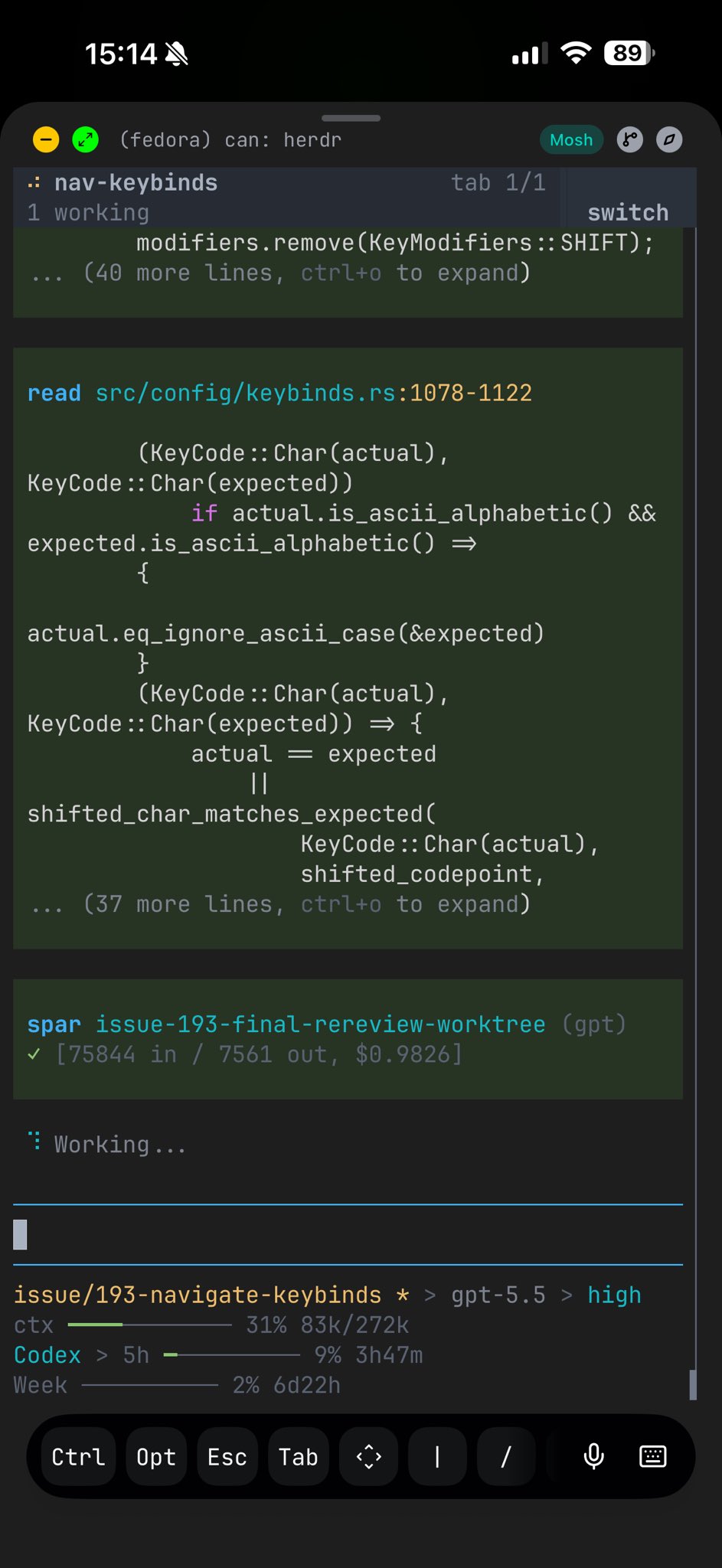
agent session over SSH
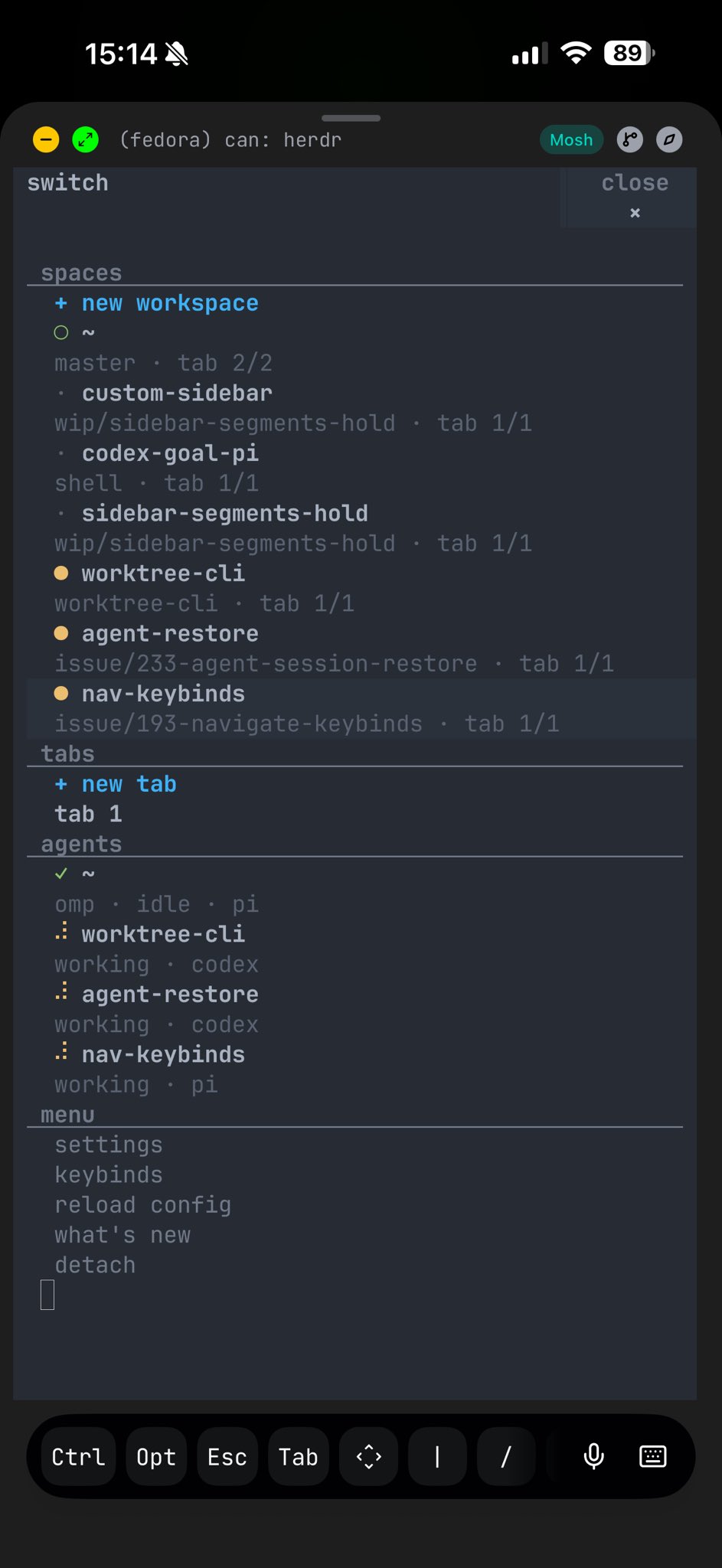
responsive switch menu
## Remote work from your local terminal
[Section titled “Remote work from your local terminal”](#remote-work-from-your-local-terminal)
Attach through SSH without opening a shell first:
```bash
herdr --remote workbox
herdr --remote ssh://you@server:2222
```
The remote server keeps the panes running and sends their terminal content and session state over SSH. Your local Herdr draws the UI using your local theme and presentation settings.
Use this path when you want the remote session to feel local. The client runs on your machine, so local desktop features such as image clipboard paste can be bridged to the remote server. If you SSH first and run `herdr` on the server, Herdr runs entirely on that server and cannot read your local desktop clipboard.
For repeat targets, put the host in your SSH config:
```text
Host workbox
HostName server.example.com
User you
Port 2222
```
Then attach with:
```bash
herdr --remote workbox
```
## Which path to use
[Section titled “Which path to use”](#which-path-to-use)
Use `herdr` for local work. Use `ssh you@server` then `herdr` when you want Herdr to behave like tmux on that remote shell or when you are using a phone SSH client. Use `herdr --remote <host>` for a local UI attached to one remote session, including local clipboard image paste. To keep Local and several SSH machines in one window, save them with `herdr machine add <host> --label <label>`; see [Connecting machines](/docs/connecting-machines/).
For remote bootstrap details, named remote sessions, custom binaries, and direct terminal attach, see [Persistence and remote access](/docs/persistence-remote/).
# Install Herdr
> Install, update, and verify Herdr on Linux, macOS, and Windows.
Herdr publishes stable-channel binaries for Linux, macOS, and Windows. Windows is generally available, with documented platform-specific limitations and ongoing fixes.
## Install
[Section titled “Install”](#install)
On Linux or macOS, run:
```bash
curl -fsSL https://herdr.dev/install.sh | sh
```
On Windows, run:
```powershell
powershell -ExecutionPolicy Bypass -c "irm https://herdr.dev/install.ps1 | iex"
```
If endpoint security blocks that fileless PowerShell command, open Command Prompt and run:
```cmd
curl.exe -fsSLo install.cmd https://herdr.dev/install.cmd && install.cmd && del install.cmd
```
The installer downloads the release binary for your platform and places it on your PATH. New direct installs use the stable update channel. Existing Windows preview installs stay on preview until you switch them with `herdr channel set stable`. On Windows, PATH points to the active versioned release directory; the installer also updates the `current` and stable `bin` compatibility aliases, so updates do not need to overwrite a running `herdr.exe`.
## Install with Homebrew
[Section titled “Install with Homebrew”](#install-with-homebrew)
If you already use Homebrew:
```bash
brew install herdr
```
## Install with mise
[Section titled “Install with mise”](#install-with-mise)
If you already use mise:
```bash
mise use -g herdr
```
If mise reports `herdr not found in mise tool registry`, update mise and retry. Older mise versions predate the Herdr registry entry; `mise use -g github:herdrdev/herdr` works as a temporary fallback.
## Install with Nix
[Section titled “Install with Nix”](#install-with-nix)
If you already use Nix, Herdr provides a flake that builds Herdr from source:
```bash
nix run github:herdrdev/herdr/v0.x.y
nix build github:herdrdev/herdr/v0.x.y
nix profile install github:herdrdev/herdr/v0.x.y
```
Replace `v0.x.y` with the latest release tag. You can omit the tag to track `master`, but release tags are recommended for normal installs.
The flake also exposes a development shell:
```bash
nix develop github:herdrdev/herdr
```
Use the same Nix workflow to update Herdr. For a profile install, list your profile entries and upgrade the Herdr entry:
```bash
nix profile list
nix profile upgrade <index-or-name>
```
If Herdr is an input in your own flake, update that input and rebuild your system, Home Manager, or development environment:
```bash
nix flake update herdr
```
## Download manually
[Section titled “Download manually”](#download-manually)
You can also download a binary from [GitHub releases](https://github.com/herdrdev/herdr/releases).
Choose the asset that matches your system:
| System | Asset |
| ------------------- | -------------------------- |
| Linux x86\_64 | `herdr-linux-x86_64` |
| Linux aarch64 | `herdr-linux-aarch64` |
| macOS Intel | `herdr-macos-x86_64` |
| macOS Apple silicon | `herdr-macos-aarch64` |
| Windows x86\_64 | `herdr-windows-x86_64.zip` |
On Linux or macOS, make it executable and move it somewhere on your PATH.
```bash
chmod +x herdr-linux-x86_64
mv herdr-linux-x86_64 ~/.local/bin/herdr
```
### Windows archive
[Section titled “Windows archive”](#windows-archive)
Stable releases and preview prereleases both include `herdr-windows-x86_64.zip`. The archive contains `herdr.exe` and its app-local ConPTY runtime. Keep the extracted directory together; do not copy only `herdr.exe`.
## Verify
[Section titled “Verify”](#verify)
Start Herdr:
```bash
herdr
```
If your shell cannot find `herdr`, restart the terminal or check that the install directory is on your PATH.
## Update
[Section titled “Update”](#update)
Herdr checks for new releases and notifies you in the app. You can update manually:
```bash
herdr update
```
Use `herdr update` only for installs managed by Herdr’s own installer. Update Homebrew, mise, and Nix installs through those package managers instead.
Direct installs on Linux, macOS, and Windows use the stable update channel by default. To opt into preview builds from `master`, set the channel:
```bash
herdr channel set preview
```
Switch a direct install back to stable the same way:
```bash
herdr channel set stable
```
For direct installs, changing channels checks the selected channel and installs its latest binary. If that update fails, run `herdr update` to retry from the configured channel.
Preview builds are regularly published GitHub prereleases from the current development branch. They are useful when you want fixes before the next stable release, but they can regress. Homebrew, mise, and Nix installs do not use the preview channel.
Stable is the recommended channel for normal Windows use. Preview receives fixes sooner but can regress, so opt in only when you want that tradeoff. Existing Windows preview installs remain on preview until you switch them explicitly. If an older preview build rejects `herdr channel set stable`, run `herdr update` once on preview, then retry the channel switch.
By default, `herdr update` installs the new binary and leaves endpoint-generation-1 servers and their pane processes running. Start Herdr again to reconnect with the updated client. Client-only changes work immediately. A new server-side action stays unavailable until that server is updated and restarted; the client shows a notice instead of disconnecting. Servers from before endpoint generation 1 need one final stop during update.
When it finishes, `herdr update` lists any running server still on the old version with the command that restarts it, and your saved SSH machines, which run their own Herdr. Run `herdr update` on each machine to update it too.
To opt into experimental live server handoff for supported running sessions, run:
```bash
herdr update --handoff
```
When both servers support agent-status transfer, live handoff preserves hook-reported agent status until the next report arrives. Handoff from an older server can temporarily show a running agent as idle.
Live handoff does not apply to Homebrew, mise, or Nix package-manager updates. For those installs, update with the package manager, then run Herdr again to reconnect with the updated client. The compatible old server keeps running. Restart it later with `herdr server stop` or `herdr session stop <name>` only when you want server-side changes from the new release.
## Requirements
[Section titled “Requirements”](#requirements)
Stable-channel binaries are available for Linux, macOS, and Windows x86\_64. See [Windows support](/docs/windows-beta/) for supported workflows and known limitations. Windows ARM64 runs the x86\_64 build under Windows emulation.
# Integrations
> Install Herdr integrations for Pi, OMP, Claude Code, Codex, GitHub Copilot CLI, Devin CLI, Droid, Kimi Code CLI, OpenCode, Kilo Code CLI, Hermes Agent, Qoder CLI, Qwen Code, Letta Code, Cursor Agent CLI, MastraCode, Antigravity CLI, and Grok CLI.
Herdr detects the agents it supports automatically. Install an agent’s integration so Herdr can resume the same session after a server restart. Some integrations also report the agent’s state directly. See [Agents](/docs/agents/) for which agents Herdr supports and which support Herdr themselves.
## Install integrations
[Section titled “Install integrations”](#install-integrations)
Open settings inside Herdr and use the integrations tab to install recommended integrations for agents found on your `PATH`, or run commands manually:
```bash
herdr integration install pi
herdr integration install omp
herdr integration install claude
herdr integration install codex
herdr integration install copilot
herdr integration install devin
herdr integration install droid
herdr integration install kimi
herdr integration install opencode
herdr integration install kilo
herdr integration install hermes
herdr integration install qodercli
herdr integration install qwen
herdr integration install letta
herdr integration install cursor
herdr integration install mastracode
herdr integration install antigravity-cli
herdr integration install grok
```
## Uninstall integrations
[Section titled “Uninstall integrations”](#uninstall-integrations)
```bash
herdr integration uninstall pi
herdr integration uninstall omp
herdr integration uninstall claude
herdr integration uninstall codex
herdr integration uninstall copilot
herdr integration uninstall devin
herdr integration uninstall droid
herdr integration uninstall kimi
herdr integration uninstall opencode
herdr integration uninstall kilo
herdr integration uninstall hermes
herdr integration uninstall qodercli
herdr integration uninstall qwen
herdr integration uninstall letta
herdr integration uninstall cursor
herdr integration uninstall mastracode
herdr integration uninstall antigravity-cli
herdr integration uninstall grok
```
Herdr saves integration configs atomically on Linux/macOS and for new files; existing Windows files keep their permissions through a backup-first, in-place update. If Windows reports a backup, close the agent and inspect the config before retrying: discard—not restore—an unfinished `.herdr-backup.pending` only after verifying the config, or restore completed `.herdr-backup` contents into the existing file if needed (if missing, establish its intended permissions first), then verify the config and remove the backup.
## How Herdr uses integrations
[Section titled “How Herdr uses integrations”](#how-herdr-uses-integrations)
Every integration tells Herdr which session the agent is in, so Herdr can resume it after a server restart. Turn this off with `[session] resume_agents_on_restore = false`.
The Pi, OMP, Kimi Code CLI, OpenCode, Kilo Code CLI, and MastraCode integrations also report the agent’s state. While they report, Herdr uses them instead of reading the screen. The others leave state to screen detection.
Native session restore requires current Herdr integrations: Pi integration version `2`, OMP version `3`, Claude Code version `6`, Codex version `5`, GitHub Copilot CLI version `2`, Devin CLI version `2`, Droid version `2`, Kimi Code CLI version `3`, Qoder CLI version `2`, Qwen Code version `1`, Letta Code version `1`, Cursor Agent CLI version `1`, Grok CLI version `2`, OpenCode version `5`, Kilo Code CLI version `1`, Hermes Agent version `5`, MastraCode version `1`, or Antigravity CLI version `1`. Check installed versions with `herdr integration status`.
## Integrate your own agent
[Section titled “Integrate your own agent”](#integrate-your-own-agent)
If you build a coding agent, you can report its state and resume command to Herdr from your own code, without adding native support to Herdr. See [Add Herdr support to your agent](/docs/add-herdr-support/).
## Pi
[Section titled “Pi”](#pi)
Install the Pi integration:
```bash
herdr integration install pi
```
Herdr writes the bundled extension to:
```text
~/.pi/agent/extensions/herdr-agent-state.ts
```
If `PI_CODING_AGENT_DIR` is set, Herdr writes to `$PI_CODING_AGENT_DIR/extensions/herdr-agent-state.ts` instead. Herdr creates the extensions directory when the Pi agent directory already exists. Uninstall removes only that extension file.
## OMP
[Section titled “OMP”](#omp)
Install the OMP integration:
```bash
herdr integration install omp
```
Herdr writes the bundled extension to:
```text
~/.omp/agent/extensions/herdr-omp-agent-state.ts
```
Herdr uses `PI_CODING_AGENT_DIR` as the complete agent directory when set. Otherwise, it uses `$HOME/$PI_CONFIG_DIR/agent` when `PI_CONFIG_DIR` is set, falling back to `~/.omp/agent`. If Pi and OMP resolve to the same extension directory, Herdr refuses the OMP install so the OMP extension cannot be loaded by Pi. Configure separate agent directories before installing both integrations. Herdr creates the extensions directory when the resolved OMP agent directory already exists. Uninstall removes only that extension file.
The OMP integration reports `omp` as the agent label, lifecycle state, and native session identity through Herdr’s socket API. It does not require native process detection for the `omp` executable, and Herdr can resume an OMP pane with `omp --resume=<session>` after a server restart.
## Claude Code
[Section titled “Claude Code”](#claude-code)
Install the Claude Code hook:
```bash
herdr integration install claude
```
The hook reports Claude Code session identity to the local Herdr socket on session start. Claude Code state comes from Herdr’s screen manifest detection.
Claude integration v10 matches only the documented `SessionStart` sources: `startup`, `resume`, `clear`, `compact`, and `fork`. This prevents Grok’s `new` and `load` events from launching the imported Herdr Claude hook, without disabling unrelated Claude-compatible hooks. Reinstall the Claude integration after upgrading to migrate the previous wildcard matcher. New Claude source values require an integration update.
Herdr uses `~/.claude` by default, or `CLAUDE_CONFIG_DIR` when set. The Claude config directory must already exist. Install writes `hooks/herdr-agent-state.sh` and updates `settings.json` with Herdr hook entries. Uninstall removes the matching hook entries and deletes the hook script.
## Codex
[Section titled “Codex”](#codex)
Install the Codex hook:
```bash
herdr integration install codex
```
The Codex hook reports session identity through the same local socket API used by other integrations. Codex state comes from Herdr’s screen manifest detection.
Herdr uses `~/.codex` by default, or `CODEX_HOME` when set. The Codex config directory must already exist. Install writes `herdr-agent-state.sh`, updates `hooks.json`, and ensures `[features] hooks = true` in `config.toml`. It also removes the deprecated top-level `codex_hooks` flag when present. Uninstall removes Herdr entries from `hooks.json` and deletes the hook script, but leaves `config.toml` unchanged.
## GitHub Copilot CLI
[Section titled “GitHub Copilot CLI”](#github-copilot-cli)
Install the GitHub Copilot CLI hook:
```bash
herdr integration install copilot
```
The Copilot hook reports session identity through the same local socket API used by other integrations. Copilot state comes from Herdr’s screen manifest detection.
Herdr uses `~/.copilot` by default, or `COPILOT_HOME` when set. The Copilot config directory must already exist. Install writes `hooks/herdr-agent-state.sh` and updates `settings.json` with a `SessionStart` hook entry. Uninstall removes Herdr entries from `settings.json` and deletes the hook script.
After Copilot emits a session-bearing event, Herdr can use the reported session id to resume the pane with `copilot --resume=<id>`.
## Devin CLI
[Section titled “Devin CLI”](#devin-cli)
Install the Devin CLI hook:
```bash
herdr integration install devin
```
The hook reports native session identity from Devin session, prompt, tool-use, permission, and stop events. Devin state still comes from Herdr’s screen manifest and OSC detection because Devin hooks do not emit a reliable state transition after every permission cancellation or user interrupt.
Herdr uses `$XDG_CONFIG_HOME/devin` when `XDG_CONFIG_HOME` is set. Otherwise, it uses `~/.config/devin` on Linux and macOS or `%APPDATA%\devin` on Windows. The Devin config directory must already exist. Install writes `herdr-agent-state.sh` on Unix or `herdr-agent-state.ps1` on Windows and updates `config.json` with Herdr hook entries. The hook refreshes the session reference while Devin runs. Uninstall removes Herdr entries from `config.json` and deletes the hook script.
Herdr resumes stored Devin sessions with `devin --resume <id>`. Native screen manifest detection remains the state authority whether or not the hook is installed.
## Kimi Code CLI
[Section titled “Kimi Code CLI”](#kimi-code-cli)
Install the Kimi Code CLI hook:
```bash
herdr integration install kimi
```
The hook reports Kimi session identity and lifecycle state to Herdr for native restore and authoritative `idle`, `working`, and `blocked` status. It requires Kimi Code CLI `0.14.0` or newer.
Herdr uses `~/.kimi-code` by default, or `KIMI_CODE_HOME` when set. The Kimi Code config directory must already exist. Install writes `hooks/herdr-agent-state.sh` and appends Herdr-managed `[[hooks]]` entries to `config.toml`. Uninstall removes the Herdr-managed config block and deletes the hook script.
Herdr resumes stored Kimi sessions with `kimi --session <id>`.
## Droid
[Section titled “Droid”](#droid)
Install the Droid hook:
```bash
herdr integration install droid
```
The Droid hook reports session identity through the same local socket API used by other integrations. Lifecycle state still comes from Herdr’s screen manifest detection because Droid hooks do not cover every lifecycle transition.
Herdr uses `~/.factory` for Droid hooks. The Factory config directory must already exist. Install writes `hooks/herdr-agent-state.sh`, updates `settings.json` with a Herdr `SessionStart` hook entry, and removes older Herdr Droid hook entries from `hooks.json` if present. Uninstall removes Herdr entries from both config files and deletes the hook script.
After Droid emits a session start event, Herdr can use the reported session id to resume the pane with `droid --resume <id>`.
## OpenCode
[Section titled “OpenCode”](#opencode)
Install the OpenCode plugin:
```bash
herdr integration install opencode
```
The integration supports OpenCode V1 `1.18.29` or later and OpenCode V2 (tested with beta `19242`). The OpenCode config directory must already exist. Herdr installs the server entrypoint at `~/.config/opencode/plugins/herdr-agent-state.js`, the shared TUI plugin at `herdr-tui-session.js`, and a V2 TUI entrypoint at `herdr-opencode/tui.js` in that config directory.
Install registers the V1 TUI plugin in `tui.jsonc` and the V2 TUI plugin in `cli.json`, preserving other preferences and plugins. An existing V1 registration in `tui.json` also counts as installed and is reused without creating `tui.jsonc`. Uninstall removes the Herdr registration from both TUI config files while keeping the files and other preferences. If OpenCode still has V1 TUI preferences to import (`tui.json` or `kv.json`), Herdr defers registration so the first-start migration can run; start `opencode2` once and reinstall the integration afterward. Otherwise Herdr creates `cli.json` with the plugin registration. Restart the OpenCode TUI after installation. Uninstall removes the managed plugin files and their configuration entries.
V2 lifecycle reporting runs in the pane-local TUI, which associates events with its selected root session even when multiple panes share one OpenCode server. Completion and interruption clear the working state; pending permission requests, pending forms, and failed executions keep the pane blocked. V2 Mini and headless clients do not run the TUI plugin and therefore do not provide this lifecycle reporting.
V1 TUI reporting follows the pane’s selected session and its descendants. The pane stays working while any of them is busy or retrying, and blocked while any has a pending permission or question. Attaching loads existing activity; cancelled tool requests do not become blockers again after reconnecting. Browsing a subagent keeps the original session family, while directly attaching to a child tracks that child’s subtree rather than its siblings.
Local V1 `opencode run` and `opencode --mini` retain their legacy server hooks; this change does not add pane-local lifecycle reporting to Mini/headless clients. After updating the integration, restart shared OpenCode servers as well as their TUIs so the old server reporter cannot overwrite pane-local state.
The plugin reports lifecycle state and session identity while OpenCode runs inside a Herdr pane. After OpenCode emits a session-bearing event, Herdr can use the reported session id to resume the pane with `opencode --session <id>`. Native screen manifest detection remains available when the plugin is not installed.
## Kilo Code CLI
[Section titled “Kilo Code CLI”](#kilo-code-cli)
Install the Kilo Code CLI plugin:
```bash
herdr integration install kilo
```
Herdr writes the plugin to `~/.config/kilo/plugin/herdr-agent-state.js`. The Kilo config directory must already exist. Uninstall removes only that plugin file.
The plugin reports lifecycle state and session identity while Kilo runs inside a Herdr pane. After Kilo emits a session-bearing event, Herdr can use the reported session id to resume the pane with `kilo --session <id>`. Native screen manifest detection remains available when the plugin is not installed.
## Hermes Agent
[Section titled “Hermes Agent”](#hermes-agent)
Install the Hermes Agent plugin:
```bash
herdr integration install hermes
```
Herdr writes `plugins/herdr-agent-state/` under the Hermes home directory and enables `herdr-agent-state` in its `config.yaml`. `HERMES_HOME` defaults to `~/.hermes` on Unix and `%LOCALAPPDATA%\hermes` on Windows. The Hermes config directory must already exist. Restart Hermes after installing so the plugin loads. Uninstall removes the plugin directory and removes `herdr-agent-state` from `plugins.enabled`.
The plugin reports the resumable session id while Hermes runs inside a Herdr pane. Herdr uses screen manifest detection for `working`, `idle`, and `blocked`, and can use the reported session id to resume the pane with `hermes --resume <id>`.
## Qoder CLI
[Section titled “Qoder CLI”](#qoder-cli)
Install the Qoder CLI hook:
```bash
herdr integration install qodercli
```
The hook reports Qoder CLI session identity to Herdr for native restore. Lifecycle state still comes from Herdr’s screen manifest detection because Qoder hooks do not cover every lifecycle transition.
Herdr uses `~/.qoder` by default, or `QODER_CONFIG_DIR` when set. The Qoder config directory must already exist. Install writes `hooks/herdr-agent-state.sh` and updates `settings.json` with Herdr hook entries. Uninstall removes the matching hook entries and deletes the hook script.
Herdr resumes stored Qoder CLI sessions with `qodercli --resume <id>`.
Native screen manifest detection remains available when the hook is not installed.
## Qwen Code
[Section titled “Qwen Code”](#qwen-code)
Install the Qwen Code hook:
```bash
herdr integration install qwen
```
The `SessionStart` hook reports only Qwen Code’s session identity for native restore. Lifecycle state remains under Herdr’s screen manifest detection.
Herdr uses `~/.qwen` by default, or `QWEN_HOME` when set. The Qwen config directory must already exist. Install writes `hooks/herdr-agent-session.sh` (`hooks/herdr-agent-session.ps1` on Windows) and adds a Herdr entry to `settings.json`. Uninstall removes only the matching entry and managed script.
Herdr resumes stored Qwen Code sessions with `qwen --resume <id>`.
## Letta Code
[Section titled “Letta Code”](#letta-code)
Letta Code integration installation is experimental and CLI-only. It is not listed in the Settings integration screen or the JSON integration API. `herdr integration status` reports it as `letta (experimental)`. Agent detection and `herdr agent start --kind letta` are supported independently of this installation restriction.
Install the Letta Code hook:
```bash
herdr integration install letta
```
The quiet `SessionStart` hook reports the conversation ID for native restore. Letta Code state still comes from Herdr’s screen manifest detection.
Herdr uses `~/.letta`. The config directory must already exist. Install writes `hooks/herdr-agent-session.sh` (`hooks/herdr-agent-session.ps1` on Windows) and adds a Herdr entry to `settings.json`. Uninstall removes only the matching entry and managed script.
Herdr resumes named conversations with `letta --conversation <id>`. It records the default conversation as `default:<agent-id>` and resumes it with `letta --conversation default --agent <agent-id>`.
## Cursor Agent CLI
[Section titled “Cursor Agent CLI”](#cursor-agent-cli)
Install the Cursor Agent CLI hook:
```bash
herdr integration install cursor
```
The hook reports session identity through Cursor’s `sessionStart` hook while Cursor Agent CLI runs inside a Herdr pane. Cursor state comes from Herdr’s screen manifest detection.
Herdr uses `~/.cursor` by default, or `CURSOR_CONFIG_DIR` when set. The Cursor config directory must already exist. Install writes `herdr-agent-state.sh` (`herdr-agent-state.ps1` on Windows) and adds a Herdr `sessionStart` entry to `hooks.json`. Uninstall removes the matching hook entry and deletes the hook script.
After Cursor emits a session start event, Herdr can use the reported session id to resume the pane with `cursor-agent --resume <id>`. The `cursor-agent` command must be on `PATH` when Herdr restores the pane; Herdr does not launch the generic `agent` command.
## MastraCode
[Section titled “MastraCode”](#mastracode)
Install the MastraCode hook:
```bash
herdr integration install mastracode
```
The hook reports MastraCode lifecycle state and thread identity to Herdr for authoritative `idle`, `working`, and `blocked` status and native restore. MastraCode has no screen manifest fallback; state comes from the hook while MastraCode runs inside a Herdr pane.
Herdr uses `~/.mastracode`. Install writes `hooks/herdr-agent-state.sh` (`hooks/herdr-agent-state.ps1` on Windows) and adds Herdr command entries to `hooks.json`, creating the directory when missing. Uninstall removes the matching hook entries and deletes the hook script.
Herdr resumes stored MastraCode threads with `mastracode --thread <id>`.
## Antigravity CLI
[Section titled “Antigravity CLI”](#antigravity-cli)
Install the Antigravity CLI hook:
```bash
herdr integration install antigravity-cli
```
Herdr uses `~/.gemini/config/` by default, or `ANTIGRAVITY_CLI_CONFIG_DIR` when set. This is the directory Antigravity CLI reads global customizations from, and it must already exist. Install writes `hooks/herdr-agent-state.sh` (or `herdr-agent-state.ps1` on Windows) and adds a Herdr-owned `herdr` block to `hooks.json`. Antigravity CLI keys `hooks.json` by hook name, so install rewrites only that block and leaves other named hooks untouched. Uninstall removes the `herdr` block and deletes the hook script.
This session-only integration reports the pane’s current conversation, but not agent state. Herdr keeps deriving working, idle, and blocked from what Antigravity CLI draws on screen.
The hook runs on `PreInvocation`, so Herdr learns the conversation once the first prompt is sent. From then on Herdr can resume the pane with `agy --conversation <id>` after a Herdr server restart.
## Grok CLI
[Section titled “Grok CLI”](#grok-cli)
Install the Grok CLI hook:
```bash
herdr integration install grok
```
The hook reports session identity through Grok’s `SessionStart` hook while Grok CLI runs inside a Herdr pane. Grok state comes from Herdr’s screen manifest detection.
Herdr uses `~/.grok` by default, or `GROK_HOME` when set. The Grok config directory must already exist. Grok merges every `hooks/*.json` file in that directory, so install writes a self-contained `hooks/herdr.json` with the Herdr `SessionStart` entry next to `hooks/herdr-agent-state.sh` (`hooks/herdr-agent-state.ps1` on Windows), and never edits other hook files. Uninstall removes exactly those two Herdr-owned files.
After Grok emits a session start event, Herdr can use the reported session id to resume the pane with `grok --resume <id>`.
## Custom status labels
[Section titled “Custom status labels”](#custom-status-labels)
Integrations report lifecycle state as semantic state only. For example, report an agent as `working` without adding display fields to the lifecycle report.
```bash
herdr pane report-agent w1:p1 \
--source custom:docs \
--agent docs-bot \
--state working
```
User hooks that run next to a Herdr-managed integration should use metadata instead of `report-agent`. Metadata changes presentation without taking over the integration’s `idle`, `working`, `blocked`, or session restore authority. `--agent` and `--applies-to-source` guard only presentation fields (`--title`, `--display-agent`, and `--state-label`). Token patches always apply; their reporter owns clearing or TTL refresh. `--display-agent` changes the visible name.
```bash
herdr pane report-metadata "$HERDR_PANE_ID" \
--source user:claude-title \
--agent claude \
--title "Refactor auth middleware" \
--display-agent "Claude: auth" \
--token summary="refactor auth" \
--state-label working="refactoring auth" \
--ttl-ms 3600000
```
Tokens and state labels are visual-only. Waits, notifications, and workspace rollups still use the semantic state.
## Debug integration state
[Section titled “Debug integration state”](#debug-integration-state)
List known agents:
```bash
herdr agent list
```
Read a pane when you need to verify what Herdr can see:
```bash
herdr pane read w1:p1 --source recent --lines 50
```
If integration state looks wrong, first confirm the agent is running inside Herdr and that the relevant hook or plugin was installed for the same user account.
# Keyboard
> What the prefix is, which bindings to learn first, and how to go prefix-free.
Coming from tmux or zellij?
You already know this model. Jump to the [keybinding reference](/docs/configuration/#keybindings) for the full default keymap and config syntax.
Herdr is mouse-native. You can click panes, tabs, workspaces, and agents, drag split borders, and use right-click menus without learning a single keybinding. Keyboard control is optional.
## What the prefix is
[Section titled “What the prefix is”](#what-the-prefix-is)
A terminal multiplexer sits between your terminal and the programs running inside it. Those programs already use most key combinations: `ctrl+c` interrupts, `ctrl+r` searches history, editors claim nearly everything else. If Herdr grabbed common keys directly, it would break the programs inside it.
The prefix solves this. Press the prefix key, default `ctrl+b`, and the next keypress goes to Herdr instead of your terminal. `prefix+c` means: press `ctrl+b`, release, then press `c`. Herdr reserves one key instead of dozens.
Press `prefix+?` at any time to see every active binding. Press `/` in the keybind help to filter actions and shortcuts; use Backspace to edit the filter or `ctrl+u` to clear it.
## Learn these five first
[Section titled “Learn these five first”](#learn-these-five-first)
| Action | Key |
| -------------------------------- | --------------------------- |
| New tab | `prefix+c` |
| Split right / down | `prefix+v` / `prefix+minus` |
| Move between panes | `prefix+h/j/k/l` |
| Workspace navigation | `prefix+w` |
| Detach, leave everything running | `prefix+q` |
These cover most daily movement. Everything else can stay on the mouse.
## The rest, by task
[Section titled “The rest, by task”](#the-rest-by-task)
Panes:
| Action | Key |
| --------------------- | ---------------------- |
| Zoom the focused pane | `prefix+z` |
| Close pane | `prefix+x` |
| Swap panes | `prefix+shift+h/j/k/l` |
| Resize mode | `prefix+r` |
| Copy mode | `prefix+[` |
Tabs:
| Action | Key |
| ------------------- | ----------------------- |
| Next / previous tab | `prefix+n` / `prefix+p` |
| Jump to tab 1–9 | `prefix+1..9` |
| Rename tab | `prefix+shift+t` |
| Close tab | `prefix+shift+x` |
Workspaces and session:
| Action | Key |
| ---------------- | ---------------- |
| New workspace | `prefix+shift+n` |
| Rename workspace | `prefix+shift+w` |
| Close workspace | `prefix+shift+d` |
| Goto picker | `prefix+g` |
| Toggle sidebar | `prefix+b` |
The full keymap and the binding syntax live in the [keybinding reference](/docs/configuration/#keybindings).
The Goto picker (`prefix+g`) lists each agent or terminal on its own row, grouped by workspace. Split tabs never hide their panes behind another row. Click a row or press Enter to jump directly to it. Press `/` to search names, agent kinds, tabs, workspaces, branches, or paths; use Up/Down or `j/k` to move between rows when not typing a search. Left/Right jumps to the first agent or terminal in the previous/next workspace section, without wrapping. While editing a search, Left/Right moves the text cursor instead. Outside search, `b/w/i/d` filter blocked, working, idle, or done agents, and `a` shows all terminals again. The selected destination’s location and path appear below the list. When the list overflows, use the mouse wheel, click the scrollbar track, or drag its thumb to scroll without opening a destination.
## Editing text fields
[Section titled “Editing text fields”](#editing-text-fields)
Herdr’s naming dialogs, worktree branch fields, filters, and copy-mode search support editing at the cursor. These shortcuts apply to Herdr-owned fields, not to the shell or agent inside a pane.
| Action | Keys |
| ----------------------------- | ------------------------------------- |
| Move one character | Left / Right, Ctrl+B / Ctrl+F |
| Move to the beginning / end | Home / End, Ctrl+A / Ctrl+E |
| Move one word | Alt+B / Alt+F |
| Delete the previous character | Backspace, Ctrl+H |
| Delete the next character | Delete, Ctrl+D |
| Cut to the beginning / end | Ctrl+U / Ctrl+K |
| Cut the previous word | Ctrl+W, Alt+Backspace, Ctrl+Backspace |
| Cut the next word | Alt+D |
| Insert the last cut text | Ctrl+Y |
Typing and paste insert at the cursor. Movement and deletion respect Unicode grapheme boundaries, and long values scroll horizontally. Cut text stays within the current field; it does not use the system clipboard. Alt shortcuts require the terminal to report Alt/Meta. Enter and Esc retain the dialog’s confirm and cancel behavior.
## Copy mode
[Section titled “Copy mode”](#copy-mode)
Press `prefix+[` to enter copy mode for the focused pane. Use `h/j/k/l`, tmux-style `w/b/e` and big-word `W/B/E`, `{`/`}`, `PageUp`/`PageDown`, `ctrl+b`/`ctrl+f`, and `ctrl+u`/`ctrl+d` to move. Press `/` or `?` for forward or backward literal search, then `n` or `N` to repeat in the same or opposite direction. Search is case-insensitive unless the query contains an uppercase letter. Use `v` or Space to start a selection, `y` or Enter to copy it, and `q` or Esc to leave without copying. Esc clears an active selection or search before exiting. Copy mode does not pause the pane process: output remains live, follows at the bottom, and stays pinned when you navigate into history. The configured prefix keeps its normal meaning in copy mode; with the default prefix, `ctrl+b` enters prefix mode instead of paging up, so use a different prefix if you want `ctrl+b` for copy-mode page-up. Mouse drag-select copies without entering copy mode at all.
Mouse drag selections and selections started with `v`, Space, or `V` remain active during output and redraws, including when part of the selected range is outside the viewport. Copy reads the current text in that range, not a frozen snapshot. Resizing the pane or switching between its normal and alternate screens still clears the selection. Search results and double-click word selections retain their content-change checks.
## Change anything
[Section titled “Change anything”](#change-anything)
Every binding is configurable, including the prefix itself:
```toml
[keys]
prefix = "ctrl+a"
```
## Going prefix-free
[Section titled “Going prefix-free”](#going-prefix-free)
You can bind Herdr actions to direct chords that need no prefix at all. The hard part is knowing which chords are safe, because terminals, shells, and desktop environments already own most of the keyboard.
Any chord works as a binding: `ctrl+j`, `alt+k`, whatever fits your hands. But a chord has to survive three layers before Herdr sees it: your operating system, your outer terminal (Ghostty, iTerm2, and others ship their own defaults), and the programs running inside the pane. `ctrl+j` reaches Herdr fine, but shells and editors treat it as enter. `alt+k` is free on Linux, but macOS composes it into a special character in most terminals. If you pick chords from these families, double-check them against your own terminal and OS shortcuts.
We mapped the default keybindings of Ghostty, iTerm2, Terminal.app, kitty, WezTerm, Alacritty, Warp, Windows Terminal, GNOME Terminal, and Konsole, plus the global shortcuts of GNOME and KDE. One modifier family is almost untouched everywhere: `ctrl+alt`. Terminals leave it free, it is not affected by the macOS option-key composing behavior that blocks plain `alt` chords, and it transmits even in terminals without a modern keyboard protocol. It is a safe default, but the choice is yours.
This setup keeps the prefix bindings working and adds direct chords on top:
```toml
[keys]
focus_pane_left = ["prefix+h", "ctrl+alt+h"]
focus_pane_down = ["prefix+j", "ctrl+alt+j"]
focus_pane_up = ["prefix+k", "ctrl+alt+k"]
focus_pane_right = ["prefix+l", "ctrl+alt+l"]
previous_tab = ["prefix+p", "ctrl+alt+["]
next_tab = ["prefix+n", "ctrl+alt+]"]
new_tab = ["prefix+c", "ctrl+alt+c"]
split_vertical = ["prefix+v", "ctrl+alt+d"]
split_horizontal = ["prefix+minus", "ctrl+alt+shift+d"]
zoom = ["prefix+z", "ctrl+alt+z"]
```
A few `ctrl+alt` chords are taken elsewhere. Avoid these:
| Chord | Owned by |
| --------------------------- | ------------------------------------------------------- |
| `ctrl+alt+arrows` | GNOME workspace switching, Ghostty and Konsole defaults |
| `ctrl+alt+t` | ”Launch terminal” on Ubuntu and Fedora |
| `ctrl+alt+l` / `ctrl+alt+a` | KDE lock screen / attention window |
| `ctrl+alt+s` / `ctrl+alt+u` | Konsole |
| `ctrl+alt+f1..f12` | Linux virtual console switching |
If a direct chord does nothing, your terminal or desktop environment consumed it before Herdr could see it. Rebind either side: free the chord in the terminal’s settings, or pick another chord in Herdr.
# Marketplace
> Discover community Herdr plugins on GitHub, and get your own plugin listed.
The Herdr plugin marketplace indexes community plugins. Browse it at [herdr.dev/plugins](/plugins/). The index covers public GitHub repositories; it is not a reviewed catalog.
## Browse plugins
[Section titled “Browse plugins”](#browse-plugins)
The [marketplace](/plugins/) lists public repositories tagged with the GitHub topic `herdr-plugin` when their default branch contains at least one `herdr-plugin.toml` whose required metadata can be parsed. Search by repository or plugin metadata, and sort repository cards by popularity, recent activity, or newest. Each card links to its source repository and lists every discovered plugin inside it.
Discovery is automatic and unreviewed. A listing means a repository tagged itself, not that Herdr vetted it, so the [trust guidance](/docs/plugins/#trust-and-security) applies before you install anything.
## Install a plugin
[Section titled “Install a plugin”](#install-a-plugin)
The marketplace helps you discover plugins. Install any plugin straight from GitHub:
```bash
herdr plugin install owner/repo[/subdir...]
```
The command works with a public GitHub repository that has a `herdr-plugin.toml` manifest at its root or in a subdirectory. See [Plugins](/docs/plugins/) for the manifest and authoring reference.
## Get your plugin listed
[Section titled “Get your plugin listed”](#get-your-plugin-listed)
Add the GitHub topic `herdr-plugin` to a public repository and put one or more `herdr-plugin.toml` manifests with parseable required metadata on its default branch. Manifests may be at the root or in subdirectories. The marketplace uses one card per repository and lists each valid manifest as a separately installable plugin. The index refreshes automatically every 30 minutes and rescans repositories when their default-branch head changes.
## What a listing shows
[Section titled “What a listing shows”](#what-a-listing-shows)
Each card shows GitHub repository metadata: the repository name and owner, its description, star count, primary language, and the time it was last pushed. Its plugin rows show each manifest’s `name` and `version` and link to the exact source directory. The index records the manifest path, `id`, `name`, `version`, `platforms`, and `min_herdr_version` together with the exact default-branch commit. Forks, archived repositories, repositories without a valid plugin manifest, and malformed manifest metadata are excluded.
# Persistence and remote access
> Detach from Herdr, reattach later, use named sessions, and connect over SSH.
Herdr keeps panes running in a background server. Your terminal client can detach and reconnect later.
For the local, SSH, and `herdr --remote` workflows, see [How to work with Herdr](/docs/how-to-work/).
## Detach and reattach
[Section titled “Detach and reattach”](#detach-and-reattach)
Detach the client with `ctrl+b q`; panes and agents keep running. Reattach by running `herdr` again. Stop the session and its panes with `herdr server stop`.
When Herdr starts again after a full server stop, it restores the saved session shape. For what survives detach, server restart, screen history replay, native agent session restore, and live handoff, see [Session state and restore](/docs/session-state/).
## Named sessions
[Section titled “Named sessions”](#named-sessions)
Use named sessions when you want independent Herdr servers.
```bash
herdr session list
herdr session attach work
herdr session attach side-project
herdr session stop work
herdr session delete side-project
```
A named session has its own panes, tabs, workspaces, sockets, and runtime state. It still shares the same global config file.
When deleting a session, use the exact name shown by `herdr session list`, including letter case. On case-insensitive filesystems, `herdr session delete foo` refuses to delete a session named `Foo`.
Use `--json` for scripts:
```bash
herdr session list --json
herdr session stop work --json
herdr session delete side-project --json
```
## Saved SSH machines
[Section titled “Saved SSH machines”](#saved-ssh-machines)
To keep Local and several SSH machines in one Herdr window, see [Connecting machines](/docs/connecting-machines/). That guide covers setup, switching, reconnects, settings, and remote automation. Removing a saved machine only disconnects the client; it does not stop that machine’s sessions.
## Remote attach over SSH
[Section titled “Remote attach over SSH”](#remote-attach-over-ssh)
[How to work with Herdr](/docs/how-to-work/) compares the connection paths. SSH to the server and run `herdr` there for the tmux-style path, use [saved SSH machines](/docs/connecting-machines/) for multi-machine work, or attach through SSH from your local machine:
```bash
herdr --remote workbox
herdr --remote ssh://you@server:2222
```
In this mode, the remote server owns the running panes and sends their terminal content and session state over SSH. Your local Herdr draws the UI, including its sidebar, menus, and theme. Because the client runs locally, Herdr can bridge local desktop features such as image clipboard paste into the remote session by copying the image to a remote temp file and pasting that path.
By default, `herdr --remote` uses your local Herdr keybindings for that attach. This keeps local muscle memory even when the remote server has different config. After editing local keybindings, use the UI’s `reload config` action to apply them without detaching. Use `--remote-keybindings server` when you want the remote server config instead. Local custom command keybindings are not sent, because those commands would run on the remote host.
For repeat targets, use your SSH config:
```text
Host workbox
HostName server.example.com
User you
Port 2222
```
Then attach with:
```bash
herdr --remote workbox
```
Remote attach and saved SSH machines support Linux, macOS, and Windows local clients connecting to Linux or macOS hosts on x86\_64 and aarch64, or Windows hosts on x86\_64. Local and remote versions do not need to match once both support the stable endpoint generation. On Linux and macOS hosts, Herdr prefers a compatible `herdr` already on the remote `PATH`, then checks common direct, Homebrew, mise, and Nix profile install paths. On Windows hosts, Herdr checks `PATH` and the active managed release. If no compatible binary exists, interactive runs prompt to install or update one; non-interactive runs fail instead of modifying the host. Linux and macOS installs use `~/.local/bin/herdr`; Windows installs use the complete Windows package and its app-local ConPTY runtime. If `~/.local/bin` is not on the remote `PATH`, Herdr warns after install.
By default, `herdr --remote` runs remote setup and the bridge through a temporary SSH config that includes your SSH config first, then adds fallback keepalive settings. Existing user keepalive settings win. Linux and macOS clients also use a private per-attach control socket for connection reuse; Windows OpenSSH does not. Set `[remote].manage_ssh_config = false` to use plain `ssh` without Herdr’s generated config or control socket.
Remote attach uses your normal OpenSSH authentication. If the target uses a passphrase-protected key in a non-interactive shell, script, CI job, or mobile terminal that cannot show the passphrase prompt, load the key into ssh-agent first:
```bash
ssh-add
herdr --remote workbox
```
For any remote authentication failure, verify plain SSH access first with `ssh workbox`, then run `herdr --remote workbox` again.
A version difference alone does not replace or restart a running remote server. Remote attach asks before stopping a server that lacks required compatibility or detached-daemon support. For saved machines, this also includes the surface and health-check capabilities described in [Connecting machines](/docs/connecting-machines/#updates-and-saved-data). The default answer is No; stopping the server ends its pane processes. To opt into experimental live handoff when that one-time upgrade is needed, pass `--handoff`:
```bash
herdr --remote workbox --handoff
```
If you SSH into the server first and run `herdr` there, Herdr runs entirely on the server and cannot access your local desktop clipboard beyond normal terminal text paste.
For Linux and macOS hosts, Herdr can copy the current local binary when the platforms match. For Homebrew, mise, and Nix installs, when the platforms differ, or for Windows hosts, it downloads the matching release asset for the current client version from `https://herdr.dev/latest.json`.
For local builds or custom packages, set `HERDR_REMOTE_BINARY` to a local file path before running remote attach. Use a bare Herdr executable for Linux or macOS targets and a complete `herdr-windows-x86_64.zip` package for Windows targets.
```bash
HERDR_REMOTE_BINARY=target/release/herdr herdr --remote workbox
```
## Remote named sessions
[Section titled “Remote named sessions”](#remote-named-sessions)
Use `--session` with `--remote` to attach to a named session on the remote host:
```bash
herdr --remote workbox --session agents
```
## Direct terminal attach
[Section titled “Direct terminal attach”](#direct-terminal-attach)
Full Herdr attach opens the whole workspace UI. Direct attach opens one server-owned terminal in your current terminal.
Direct terminal attach is available on Linux and macOS, not native Windows.
Attach by agent target:
```bash
herdr agent attach reviewer
```
Attach by terminal ID:
```bash
herdr terminal attach term_abc123
```
Direct attach streams the current rendered terminal state, then live ANSI frames. Input goes straight to that terminal.
Detach with `ctrl+b q`. Send a literal `ctrl+b` with `ctrl+b ctrl+b`.
Only one writable direct attach client owns input and resize for a terminal. Use `--takeover` to replace an existing owner:
```bash
herdr terminal attach term_abc123 --takeover
```
For third-party bridges that only need rendered terminal bytes, use a read-only terminal session observer:
```bash
herdr terminal session observe w1:p1 --cols 120 --rows 40
```
It prints newline-delimited JSON `terminal.frame` records with base64 ANSI bytes, then a `terminal.closed` record when the server closes the stream. Multiple observers can watch the same terminal without taking input, resize, scroll, or takeover ownership.
For an interactive bridge, use a writable terminal session controller:
```bash
herdr terminal session control w1:p1 --takeover --cols 120 --rows 40
```
Control mode prints the same newline-delimited frame records and reads newline-delimited JSON commands on stdin. `terminal.input` sends text or base64 bytes, `terminal.resize` changes the controller viewport, `terminal.scroll` scrolls the attached viewport, `terminal.mouse` sends a mouse event at a cell to applications that enabled mouse reporting, and `terminal.release` closes the controller. Only one controller owns input and resize at a time.
# Plugins
> Author local Herdr plugins with manifest actions, event hooks, and panes.
Herdr plugins are shareable, executable workflow packages. A plugin can be a Bash script, JavaScript app, Lua script, Rust binary, or any other argv command your machine can run. Herdr owns the host surface: installation, manifest validation, keybindings, terminal panes, events, invocation context, and socket access. The plugin owns its implementation language, dependencies, files, and durable state.
Plugins exist so Herdr can stay lean. The core stays focused on terminal workspaces, panes, agents, and a stable CLI/socket API. Plugins turn that existing extension surface into reusable workflows that people can build, install, and share without adding every workflow to Herdr itself.
A plugin is a directory with a `herdr-plugin.toml` manifest and commands Herdr can launch. Herdr validates the manifest, injects runtime context, starts the declared commands, and records logs. The commands call back into Herdr through the CLI or socket when they need to do more work.
There is no separate plugin SDK or restricted command set. The entire Herdr CLI is the plugin API. Every command in the [CLI reference](/docs/cli-reference/) is available to a plugin, and a plugin can run anything you can run yourself as `herdr ...`. Most plugins should call Herdr through `HERDR_BIN_PATH`, which points at the running Herdr binary. That keeps plugins portable across Unix sockets and Windows named pipes. Use the [socket API](/docs/socket-api/) when you want to send raw JSON requests yourself.
Runtime action registration and native non-terminal plugin UI are not part of plugin v1. Actions, event hooks, panes, and link handlers are all declared in the manifest.
## Trust and security
[Section titled “Trust and security”](#trust-and-security)
A plugin is ordinary code that runs on your machine. Its build and runtime commands run as your user, inherit your environment, and can call the full Herdr CLI. Treat a plugin like any extension you add to an editor, shell, or coding agent.
Install or link plugins only from authors and repositories you trust. Before installing or linking one, skim the `herdr-plugin.toml` manifest and the scripts or binaries it runs. `herdr plugin install` shows a preview of the source and the commands it will run in interactive terminals, so you can review before confirming. Use `--yes` for sources you already trust, and pin `--ref` when you want a specific revision.
Herdr validates the manifest and keeps each plugin’s config and state in its own directory, but it does not review or sandbox plugin code. Third-party plugins come from their authors, not Herdr; you are responsible for deciding whether to run them.
## Manifest
[Section titled “Manifest”](#manifest)
The manifest is the contract between Herdr and the plugin. It declares package metadata, supported platforms, optional build commands, and the entrypoints Herdr can run.
```toml
id = "example.layout"
name = "Layout"
version = "0.1.0"
min_herdr_version = "0.7.0"
description = "Apply project layouts"
platforms = ["linux", "macos", "windows"]
[[build]]
command = ["npm", "ci"]
[[build]]
command = ["npm", "run", "build"]
platforms = ["linux", "macos"]
[[startup]]
command = ["node", "dist/restore.js"]
[[actions]]
id = "apply"
title = "Apply layout"
contexts = ["workspace"]
command = ["node", "dist/apply.js"]
[[events]]
on = "worktree.created"
command = ["herdr", "workspace", "list"]
[[panes]]
id = "board"
title = "Project board"
placement = "overlay"
command = ["herdr-board"]
[[link_handlers]]
id = "github-issue"
title = "Open GitHub issue"
pattern = "^https://github\\.com/[^/]+/[^/]+/(issues|pull)/[0-9]+$"
action = "apply"
```
Top-level `id`, `name`, `version`, and `min_herdr_version` are required. Set `min_herdr_version` to the oldest Herdr version that supports the plugin APIs, event names, and manifest fields your plugin uses. Herdr refuses to link or install a plugin when its minimum version is newer than the current binary. `description` is optional. Plugin ids may use ASCII letters, digits, dot, colon, underscore, and hyphen.
Action ids, pane ids, and link handler ids are local ids inside the plugin. They may use ASCII letters, digits, colon, underscore, and hyphen, but not dots. Each id type must be unique inside a plugin. Herdr qualifies action ids as `plugin.id.action` when it needs a globally unique name.
Use `platforms = ["linux", "macos", "windows"]` to declare where the plugin can run. Build commands, startup hooks, actions, event hooks, panes, and link handlers can also declare their own `platforms`; item-level platforms override the top-level list. Local plugins without top-level `platforms` link with a warning.
`command` values are argv arrays. Herdr does not run them through a shell, so there is no shell expansion unless your command starts a shell itself. Put language-specific behavior in your script or binary.
## First plugin
[Section titled “First plugin”](#first-plugin)
Start with a directory that contains `herdr-plugin.toml` and one executable script or program:
```text
my-plugin/
herdr-plugin.toml
index.js
```
```toml
id = "example.workspace-tools"
name = "Workspace Tools"
version = "0.1.0"
min_herdr_version = "0.7.0"
description = "Small workspace helpers"
platforms = ["linux", "macos", "windows"]
[[actions]]
id = "list-workspaces"
title = "List workspaces"
contexts = ["workspace"]
command = ["node", "index.js"]
```
Inside the command, call back into Herdr with `HERDR_BIN_PATH`:
```js
const { spawnSync } = require("node:child_process");
const herdr = process.env.HERDR_BIN_PATH ?? "herdr";
const result = spawnSync(herdr, ["workspace", "list"], {
encoding: "utf8",
stdio: ["ignore", "pipe", "pipe"],
});
process.stdout.write(result.stdout);
process.stderr.write(result.stderr);
process.exit(result.status ?? 1);
```
This example uses Node, but nothing about plugins requires Node. The manifest could launch Bash, PowerShell, Python, Rust, Go, Lua, Bun, or any other command available on the user’s machine.
## Install and link
[Section titled “Install and link”](#install-and-link)
Install an example plugin:
```bash
herdr plugin install ogulcancelik/herdr-plugin-examples/agent-telegram-notify
herdr plugin config-dir examples.agent-telegram-notify
herdr plugin list
herdr plugin action list --plugin examples.agent-telegram-notify
```
When you are authoring a local plugin, link the working directory instead:
```bash
herdr plugin link /path/to/plugin
herdr plugin config-dir example.layout
herdr plugin action list --plugin example.layout
herdr plugin action invoke example.layout.apply
herdr plugin pane open --plugin example.layout --entrypoint board
herdr plugin log list --plugin example.layout
```
`plugin install` accepts GitHub shorthand only, such as `owner/repo/subdir`. It clones with `git`, shows a preview in interactive terminals, runs supported build commands, then stores the checkout under Herdr-managed plugin data and registers it. Use `--yes` for noninteractive installs. Reinstalling a GitHub-managed plugin replaces that managed checkout. Installed and linked plugins, including their enabled state, are global to the current user and available in every Herdr session. Both `plugin install` and `plugin link` can register plugins while no Herdr server is running. Plugins installed only in a named session on Herdr 0.7.3 must be installed or linked again. Existing plugin config and state remain in place. Installing over a locally linked plugin is refused; unlink or uninstall the local plugin first. `plugin install` and `plugin link` create the plugin’s config and state directories, and `plugin config-dir <id>` prints the config directory for setup docs and shell scripts.
`plugin uninstall <id-or-source>` unregisters the plugin. For GitHub-managed installs it also removes the managed checkout, and it accepts either the plugin id or the same `owner/repo[/subdir...]` shorthand used by install. `plugin unlink <id>` only unregisters a plugin and leaves files alone, which is useful for local development. There is no separate `plugin update` in v1; reinstall from GitHub to refresh a managed plugin.
The example cookbook repo is `ogulcancelik/herdr-plugin-examples`. It contains separate example plugins in subdirectories, including `agent-telegram-notify`, `github-link-preview`, and `dev-layout-bootstrap`. Use them as examples to copy; Herdr does not maintain them as official plugins.
## Build commands
[Section titled “Build commands”](#build-commands)
Build commands run during GitHub `plugin install` after confirmation and before Herdr registers the plugin. If a build command fails, install aborts and the plugin is not registered. `plugin link` does not run build commands; local authors build their working tree themselves. Build commands may generate files, but changing `herdr-plugin.toml` after the install preview aborts install. Build failures show the plugin id, build index, working directory, command, exit status or spawn error, and capped stdout/stderr without interpreting tool output.
Build commands are plain argv commands too, but they do not receive runtime plugin context or Herdr socket env. Plugin authors should document required system tools such as `cargo`, `npm`, `bun`, or `lua`; Herdr reports build failures but does not install missing toolchains.
## Startup hooks
[Section titled “Startup hooks”](#startup-hooks)
`[[startup]]` commands run once for each enabled plugin after Herdr restores the session and its API socket is ready. They run again when a new server takes over during live handoff, but not when a client attaches, config reloads, or a plugin is linked or enabled. Herdr starts them asynchronously and records their completion in the normal plugin command log. A startup failure does not stop the server.
Startup hooks are one-shot initialization commands rather than supervised daemons. A hook should restore plugin-owned state, call any required Herdr APIs, and exit. For example, a plugin can save a declarative Agent view under `HERDR_PLUGIN_STATE_DIR`, then read and reapply that view from its startup hook.
Startup hooks receive the normal runtime plugin environment and `HERDR_PLUGIN_EVENT=startup`. The install preview lists every startup command so users can review code that will run automatically.
## Commands and environment
[Section titled “Commands and environment”](#commands-and-environment)
Runtime commands run with the plugin directory as their working directory. Herdr injects `HERDR_SOCKET_PATH`, `HERDR_BIN_PATH`, `HERDR_ENV=1`, `HERDR_PLUGIN_ID`, `HERDR_PLUGIN_ROOT`, `HERDR_PLUGIN_CONFIG_DIR`, `HERDR_PLUGIN_STATE_DIR`, `HERDR_PLUGIN_CONTEXT_JSON`, and any available `HERDR_WORKSPACE_ID`, `HERDR_TAB_ID`, and `HERDR_PANE_ID`. Action commands also receive `HERDR_PLUGIN_ACTION_ID`; startup and event hooks receive `HERDR_PLUGIN_EVENT` (`startup` for startup hooks), event hooks additionally receive `HERDR_PLUGIN_EVENT_JSON`, and pane commands receive `HERDR_PLUGIN_ENTRYPOINT_ID`.
`HERDR_PLUGIN_ROOT` is the installed or linked plugin directory. Do not store user credentials or durable state there, because GitHub-installed plugin roots are managed source checkouts. Put user-editable config such as `.env` files under `HERDR_PLUGIN_CONFIG_DIR`, and put local runtime state under `HERDR_PLUGIN_STATE_DIR`. Herdr creates those directories and seeds `HERDR_PLUGIN_CONFIG_DIR` from the legacy plugin config locations when present, but it does not validate, sync, or delete their contents. The plugin owns the file format and lifecycle.
`HERDR_PLUGIN_CONTEXT_JSON` can include workspace, tab, focused pane, worktree, agent, selected text, clicked URL, and link handler fields when they are available for that invocation. Shell plugins can read the individual env vars for common ids, or parse the context JSON for the full shape.
Use `HERDR_BIN_PATH` when a plugin needs to call Herdr portably from Node, PowerShell, Bash, or another runtime. The raw socket transport behind `HERDR_SOCKET_PATH` is OS-specific: Unix clients connect to a Unix socket path, while Windows clients connect to a named pipe. CLI calls through `HERDR_BIN_PATH` avoid that transport difference. See the [CLI reference](/docs/cli-reference/) for available commands and [socket API](/docs/socket-api/) for raw request shapes.
## Panes
[Section titled “Panes”](#panes)
Manifest pane `placement` defaults to `overlay`, which opens a temporary zoomed overlay over the active pane and restores the previous focus and zoom when it closes. A `plugin.pane.open` request can override the manifest placement with `overlay`, `popup`, `split`, `tab`, or `zoomed`.
`placement = "popup"` opens a session-modal terminal popup without changing the tiled layout. It accepts optional `width` and `height` fields in the manifest or open request; omit them for the default half-size popup, use numbers for outer terminal-cell dimensions, or use strings like `"80%"` for a percentage of the terminal area. It receives all terminal input, including Escape, and closes when the command exits or a `popup.close` request is sent. Dimensions smaller than the popup minimum are clamped.
Declare the placement directly on a plugin pane entrypoint when the pane should always be transient:
```toml
[[panes]]
id = "picker"
title = "Picker"
platforms = ["linux", "macos"]
placement = "popup"
width = "80%"
height = 20
command = ["sh", "picker.sh"]
```
Split, tab, zoomed, and overlay plugin panes are normal Herdr panes after they open. Plugins can call standard pane APIs such as `pane.move`, `pane.swap`, `pane.resize`, and `pane.zoom` through the socket or CLI; Herdr keeps plugin pane ownership attached to the underlying pane when it moves across tabs or workspaces. A popup is a singleton session resource rather than a Herdr pane: it has no pane ID, does not change plugin focus context, emits no pane lifecycle events, and does not participate in pane, layout, persistence, or agent APIs. Its process does not receive `HERDR_PANE_ID`; the underlying tiled pane remains available through `HERDR_PLUGIN_CONTEXT_JSON`. Opening a popup returns `ui_busy` while Settings, Copy mode, or another Herdr modal is active, and `plugin.pane.open` returns an `ok` result after launch.
On Windows, build commands, action commands, and event commands resolve common `PATHEXT` shims such as `npm.cmd`, `bun.cmd`, and `pnpm.cmd` when the bare command is on `PATH`. Pane commands use Herdr’s normal Windows pane launcher and must still be valid Windows argv commands.
## Keybindings
[Section titled “Keybindings”](#keybindings)
Bind a key to an installed plugin action:
```toml
[[keys.command]]
key = "prefix+l"
type = "plugin_action"
command = "example.layout.apply"
description = "apply layout"
```
## Link handlers
[Section titled “Link handlers”](#link-handlers)
Use `[[link_handlers]]` to route modified clicks on matching terminal URLs to a plugin action instead of opening the URL in the browser. The modified-click modifier is Control on every platform, including macOS, because captured terminal mouse reports do not expose Command/Super separately from a plain click. `pattern` is a Rust regular expression matched against the clicked URL, and `action` must name an action declared by the same plugin. Link handler actions receive `invocation_source = "link_click"`, `clicked_url`, and `link_handler_id` in `HERDR_PLUGIN_CONTEXT_JSON`; shell plugins can also read `HERDR_PLUGIN_CLICKED_URL` and `HERDR_PLUGIN_LINK_HANDLER_ID`. Handlers are checked in manifest order inside each plugin.
## Storage
[Section titled “Storage”](#storage)
There is no Herdr-managed plugin storage API in v1. Plugins that need durable state should own their files or database.
## Marketplace
[Section titled “Marketplace”](#marketplace)
Community plugins are discoverable in the [marketplace](/plugins/), an automatic index of public GitHub repositories tagged with `herdr-plugin` that contain one or more `herdr-plugin.toml` files whose required metadata can be parsed. Plugins stay ordinary GitHub repositories: publish one, then share `herdr plugin install owner/repo[/subdir]`.
To get plugins listed, add the GitHub topic `herdr-plugin` and place their manifests at the root or in subdirectories of the repository’s default branch. One repository card can contain multiple separately installable plugins. The index refreshes every 30 minutes. See [Marketplace](/docs/marketplace/) for how discovery works.
# Quick start
> Create your first Herdr workspace and run agents in persistent terminal panes.
If Herdr is not installed yet, see [Install](/docs/install/). Then start Herdr from any project directory:
```bash
herdr
```
Herdr launches or attaches to your default background session. You do not manage sockets. If you detach, agents keep running.
## Create a workspace
[Section titled “Create a workspace”](#create-a-workspace)
When a session has no workspaces, Herdr opens one automatically. A workspace is a project-level container for tabs, panes, and agents. Give each active project its own workspace to keep agent state readable in the sidebar.
## Use the mouse
[Section titled “Use the mouse”](#use-the-mouse)
Herdr is mouse-native, so start by clicking panes, tabs, workspaces, and agents to focus them. Drag split borders to resize. Right-click for context menus, including splitting panes and creating tabs. Drag-select text to copy it to your clipboard. Double-click a token to select it, or hold the second press and drag to extend the selection by whole words. Both gestures copy when you release the mouse. Copying does not require Ctrl+C.
Ctrl-click opens pane links when your terminal sends the modified click to Herdr. This works for OSC 8 hyperlinks and `http://` or `https://` URLs, including wrapped links whose beginning or end is outside the visible area. Hold Ctrl and move the pointer over a link to underline its visible segments. Hover highlighting clears when you move away, the pane content changes, or Herdr receives a Ctrl-release event; some terminals only report modifier changes with mouse movement. On macOS, use Ctrl-click for Herdr-handled pane links while mouse capture is enabled; Cmd-click is only available through the terminal-native bypass path, such as Shift-Cmd-click or `ui.mouse_capture = false`.
If you configure `ui.right_click_passthrough_modifier`, that modifier plus right-click sends right-click, hold, and drag gestures to mouse-reporting pane apps. To make normal right-click go to one pane app, choose **Send right-clicks to pane** from that pane’s menu or run `herdr pane input --current --right-click pane` inside it. Right-click the pane frame to reopen Herdr’s menu.
## Run an agent
[Section titled “Run an agent”](#run-an-agent)
Start your coding agent in a pane:
```bash
claude
```
Or `codex`, `pi`, `opencode`, or any other [supported agent](/docs/agents/). Herdr detects it automatically. Across every workspace, the sidebar shows whether each agent is `working`, `blocked`, `done`, or `idle`, so you always know which project needs you.
## Keyboard control
[Section titled “Keyboard control”](#keyboard-control)
Keyboard control is optional; the mouse covers everything. Press `ctrl+b` to enter prefix mode, then press an action key.
Common actions:
| Action | Key |
| -------------------- | ----------------------- |
| Split right | `prefix+v` |
| Split down | `prefix+minus` |
| New tab | `prefix+c` |
| Next / previous tab | `prefix+n` / `prefix+p` |
| Workspace navigation | `prefix+w` |
| New workspace | `prefix+shift+n` |
| Detach client | `prefix+q` |
If the prefix idea is new to you, [Keyboard](/docs/keyboard/) explains what it is, why multiplexers use one, and how to go prefix-free. Press `prefix+?` inside Herdr to see every active binding, and `prefix+[` to copy from the keyboard in copy mode.
## Detach and come back
[Section titled “Detach and come back”](#detach-and-come-back)
Press `prefix+q` or simply close your terminal window. The Herdr server and every agent keep running. Run `herdr` again to reattach to the same session.
To end the session and stop its panes:
```bash
herdr server stop
```
## Where next
[Section titled “Where next”](#where-next)
* [Concepts](/docs/concepts/) — the workspace, tab, pane, and agent model in two minutes.
* [How to work with Herdr](/docs/how-to-work/) — local, SSH, phone, and `herdr --remote` workflows.
* [Agents](/docs/agents/) — supported agents, detection, and integrations that improve state accuracy.
* [Configuration](/docs/configuration/) — keybindings, themes, notifications, and everything else.
# Session state and restore
> Understand what Herdr keeps live, restores after restart, replays from history, resumes through agent integrations, and hands off during updates.
Herdr uses several state paths for different situations.
## What survives
[Section titled “What survives”](#what-survives)
| Case | Processes keep running | Layout returns | Recent screen returns | Agent conversation resumes |
| -------------------------- | ------------------------------------------------------------------------------- | ----------------- | ----------------------------------------------- | ---------------------------------------------------------- |
| Detach and reattach | Yes | Yes | Yes, from the live terminal | Yes, because the process never stopped |
| Server restart | No | Yes | Only with pane screen history | Only with native agent session restore |
| Update without `--handoff` | Compatible servers keep running; restart-required servers may need stop/restart | Yes after restart | Only with pane screen history | Only with native agent session restore |
| Update with `--handoff` | Best effort for supported running servers | Yes | Yes, from the live terminal if handoff succeeds | Yes, because the process keeps running if handoff succeeds |
## Live persistence
[Section titled “Live persistence”](#live-persistence)
Normal detach keeps the Herdr server running. Panes, shells, agents, servers, tests, and command processes keep running inside that server.
Detach the client with `ctrl+b q`. Reattach later:
```bash
herdr
```
This is the strongest persistence path because the original processes never stop.
## Snapshot restore
[Section titled “Snapshot restore”](#snapshot-restore)
If the Herdr server stops and starts again, the original pane processes are gone. Herdr restores the saved session shape: workspaces, tabs, panes, cwd, layout, and focus.
Snapshot restore does not preserve running shells, servers, tests, or arbitrary processes. Panes that cannot use a stronger restore path come back as new shells in their saved directories.
If a saved directory is unavailable or the shell cannot start, the pane stays in the layout with an error instead of disappearing or moving to your home directory. Its saved directory and agent session reference remain intact. Fix the directory or shell configuration and restart the server to retry, or explicitly close the pane to remove it.
When saving, Herdr prefers the live shell’s directory where the operating system exposes it, and retains the last confirmed directory after the shell exits. Shell-reported directories remain the fallback on other platforms.
If `session.json` cannot be read or parsed, or requires a newer Herdr version, Herdr logs why loading failed. Before saving or clearing the replacement session, it preserves the original bytes in `session-backups/` beside `session.json` and logs the recovery path as `persist.backup`. A file missing at startup is checked again before the first save or clear. These failed-load recovery copies are separate from normal snapshot history.
Herdr retains the three most recent recovery copies, pruning older copies only after a new copy is safely written. If preservation fails, autosave and shutdown leave the original untouched and log the failure; preservation is retried on the next save request. Copies are never restored automatically. To recover one, stop the affected server, copy the recovery file over its `session.json`, then restart. Recovery copies do not include pane screen history.
## Shutdown and snapshot recovery
[Section titled “Shutdown and snapshot recovery”](#shutdown-and-snapshot-recovery)
On Linux systems with systemd-logind, Herdr listens for the host shutdown warning and requests a short delay while it saves and stops. This happens before logind proceeds with shutdown. The operating system limits the delay; Herdr does not block shutdown indefinitely. This protection is unavailable without logind and does not cover forced shutdown, power loss, or processes killed before the warning arrives.
Herdr also keeps up to 48 layout snapshots in `session-snapshots/` beside `session.json`, on all platforms. The first saved layout is copied immediately. Later saves or clears can add a snapshot of the previous saved layout, at most once every 15 minutes. Unchanged snapshots are not duplicated. The interval survives server restarts, so a burst of pane exits or restarts cannot rotate away all older layouts. Recent changes may not be in the recovery snapshots.
Normal pane closures still update `session.json`. There are no recovery prompts and no automatic restoration of older snapshots. To recover a layout:
1. Find the affected session directory with `herdr session list --json`.
2. Stop that server (`herdr server stop` for the default session, or `herdr session stop <name>` for a named session).
3. Keep a copy of its current `session.json`, then copy the chosen file from `session-snapshots/` over `session.json`. File modification times identify when snapshots were taken.
4. Start the session again.
Snapshots contain layout and agent session references, not running processes or pane screen history. Treat them as private session data. A snapshot-write failure is logged but does not prevent the primary session from saving.
## Pane screen history replay
[Section titled “Pane screen history replay”](#pane-screen-history-replay)
Pane screen history restores recent terminal contents after a full server restart without restoring the old process.
Pane screen history is off by default because pane output can include secrets, tokens, prompts, and command output. Enable it in the config file:
```toml
[experimental]
pane_history = true
```
When enabled, Herdr stores saved pane history in `session-history.json` next to `session.json`. Treat the Herdr config/session directory like terminal history.
History is replayed only when it matches the exact saved layout. History from a different layout, including after manual snapshot recovery, is ignored. Older history files without layout verification are also ignored; newly saved history can be replayed on the next restart.
## Native agent session restore
[Section titled “Native agent session restore”](#native-agent-session-restore)
Some agents can resume their own conversation sessions. Herdr can use official integration-reported session references to restart supported agent panes after a Herdr server restart.
Native agent session restore is enabled by default. Disable it with:
```toml
[session]
resume_agents_on_restore = false
```
Herdr resumes panes that reported a native session reference through a current official Herdr integration, and panes whose agent reported its own resume command. See [Add Herdr support to your agent](/docs/add-herdr-support/).
After a client attaches and provides terminal size and theme context, Herdr resumes eligible restored agent panes across workspaces and tabs without waiting for each pane to be focused.
Native session restore requires these Herdr integration versions or newer:
| Agent | Minimum Herdr integration version | Resume command |
| ------------------ | --------------------------------- | --------------------------------------------------------------------------------------------------------- |
| Pi | `2` | `pi --session <path-or-id>` |
| Antigravity CLI | `1` | `agy --conversation <id>` |
| OMP | `3` | `omp --resume=<path-or-id>` |
| Claude Code | `6` | `claude --resume <id>` |
| Codex | `5` | `codex resume <id>` |
| Cursor Agent CLI | `1` | `cursor-agent --resume <id>` |
| Grok CLI | `2` | `grok --resume <id>` |
| GitHub Copilot CLI | `2` | `copilot --resume=<id>` |
| Devin CLI | `2` | `devin --resume <id>` |
| Droid | `2` | `droid --resume <id>` |
| Kimi Code CLI | `3` | `kimi --session <id>` |
| Qoder CLI | `2` | `qodercli --resume <id>` |
| Qwen Code | `1` | `qwen --resume <id>` |
| Letta Code | `1` | `letta --conversation <id>` or `letta --conversation default --agent <agent-id>` for `default:<agent-id>` |
| OpenCode | `5` | `opencode --session <id>` |
| Kilo Code CLI | `1` | `kilo --session <id>` |
| Hermes Agent | `2` | `hermes --resume <id>` |
| MastraCode | `1` | `mastracode --thread <id>` |
Run `herdr integration status` to check installed integration versions. Reinstall outdated integrations with `herdr integration install <agent>`.
Unsupported, missing, invalid, duplicated, or stale session references restore as normal shells in the saved pane directory.
If native agent session restore applies to a pane, Herdr resumes the agent session instead of replaying saved pane history for that pane.
## Live handoff
[Section titled “Live handoff”](#live-handoff)
Live handoff is for update and remote attach flows that need to replace a running Herdr server. It asks the old server to transfer live panes to the new server, so pane processes can keep running across the server replacement.
Unlike snapshot restore, pane history replay, and native agent session restore, handoff tries to keep the current processes alive rather than reconstructing state after the old server stops.
A successful handoff preserves long-lived server-owned session state: pane PTYs and processes, agent identity and durable metadata, and plugin/session state needed by the replacement server. It does not preserve transient coordination across the replacement boundary. In-flight CLI or API requests, waits, subscription streams, client sockets, and pane-to-pane messages may be interrupted; clients should reconnect and retry them.
Updated Unix servers can send more than 64 panes in one handoff by transferring them in batches. The sending server must already contain this support: an older running server still enforces its 64-pane limit on the first upgrade. That limit may require a normal server restart, which ends pane processes. Batching does not change update installation order or remove other handoff compatibility requirements.
Live handoff is experimental and opt-in:
```bash
herdr update --handoff
herdr --remote workbox --handoff
```
Plain `herdr update` installs the new client and keeps endpoint-generation-1 servers running. Plain `herdr --remote workbox` also keeps a compatible remote server running across version differences. A stop is required only for the one-time upgrade from a pre-generation-1 server; use `--handoff` when you explicitly want to replace a supported running server without losing its pane processes.
`herdr update --handoff` only applies to installs managed by Herdr’s own updater. Homebrew, mise, and Nix installs are updated through their package managers, so `herdr update` is disabled there and cannot perform live handoff.
# Socket API
> Control a running Herdr server from scripts, tools, and coding agents.
Herdr exposes a local socket API for scripts and agents that need to inspect or control a running session.
Most automation should start with the CLI wrappers. Use the raw socket API only when you need direct request/response control or long-lived event subscriptions.
## Choose an integration layer
[Section titled “Choose an integration layer”](#choose-an-integration-layer)
| Layer | Use it for |
| -------------- | ------------------------------------------------------------ |
| Agent skill | Teaching a coding agent how to use Herdr from inside a pane. |
| CLI wrappers | Shell scripts, simple orchestration, and human debugging. |
| Raw socket API | Custom tools, protocol clients, and event subscribers. |
The layers share the same control surface.
## Schema
[Section titled “Schema”](#schema)
The installed CLI can print the socket protocol schema bundled with that Herdr binary:
```bash
herdr api schema
herdr api schema --json
herdr api schema --output herdr-api.schema.json
```
Plain `herdr api schema` prints a short summary. `--json` prints the full JSON Schema document for tools, and `--output PATH` writes that document to a file. The schema covers raw requests, success responses, error responses, emitted events, and subscription events.
## What you can control
[Section titled “What you can control”](#what-you-can-control)
The socket API can:
* create, list, focus, rename, and close workspaces
* create, list, focus, rename, and close tabs
* list, inspect, split, swap, focus, resize, rename, read, close, and send input to panes
* list, inspect, read, prompt, wait on, rename, focus, start, and attach agents through CLI helpers
* report custom agent state from hooks and plugins
* subscribe to events and wait for output or state changes
* install and uninstall built-in integrations
* stop the server and reload config
## CLI examples
[Section titled “CLI examples”](#cli-examples)
Create a workspace:
```bash
herdr workspace create --cwd ~/project --label api
```
Create a tab:
```bash
herdr tab create --label logs
```
Split a pane and run a command:
```bash
herdr pane split w1:p1 --direction right
herdr pane run w1:p2 "npm test"
```
Inspect and rearrange panes:
```bash
herdr pane layout --current
herdr pane neighbor --direction right --current
herdr pane resize --direction right --amount 0.1 --current
herdr pane swap --direction right --current
herdr pane zoom --on --current
herdr pane split w1:p1 --direction right --ratio 0.333
```
Wait for an agent:
```bash
herdr agent wait w1:p1 --until done
```
Read pane output:
```bash
herdr pane read w1:p2 --source recent --lines 50
```
## Raw methods
[Section titled “Raw methods”](#raw-methods)
Raw socket method names use dot notation:
| Area | Methods |
| ------------ | ------------------------------------------------------------------------------------------------------------------------------------------------------------------------------------------------------------------------------------------------------------------------------------------------------------------------------------------------------------------------------------------------------------------------------------------------------------- |
| Server | `ping`, `server.stop`, `server.reload_config`, `server.agent_manifests`, `server.reload_agent_manifests` |
| Notification | `notification.show` |
| Client | `client.window_title.set`, `client.window_title.clear` |
| Session | `session.snapshot` |
| Workspace | `workspace.create`, `workspace.list`, `workspace.get`, `workspace.focus`, `workspace.rename`, `workspace.move`, `workspace.move_block`, `workspace.report_metadata`, `workspace.close` |
| Worktree | `worktree.list`, `worktree.create`, `worktree.open`, `worktree.remove` |
| Tab | `tab.create`, `tab.list`, `tab.get`, `tab.focus`, `tab.rename`, `tab.move`, `tab.close` |
| Pane | `pane.split`, `pane.swap`, `pane.move`, `pane.zoom`, `pane.layout`, `pane.process_info`, `pane.neighbor`, `pane.edges`, `pane.focus_direction`, `pane.resize`, `pane.list`, `pane.current`, `pane.get`, `pane.rename`, `pane.send_text`, `pane.send_keys`, `pane.send_input`, `pane.read`, `pane.report_agent`, `pane.report_agent_session`, `pane.report_metadata`, `pane.clear_agent_authority`, `pane.release_agent`, `pane.close`, `pane.wait_for_output` |
| Popup | `popup.close` |
| Layout | `layout.export`, `layout.apply`, `layout.set_split_ratio` |
| Agent | `agent.list`, `agent.get`, `agent.read`, `agent.explain`, `agent.send_keys`, `agent.prompt`, `agent.wait`, `agent.rename`, `agent.focus`, `agent.start`, `agent.view.set`, `agent.view.clear` |
| Events | `events.subscribe`, `events.wait` |
| Integrations | `integration.install`, `integration.uninstall` |
| Plugins | `plugin.link`, `plugin.list`, `plugin.unlink`, `plugin.enable`, `plugin.disable`, `plugin.action.list`, `plugin.action.invoke`, `plugin.log.list`, `plugin.pane.open`, `plugin.pane.focus`, `plugin.pane.close` |
`agent.wait` is server-owned and event-driven. It pins the resolved pane occupant so a replacement cannot satisfy the wait. `agent.prompt` accepts an optional `wait` object with `until` and `timeout_ms`; this submits the prompt and starts the wait in one request, avoiding a race between separate calls. If the resolved agent is already `blocked`, `agent.prompt` returns `agent_blocked` without sending input or starting the wait.
`workspace.move_block` atomically moves the ordered `workspace_ids` before `before_workspace_id`; omit the anchor to move the block to the end. The ids must be unique and the anchor cannot be part of the block. The response contains the authoritative ordered workspace list.
`session.snapshot` returns a one-time bootstrap snapshot for clients that keep their own local runtime cache. The response includes version/protocol metadata, focused workspace/tab/pane ids, workspace records, tab records, pane records, tab layout snapshots, and agent records. It is not a subscription. For cache bootstrap and recovery, subscribe first, then reconcile through authoritative reads as described under Event subscriptions below. Events invalidate cached state; they cannot be unconditionally replayed over a snapshot. Call `session.snapshot` again after reconnecting or when the local cache may be stale. Attached worktree provenance is included on workspace records. Full repo worktree discovery remains `worktree.list`.
From the CLI, `herdr api snapshot` prints the live `session.snapshot` response as JSON for clients and agents that want a simple bootstrap command.
Pane control methods use public pane ids such as `w1:p1`. Methods whose schema makes `pane_id` optional use the server’s active focused pane when it is omitted. `pane.move` always requires the source `pane_id`.
`pane.send_keys` and `pane.send_input.keys` accept Herdr key-combo strings: plain printable keys, special keys like `enter` and `esc`, modifier chords like `ctrl+h`, `control+j`, `alt+x`, and `shift+tab`, function keys like `f1`, and named punctuation like `minus` and `plus`. They do not accept `prefix+` binding strings.
```json
{"id":"req_current","method":"pane.current","params":{"caller_pane_id":"w1:p1"}}
{"id":"req_layout","method":"pane.layout","params":{"pane_id":"w1:p1"}}
{"id":"req_neighbor","method":"pane.neighbor","params":{"pane_id":"w1:p1","direction":"right"}}
{"id":"req_edges","method":"pane.edges","params":{"pane_id":"w1:p1"}}
{"id":"req_focus","method":"pane.focus_direction","params":{"direction":"right"}}
{"id":"req_resize","method":"pane.resize","params":{"pane_id":"w1:p1","direction":"right","amount":0.1}}
{"id":"req_zoom","method":"pane.zoom","params":{"pane_id":"w1:p1","mode":"toggle"}}
{"id":"req_input","method":"pane.input.set","params":{"pane_id":"w1:p1","right_click":"pane"}}
{"id":"req_split","method":"pane.split","params":{"direction":"right","ratio":0.333,"right_click":"pane","env":{"HERDR_ROLE":"tests"}}}
{"id":"req_process","method":"pane.process_info","params":{"pane_id":"w1:p1"}}
```
`pane.current` returns a single `PaneInfo`. When `caller_pane_id` is present, Herdr returns that pane. When it is omitted, Herdr returns the active focused pane.
`pane.input.set` sets `right_click` to `herdr` or `pane` for one pane. `herdr` is the default. `pane` forwards unmodified right-click hold and drag gestures when the application requests terminal mouse reporting; otherwise Herdr falls back to its pane menu. Right-clicking the pane frame always opens Herdr’s menu. `pane.split` accepts the same optional `right_click` value for the newly created pane.
`PaneInfo` includes `scroll` when terminal scroll metrics are available:
```json
{
"offset_from_bottom": 12,
"max_offset_from_bottom": 240,
"viewport_rows": 30
}
```
Clients can treat `offset_from_bottom == 0` as at-bottom state.
### Pane graphics
[Section titled “Pane graphics”](#pane-graphics)
Applications and plugins should emit the standard Kitty graphics protocol through their pane’s terminal output. Herdr manages image placement, clipping, and visibility in compatible outer terminals.
The external socket pane-overlay API has been removed: `pane.graphics.info`, `pane.graphics.set`, `pane.graphics.clear`, and `pane.graphics.stream` are no longer available. There is no replacement socket image API. Internal wire compatibility with older servers does not restore these public methods.
`pane.layout` returns the tab layout snapshot with `workspace_id`, `tab_id`, `zoomed`, outer `area`, `focused_pane_id`, pane rects, and split rects/ratios. `pane.neighbor` and `pane.edges` include that same layout snapshot so clients can make the next decision without private layout state.
`pane.process_info` returns the pane’s shell pid, foreground process group id when available, and foreground processes with pid, name, argv/cmdline, and cwd when the platform exposes them.
`layout.export` returns a portable tab layout tree. Omit `tab_id` and `pane_id` to export the active tab, pass `tab_id` to export that tab, or pass `pane_id` to export the tab containing that pane.
```json
{"id":"req_export","method":"layout.export","params":{"tab_id":"w1:t1"}}
```
The response includes `workspace_id`, `tab_id`, `zoomed`, `focused_pane_id`, and `root`. `root` is a BSP tree of `pane` and `split` nodes. Pane nodes can include `pane_id`, `label`, `cwd`, and argv `command`. Split nodes use `direction` (`right` or `down`), `ratio`, `first`, and `second`.
`layout.apply` creates a fresh tab from a declarative tree. If `tab_id` is provided, Herdr creates the replacement tab first and then closes the old tab. This restores structure, labels, cwd, env, and optional argv commands; it does not preserve live PTYs, scrollback, or running processes.
```json
{
"id": "req_apply",
"method": "layout.apply",
"params": {
"workspace_id": "wabc",
"tab_label": "dev",
"focus": true,
"root": {
"type": "split",
"direction": "right",
"ratio": 0.65,
"first": {
"type": "pane",
"label": "editor",
"cwd": "/repo"
},
"second": {
"type": "pane",
"label": "tests",
"cwd": "/repo",
"command": ["sh", "-c", "just test"],
"env": { "HERDR_ROLE": "tests" }
}
}
}
}
```
`layout.set_split_ratio` updates an existing split in a tab layout. The response is `type: "layout_split_ratio_set"` with the updated portable `layout`.
```json
{"id":"req_ratio","method":"layout.set_split_ratio","params":{"tab_id":"w1:t1","path":[],"ratio":0.6}}
```
Process-launching methods accept an `env` object. Herdr applies those key/value pairs to the newly launched process only. Herdr also injects `HERDR_SOCKET_PATH`, `HERDR_ENV=1`, `HERDR_WORKSPACE_ID`, `HERDR_TAB_ID`, and `HERDR_PANE_ID` into managed pane processes. Herdr-managed variables are authoritative when they conflict with caller-provided env.
`pane.swap` supports directional and explicit forms:
```json
{"id":"req_swap_dir","method":"pane.swap","params":{"pane_id":"w1:p1","direction":"right"}}
{"id":"req_swap_explicit","method":"pane.swap","params":{"source_pane_id":"w1:p1","target_pane_id":"w1:p2"}}
```
Swap is same-tab only. It preserves split shape, split ratios, pane ids, and running processes. The response is `type: "pane_swap"` with `changed`, optional `reason`, `source_pane_id`, optional `target_pane_id`, `focused_pane_id`, and `layout`. Reason values are `no_neighbor`, `same_pane`, `not_found`, and `cross_tab`. When a tab is zoomed, swap keeps zoom active and mutates the hidden full-tab layout.
`pane.move` moves a running pane to a different tab, a new tab, or a new workspace:
```json
{"id":"req_move_tab","method":"pane.move","params":{"pane_id":"w1:p2","destination":{"type":"tab","tab_id":"w1:t2","target_pane_id":"w1:p3","split":"right","ratio":0.5},"focus":true}}
{"id":"req_move_new_tab","method":"pane.move","params":{"pane_id":"w1:p2","destination":{"type":"new_tab","workspace_id":"w1","label":"logs"},"focus":true}}
{"id":"req_move_new_workspace","method":"pane.move","params":{"pane_id":"w1:p2","destination":{"type":"new_workspace","label":"logs","tab_label":"main"},"focus":true}}
```
Existing-tab moves require `split: "right" | "down"`. `target_pane_id` is optional and defaults to the target tab’s focused pane. Same-tab layout changes remain `pane.swap`; moving to the source tab returns `changed: false` with `reason: "same_tab"`. Moves involving a zoomed source or target tab return `changed: false` with `reason: "zoomed_tab"`.
The response is `type: "pane_move"` with `changed`, optional `reason`, `previous_pane_id`, `previous_workspace_id`, `previous_tab_id`, the moved `pane`, optional `source_layout`, `target_layout`, optional created workspace or tab records, optional closed workspace or tab ids, and `focused_pane_id`. Cross-workspace moves keep the internal pane and terminal alive but assign a new public pane id in the destination workspace. Subscribers can listen for `pane.moved`; Herdr does not emit fake pane close/create events for the moved terminal process.
`pane.zoom` toggles, enables, or disables zoom for the target pane’s tab:
```json
{"id":"req_zoom_toggle","method":"pane.zoom","params":{"pane_id":"w1:p1"}}
{"id":"req_zoom_on","method":"pane.zoom","params":{"pane_id":"w1:p1","mode":"on"}}
{"id":"req_zoom_off","method":"pane.zoom","params":{"pane_id":"w1:p1","mode":"off"}}
```
Omitting `pane_id` targets the server’s active focused pane. The response is `type: "pane_zoom"` with `changed`, `zoom_changed`, `focus_changed`, optional `reason`, `pane_id`, `focused_pane_id`, `zoomed`, and `layout`. `changed` is true when either zoom state or focus changed. Reason values are `single_pane`, `already_zoomed`, and `already_unzoomed`.
The CLI wrapper for `notification.show` is:
```bash
herdr notification show "build failed" --body "api workspace" --position top-left --sound request
```
Show a user notification through the configured toast delivery:
```json
{"id":"req_notify","method":"notification.show","params":{"title":"build failed","body":"api workspace","position":"top-left","sound":"request"}}
```
`title` is required and must contain visible text after control characters and repeated whitespace are removed. `body` is optional. Herdr collapses newlines, tabs, carriage returns, and repeated whitespace into spaces, then trims notification text to 80 characters for `title` and 240 characters for `body`. An empty sanitized `title` returns `invalid_params`. `position` is optional and applies only when `ui.toast.delivery = "herdr"`; desktop positions are relative to the full Herdr frame, and omitted positions use `ui.toast.herdr.position`. Terminal, system, and off delivery ignore `position`. `sound` is optional and can be `none`, `done`, or `request`; it defaults to `none` and plays only when the notification is shown.
The response reports whether anything was shown:
```json
{"id":"req_notify","result":{"type":"notification_show","shown":true,"reason":"shown"}}
```
Possible reasons are `shown`, `disabled`, `rate_limited`, `no_foreground_client`, and `busy`. `disabled` means `ui.toast.delivery = "off"`. `busy` means an existing in-app toast was not replaced. Terminal and system delivery are best-effort through the current foreground attached Herdr client.
Set or clear the foreground client’s outer terminal window title:
```json
{"id":"req_title","method":"client.window_title.set","params":{"title":"herdr api"}}
{"id":"req_title_clear","method":"client.window_title.clear","params":{}}
```
`client.window_title.clear` hands the title back to `ui.window_title`. The response is `type: "client_window_title"` with `changed` and reason `set`, `cleared`, or `no_foreground_client`.
Worktree methods manage Git checkouts as Herdr workspaces. `worktree.create` creates a checkout and returns the new `workspace`, `tab`, `root_pane`, and `worktree` records. If the requested branch already exists locally, it checks out that branch; otherwise it creates the branch from the requested base or `HEAD`. `worktree.open` opens an existing checkout or returns the already-open workspace. `worktree.remove` runs `git worktree remove` against a linked child workspace and never deletes the branch.
Create a worktree from a source workspace:
```json
{"id":"req_1","method":"worktree.create","params":{"workspace_id":"w1","branch":"worktree/api","focus":false}}
```
Open an existing checkout:
```json
{"id":"req_2","method":"worktree.open","params":{"workspace_id":"w1","branch":"worktree/api","focus":true}}
```
Remove a linked checkout:
```json
{"id":"req_3","method":"worktree.remove","params":{"workspace_id":"2","force":false}}
```
Use at most one of `workspace_id` or `cwd` for `worktree.list`, `worktree.create`, and `worktree.open`; omit both to use the active workspace. Use exactly one of `path` or `branch` for `worktree.open`. Raw socket `cwd` and `path` values must be absolute; the CLI expands relative `--cwd` and `--path` values before sending requests. Workspace responses include optional `worktree` provenance when a workspace belongs to a Herdr worktree group. Worktree commands can emit `workspace.updated` when an existing workspace gains or changes worktree provenance.
Worktree commands also emit lifecycle events. `worktree.create` emits `workspace.created`, `tab.created`, `pane.created`, and `worktree.created`. `worktree.open` emits `worktree.opened`, and it also emits workspace/tab/pane creation events when it opens a new Herdr workspace. `worktree.remove` emits `worktree.removed`; if the linked workspace is still open, it also emits `workspace.closed`.
`workspace.close` rejects closing a primary workspace while linked-worktree workspaces are open unless its params include `"close_group": true`, returning `workspace_group_close_required` when explicit group intent is missing. An explicit group close emits one `workspace.closed` event for each workspace it closes.
## Agent view queries
[Section titled “Agent view queries”](#agent-view-queries)
`agent.view.set` installs one transient declarative projection for the built-in Agents view. The projection is reevaluated whenever agent facts or current UI context change. It controls the expanded and collapsed sidebar, mobile Agents list, mouse targets, indexed focus, and next/previous Agent navigation. It does not change `agent.list`, notifications, detection, or global attention counts.
Show agents in the currently presented Space or agents needing attention elsewhere, then order by attention and most recent state transition:
```json
{
"id": "view_set",
"method": "agent.view.set",
"params": {
"source": "plugin:example.agent-views",
"label": "focus",
"filter": {
"op": "any",
"filters": [
{
"op": "eq",
"field": "workspace_id",
"value": {"context": "current_workspace_id"}
},
{
"op": "in",
"field": "status",
"values": ["blocked", "done"]
}
]
},
"sort": [
{"field": "attention", "order": "desc"},
{"field": "state_change_seq", "order": "desc"}
]
}
}
```
Filter nodes use `op` values `all`, `any`, `not`, `eq`, `in`, or `exists`. Built-in filter fields are `status`, `workspace_id`, `tab_id`, `pane_id`, `agent`, `seen`, and `state_change_seq`. Use `{"token":"name"}` as a field to filter plugin-reported pane metadata. Values are strings, booleans, unsigned numbers, or a context object. Context values are `current_workspace_id` and `current_tab_id`, and may only be compared to the matching ID field. In a saved-machine client, the selected server’s view applies to the combined agent list. Current workspace and tab context includes that selected machine, so an identical ID on another machine does not match; independent filter branches, such as `status` being `blocked`, still match agents on any connected machine. Effective status values are `idle`, `working`, `blocked`, `done`, and `unknown`; `done` means idle and not yet seen.
Sort fields are `workspace_order`, `tab_order`, `pane_order`, `attention`, `status`, `agent`, `seen`, `state_change_seq`, or `{"token":"name"}`. Sorts are stable, evaluated in order, and accept `asc` or `desc`. Missing values stay after present values. When `sort` is omitted, the existing `ui.agent_panel_sort` policy remains active. A custom sort temporarily replaces that policy without rewriting config.
`source` identifies the owner. Plugins use `plugin:<HERDR_PLUGIN_ID>`; Herdr rejects plugin-owned sets when that plugin is missing or disabled. Other callers may use their own non-`plugin:` source. A successful set atomically replaces the previous view. The view lasts until it is cleared, replaced, its owning plugin is disabled, unlinked, or uninstalled, or the server exits. Plugins that want durable behavior should save the query under `HERDR_PLUGIN_STATE_DIR` and reapply it from a `[[startup]]` hook.
Clear unconditionally, or only when the named source still owns the view:
```json
{"id":"view_clear","method":"agent.view.clear","params":{}}
{"id":"view_clear_owned","method":"agent.view.clear","params":{"source":"plugin:example.agent-views"}}
```
A source mismatch leaves the active view unchanged. Set and clear responses use `type: "agent_view"` and report `active`, `source`, and optional `label`.
## Plugin APIs
[Section titled “Plugin APIs”](#plugin-apis)
The plugin API is an early interface for executable workflow tools. A plugin is a package with a `herdr-plugin.toml` manifest. The manifest declares startup hooks, shareable actions, event hooks, terminal pane entrypoints, and link handlers. Startup hooks run once after restore when the API is ready. Actions and panes are manifest-only; runtime action registration and runtime argv pane creation are not part of v1.
Installed and linked plugins persist across restarts. Herdr writes a `plugins.json` registry file alongside `session.json` on `plugin.link`, `plugin.unlink`, `plugin.enable`, and `plugin.disable`. The `herdr plugin install` and `herdr plugin link` CLIs also write the same registry when Herdr is not running, then startup loads it automatically. On startup, Herdr re-reads each manifest from its original path; if the file is missing or unparseable, the entry is kept with a `warnings` field so `plugin.list` surfaces it.
Herdr validates event hook `on` values against known event names at link time. An unrecognised name does not block the link, but the returned plugin info includes a warning (e.g. `"unknown event 'worktree.craeted'"`). Check the `warnings` field in the `plugin.link` and `plugin.list` responses.
Link a local plugin manifest:
```json
{"id":"req_plugin_link","method":"plugin.link","params":{"path":"/path/to/plugin","enabled":true}}
```
`plugin.link` also accepts optional `source` metadata. The CLI uses this when it installs from GitHub so `plugin.list` can show origin, requested ref, resolved commit, and managed checkout path:
```json
{"id":"req_plugin_link","method":"plugin.link","params":{"path":"/managed/plugin/herdr-plugin.toml","enabled":true,"source":{"kind":"github","owner":"ogulcancelik","repo":"herdr-plugin-examples","subdir":"worktree-bootstrap","requested_ref":"main","resolved_commit":"abc123","managed_path":"/data/plugins/github/<managed-checkout>","installed_unix_ms":1780000000000}}}
```
The path can be a plugin directory containing `herdr-plugin.toml` or a direct manifest path. The manifest shape is:
```toml
id = "example.worktree-bootstrap"
name = "Worktree Bootstrap"
version = "0.1.0"
min_herdr_version = "0.7.0"
description = "Prepare new worktrees"
platforms = ["linux", "macos", "windows"]
[[build]]
command = ["bun", "install"]
[[actions]]
id = "bootstrap"
title = "Bootstrap worktree"
contexts = ["workspace"]
command = ["bun", "run", "bootstrap.ts"]
[[events]]
on = "worktree.created"
command = ["bun", "run", "bootstrap.ts"]
[[panes]]
id = "board"
title = "Worktree board"
placement = "overlay"
command = ["bun", "run", "board.ts"]
[[link_handlers]]
id = "github-issue"
title = "Open GitHub issue"
pattern = "^https://github\\.com/[^/]+/[^/]+/(issues|pull)/[0-9]+$"
action = "bootstrap"
```
`min_herdr_version` is required. The server refuses to link a plugin when the field is missing, invalid, or newer than the running Herdr binary.
Declare `platforms` at the top level with the OS identifiers (`linux`, `macos`, `windows`) your plugin supports. Omitting `platforms` is allowed for local development. `plugin.link` succeeds, but the response includes a warning. Individual build commands, actions, event hooks, panes, and link handlers can declare their own `platforms` to override the plugin-level list; if omitted they inherit from the plugin. Invoking an action or opening a pane whose effective platforms do not include the current OS returns a `platform_unsupported` error.
List, enable, disable, or unlink linked plugins:
```json
{"id":"req_plugin_list","method":"plugin.list","params":{}}
{"id":"req_plugin_disable","method":"plugin.disable","params":{"plugin_id":"example.worktree-bootstrap"}}
{"id":"req_plugin_enable","method":"plugin.enable","params":{"plugin_id":"example.worktree-bootstrap"}}
{"id":"req_plugin_unlink","method":"plugin.unlink","params":{"plugin_id":"example.worktree-bootstrap"}}
```
Actions are resolved from the linked manifest. `plugin.action.list` returns all actions across installed plugins; pass `plugin_id` to filter.
```json
{"id":"req_plugin_actions","method":"plugin.action.list","params":{}}
{"id":"req_plugin_actions_filtered","method":"plugin.action.list","params":{"plugin_id":"example.worktree-bootstrap"}}
```
`plugin.action.list` returns each action’s effective `platforms` after applying plugin-level inheritance.
Invoke an action by its qualified id or bare action id:
```json
{"id":"req_plugin_invoke","method":"plugin.action.invoke","params":{"action_id":"example.worktree-bootstrap.bootstrap","context":{"invocation_source":"keybinding"}}}
```
`plugin.action.invoke` resolves the manifest action, starts the manifest command, and returns the Herdr-built invocation context plus the started command log record. Missing context fields are filled from the active workspace, tab, focused pane, worktree provenance, and request id. Invoking an action from a disabled plugin returns a `plugin_disabled` error.
Herdr injects `HERDR_SOCKET_PATH`, `HERDR_BIN_PATH`, `HERDR_ENV=1`, `HERDR_PLUGIN_ID`, `HERDR_PLUGIN_ROOT`, `HERDR_PLUGIN_CONFIG_DIR`, `HERDR_PLUGIN_STATE_DIR`, `HERDR_PLUGIN_CONTEXT_JSON`, and available `HERDR_WORKSPACE_ID`, `HERDR_TAB_ID`, and `HERDR_PANE_ID` values. Action commands also receive `HERDR_PLUGIN_ACTION_ID`; event hooks receive `HERDR_PLUGIN_EVENT` and `HERDR_PLUGIN_EVENT_JSON`; pane commands receive `HERDR_PLUGIN_ENTRYPOINT_ID`.
List recent action and event command logs:
```json
{"id":"req_plugin_logs","method":"plugin.log.list","params":{"plugin_id":"example.worktree-bootstrap","limit":20}}
```
Event hooks run for enabled installed plugins when Herdr emits a matching event name such as `worktree.created`.
There is no Herdr-managed plugin storage API in v1. `HERDR_PLUGIN_CONFIG_DIR` and `HERDR_PLUGIN_STATE_DIR` are path discovery only; plugins own their files, schemas, migrations, and cleanup.
Open a managed terminal UI:
```json
{"id":"req_plugin_pane","method":"plugin.pane.open","params":{"plugin_id":"example.board","entrypoint":"board","placement":"zoomed","target_pane_id":"w1:p1","env":{"HERDR_ROLE":"board"},"focus":true}}
```
`plugin.pane.open` requires an installed, enabled, platform-compatible plugin, then launches the requested manifest `[[panes]]` entrypoint as an argv-backed terminal pane. Manifest pane `placement` defaults to `overlay`; request `placement` overrides the manifest with `overlay`, `popup`, `split`, `tab`, or `zoomed`. Overlay and popup placements use the active tiled pane as launch context. Popup terminals are session-modal and do not change the tab layout; optional `width` and `height` fields set their outer size as terminal cells or percentages such as `"80%"`. Omitted dimensions default to half the terminal size, with too-small values clamped to the popup minimum. A popup has no pane ID, remains outside all `pane.*` and agent APIs, emits no pane lifecycle events, leaves plugin focus context on the underlying tiled pane, and does not export `HERDR_PANE_ID` to its process. Popup launch returns `ok`; `popup.close` closes the active popup and returns `popup_not_open` when none exists. Split and zoomed panes target an existing pane; tab panes can target a workspace. Split, tab, zoomed, and overlay panes behave like normal Herdr panes, and `plugin.pane.focus` and `plugin.pane.close` continue to operate on those panes.
## Socket transport
[Section titled “Socket transport”](#socket-transport)
Herdr uses newline-delimited JSON over a local socket. On Unix, that socket is a Unix domain socket. On Windows, it is a named pipe.
Send one request per line:
```json
{"id":"req_1","method":"ping","params":{}}
```
A successful response includes the same `id`:
```json
{"id":"req_1","result":{"type":"pong"}}
```
For request lines that reach JSON decoding, error responses also echo the request’s `id`, including when the method or parameters are invalid. If the JSON is invalid or has no unambiguous top-level string `id`, the error response uses an empty `id`. Transport errors, such as invalid UTF-8, can close the connection without a response.
Event subscriptions keep the connection open after the initial response.
## Socket paths
[Section titled “Socket paths”](#socket-paths)
The default socket lives under your Herdr config directory.
Named sessions have separate sockets:
```text
~/.config/herdr/herdr.sock
~/.config/herdr/sessions/<name>/herdr.sock
```
Resolution order:
1. explicit CLI `--session <name>`
2. `HERDR_SOCKET_PATH`
3. `HERDR_SESSION=<name>`
4. default session socket
Use `HERDR_SOCKET_PATH` only for low-level overrides.
For plugins, prefer invoking `HERDR_BIN_PATH` and the CLI wrappers when you need portable Windows behavior. Raw socket clients are responsible for using the platform-native local socket form.
## Agent state reporting
[Section titled “Agent state reporting”](#agent-state-reporting)
Integrations report agent state with `pane.report_agent`.
```json
{
"id": "req_1",
"method": "pane.report_agent",
"params": {
"pane_id": "w1:p1",
"source": "custom:docs",
"agent": "docs-bot",
"state": "working",
"message": "building docs"
}
}
```
`state` carries semantic agent state and affects waits, notifications, and rollups. Report display-only values separately through metadata.
Session-only official integrations report native session references with `pane.report_agent_session`. State-reporting integrations can still include native session references in `pane.report_agent`. State-independent session reports do not affect waits, notifications, or rollups.
```json
{
"id": "req_2",
"method": "pane.report_agent_session",
"params": {
"pane_id": "w1:p1",
"source": "herdr:codex",
"agent": "codex",
"agent_session_id": "..."
}
}
```
Both methods accept an optional `resume_argv` array with the command that resumes the reporter’s current session after a Herdr server restart. Its first element must be a plain command name, not a path. It allows at most 64 elements and 8 KiB in total, and no element may contain an apostrophe or control character; invalid values fail with `invalid_resume_argv` and the report is not applied. A custom agent must hold the pane through `pane.report_agent` before it can attach a command; otherwise the request fails with `resume_not_accepted`. Herdr keeps the command only while the same `source` and `agent` hold the pane, and it takes precedence over Herdr’s built-in resume command for that agent. Older Herdr versions ignore the field.
```json
{
"id": "req_3",
"method": "pane.report_agent_session",
"params": {
"pane_id": "w1:p1",
"source": "custom:my-agent",
"agent": "my-agent",
"agent_session_id": "...",
"resume_argv": ["my-agent", "--resume", "..."]
}
}
```
`pane.get`, `pane.list`, `agent.get`, and `agent.list` expose a read-only `agent_session` object when Herdr has a stored native session reference:
```json
{
"agent_session": {
"source": "herdr:codex",
"agent": "codex",
"kind": "id",
"value": "..."
}
}
```
If no native session reference is stored, the field is omitted.
`pane.get`, `pane.list`, `agent.get`, and `agent.list` also expose `foreground_cwd` when Herdr can resolve the cwd of the process currently controlling the pane PTY. The existing `cwd` field remains the pane/workspace cwd used for labels, follow-cwd behavior, and restored session state.
`PaneInfo` and `AgentInfo` expose optional `terminal_title` and `terminal_title_stripped` fields. `terminal_title` is the latest OSC 0/2 title after safety normalization. `terminal_title_stripped` removes one recognized leading activity or spinner glyph and following whitespace. These server-owned values are ephemeral across a cold restart and are independent of the metadata `title` and semantic agent state.
Use `pane.report_metadata` when a user hook wants to customize presentation without taking over lifecycle state from a Herdr integration.
```json
{
"id": "req_2",
"method": "pane.report_metadata",
"params": {
"pane_id": "w1:p1",
"source": "user:claude-title",
"agent": "claude",
"title": "Refactor auth middleware",
"display_agent": "Claude: auth",
"state_labels": {
"working": "refactoring auth",
"idle": "ready",
"done": "review ready"
},
"tokens": {
"summary": "refactor auth",
"model": "opus"
},
"ttl_ms": 3600000
}
}
```
Metadata reports are display-only. Valid metadata can override the pane title, displayed agent name, visible state labels, and arbitrary named tokens. `working`, `blocked`, `idle`, waits, notifications, and rollups still come from semantic state. Native session restore comes from stored official session references. `agent` is an optional guard for presentation fields against the authoritative agent label; `applies_to_source` similarly guards presentation fields against the active lifecycle authority source. These guards do not apply to token patches: token reporters own clearing and TTL refresh. Use `display_agent` to change the visible name. `state_labels` keys must be `idle`, `working`, `blocked`, `done`, or `unknown`.
Token maps are per-resource patches. A string sets a key, JSON `null` clears it, and omitted keys remain unchanged. The latest accepted update wins. Optional TTL applies independently to token keys updated by that report. Pane tokens are exposed by pane and agent get/list responses and can be rendered as `$name` in Agent sidebar rows. A report may mention at most 16 token keys, and a pane or workspace may retain at most 32 keys. Token names are 1–32 ASCII letters, digits, underscores, or hyphens.
Workspace tokens use the same contract:
```json
{"id":"req_3","method":"workspace.report_metadata","params":{"workspace_id":"w1","source":"user:jj","tokens":{"jj_status":"2 changes","old":null},"ttl_ms":5000}}
```
Workspace get/list responses expose the resulting `tokens` map, and Space sidebar rows can render values such as `$jj_status`. Changes and TTL expiry emit `workspace.metadata_updated` with the latest workspace snapshot. This metadata event is available to API subscribers but does not invoke plugin event hooks.
Presentation text is normalized before storage. Herdr trims surrounding whitespace, removes control characters, and caps `title`, `display_agent`, each state label, and token values at 80 characters. Empty normalized token values clear that key.
`source` and `applies_to_source` are source identifiers. They must be 80 characters or fewer and may contain only ASCII letters, digits, colon, dot, underscore, and hyphen.
Use `ttl_ms` for short-lived metadata. It must be between `1` and `86400000` milliseconds. Omit `ttl_ms` for metadata that should stay until replaced, cleared, or the pane/workspace closes. Presentation fields retain their existing source-scoped expiry behavior; each token updated by the call receives its own deadline. Token metadata is not restored after a server restart.
Use `seq` when a hook may send updates out of order. For the same `source`, reports with a sequence number less than or equal to the last accepted sequence are accepted by the API but ignored by the pane state. A pane or workspace accepts sequenced token reports from at most 32 distinct sources during its lifetime; clearing or expiry does not release those source slots.
## Event subscriptions
[Section titled “Event subscriptions”](#event-subscriptions)
Subscribe to events when you need a long-lived stream:
```json
{
"id": "sub_1",
"method": "events.subscribe",
"params": {
"subscriptions": [
{ "type": "pane.agent_status_changed", "pane_id": "w1:p1", "agent_status": "blocked" }
]
}
}
```
The first response acknowledges the subscription. Later lines are pushed events. All entries must be valid: if any referenced pane does not exist, Herdr rejects the entire request with an error and closes the connection. Refresh the pane list and retry rather than assuming the other entries were subscribed. Lifecycle subscriptions start when the request is accepted and do not replay events retained before that point.
Lifecycle and agent-status events are drained in bounded batches, in order within each subscription. Event history is not durable. If a subscriber falls behind the retained history, including while its subscriptions are being initialized, the server sends an error response with the original request `id` and `error.code: "events_lost"`, then closes that subscription connection instead of silently continuing with missing events. Other clients remain connected. The history is shared across event types, so an overrun is reported even when the evicted events might not have matched this subscription’s filters.
On `events_lost`, treat the cached state as stale. Open a new subscription, wait for `subscription_started`, and keep reading while requesting `session.snapshot` on another connection. Use authoritative reads to reconcile current state: replace the cache with the snapshot, and treat incoming events as invalidation signals that trigger another read. Serialize refreshes and refresh again if events arrive while a read is in flight.
Snapshots and events have no shared sequence boundary. Ordering is guaranteed within each subscription entry, not across entries or relative to a snapshot, so do not unconditionally replay buffered event payloads onto the snapshot. Recovery restores current state, not the missing event history. Another `events_lost` requires resubscribing and reconciling again. Slow readers may need to increase read throughput or reduce event load.
Workspace event subscriptions include `workspace.created`, `workspace.updated`, `workspace.metadata_updated`, `workspace.renamed`, `workspace.moved`, `workspace.reordered`, `workspace.closed`, and `workspace.focused`. `workspace.metadata_updated` reports token changes and TTL expiry without invoking plugin event hooks. Other workspace events describe Herdr UI/runtime lifecycle. `workspace.created` includes optional `workspace.worktree` provenance when the workspace belongs to a worktree group. `workspace.moved` includes the moved `workspace_id`, requested `insert_index`, and updated ordered `workspaces` list. `workspace.reordered` includes the atomically moved `workspace_ids`, optional `before_workspace_id`, and authoritative ordered `workspaces` list. `workspace.closed` includes a final `workspace` snapshot when Herdr can still identify it before removal. Tab event subscriptions include `tab.created`, `tab.closed`, `tab.focused`, `tab.renamed`, and `tab.moved`. `tab.moved` includes the moved `tab_id`, `workspace_id`, requested `insert_index`, and updated ordered `tabs` list for that workspace. Pane event subscriptions include `pane.created`, `pane.updated`, `pane.closed`, `pane.focused`, `pane.moved`, `pane.exited`, `pane.agent_detected`, `pane.output_matched`, `pane.agent_status_changed`, and `pane.scroll_changed`. `pane.focused` also reports manual pane selection changes from any client attached to this server. It does not move other clients’ views, and its payload does not identify the client. Selecting an already-selected pane does not emit it again. Terminal-title changes can emit `pane.updated`, but spinner-only raw-title changes do not emit it when `terminal_title_stripped` is unchanged. `pane.scroll_changed` is scoped to one `pane_id` and emits `pane_id`, `workspace_id`, and the current `scroll` metrics whenever Herdr observes a changed scroll snapshot. Layout event subscriptions include `layout.updated`. The event carries the updated `PaneLayoutSnapshot` for one tab. Clients maintaining a cache with `session.snapshot` should use this event to refresh the affected layout through an authoritative read; a delayed payload may predate their latest snapshot.
Worktree event subscriptions include `worktree.created`, `worktree.opened`, and `worktree.removed`. Worktree events describe Git checkout lifecycle. `worktree.created` includes the opened `workspace` and created `worktree`. `worktree.opened` includes the target `workspace`, opened `worktree`, and `already_open`. `worktree.removed` includes the `workspace_id`, removed `worktree`, and `forced`.
Use `events.subscribe` for lifecycle events. Dedicated wait helpers are documented separately when a one-shot wait is supported.
## Reading panes
[Section titled “Reading panes”](#reading-panes)
Use `pane.read` through the CLI unless you are writing a protocol client.
```bash
herdr pane read w1:p1 --source visible --lines 80
herdr pane read w1:p1 --source recent --lines 120
herdr pane read w1:p1 --source recent-unwrapped --lines 120
herdr pane read w1:p1 --source detection
```
`recent-unwrapped` is useful for logs because it ignores soft wrapping. `detection` returns the bottom-buffer snapshot used by agent screen detection.
## Waiting for state
[Section titled “Waiting for state”](#waiting-for-state)
Use waits to coordinate agents and scripts.
```bash
herdr agent wait w1:p1 --until done
herdr agent wait w1:p1 --until blocked
```
Agent waits observe semantic state, not arbitrary command completion.
## Response shapes
[Section titled “Response shapes”](#response-shapes)
Successful responses look like this:
```json
{
"id": "req_1",
"result": {
"type": "pane_info",
"pane": {
"pane_id": "w1:p1",
"terminal_id": "term_abc123",
"workspace_id": "w1",
"tab_id": "w1:t1",
"focused": true,
"agent_status": "working",
"revision": 42
}
}
}
```
`server.agent_manifests` returns the active agent detection manifest sources and remote update diagnostics without reloading rules:
```json
{
"id": "req_1",
"result": {
"type": "agent_manifest_status",
"last_check_unix": 1781043522,
"last_result": "checked",
"manifests": [
{
"agent": "cursor",
"source": "/home/me/.config/herdr/agent-detection/cursor.toml",
"source_kind": "local override",
"active_version": "2026.06.10.1",
"cached_remote_version": "2026.06.10.1",
"local_override_shadowing_remote": true,
"remote_update_result": "current"
}
]
}
}
```
Fields such as `last_check_unix`, `last_result`, `active_version`, `cached_remote_version`, `remote_update_result`, `remote_update_error`, `remote_last_checked_unix`, and `warning` are omitted when not available. `server.reload_agent_manifests` returns `agent_manifest_reload` with the same `manifests` item shape after reloading the in-memory rule cache.
`agent.explain` evaluates the target pane’s detection snapshot in the running server using the server’s active manifest cache:
```json
{
"id": "req_2",
"method": "agent.explain",
"params": { "target": "w1:p1" }
}
```
The response contains the same explain object printed by `herdr agent explain --json`, including the final state, manifest source and version, matched rule, evaluated rule evidence, skip-state reason, idle fallback reason, and `screen_detection_skip_reason` when a full lifecycle hook authority makes screen rules non-authoritative.
Clients need a running server that supports `agent.explain`; after upgrading Herdr, restart or live-handoff the server before relying on this method.
Errors look like this:
```json
{
"id": "req_1",
"error": {
"code": "not_found",
"message": "pane not found"
}
}
```
## Protocol stability
[Section titled “Protocol stability”](#protocol-stability)
The client-rendered Herdr UI uses a stable endpoint generation for local and SSH servers. Client and server builds do not need to match. During connection setup, they agree on the core snapshot, screen, input, and blob codecs, and the server advertises the API methods and optional capabilities it supports. Saved SSH federation requires the `surface_interest` capability so only the selected machine streams a pane surface and the `health_check` capability so a quiet broken connection cannot remain Online indefinitely. A server without this lifecycle support stays at Attention until it is explicitly updated. Other missing methods disable only those actions and show a client-local notice; they do not disconnect the UI. Rejected or timed-out actions are also reported without ending the connection. Servers from before endpoint generation 1 need one final update.
The numbered binary protocol remains for same-install and internal operations, including direct terminal attach and live handoff. Check `ping` or `herdr status` before using those operations across different builds. JSON API clients should ignore unknown fields and handle unsupported methods as normal errors.
# Troubleshooting
> Diagnose common installation, terminal input, session, keybinding, and remote access problems.
Start with the versions and session status:
```bash
herdr -V
herdr status
```
Also record your operating system, outer terminal name and version, whether the session is local or remote, and whether tmux is involved.
## The CJK IME window is misplaced or the cursor flickers on Windows
[Section titled “The CJK IME window is misplaced or the cursor flickers on Windows”](#the-cjk-ime-window-is-misplaced-or-the-cursor-flickers-on-windows)
Herdr defaults to a cell-drawn cursor on native Windows and WSL because native cursors can flicker, jump, or show stale positions while ConPTY-based multiplexers repaint the screen. A cell-drawn cursor cannot provide the native cursor anchor used by Korean, Japanese, and Chinese IME composition UI.
If the IME composition or candidate window appears at the wrong location, enable the native cursor:
```toml
[ui]
host_cursor = "native"
```
Native mode restores the IME anchor but may reintroduce occasional cursor movement artifacts during active output. Return to the visually stable cursor with `host_cursor = "drawn"`, or remove the setting to use the Windows default. See [Windows support](/docs/windows-beta/) for the current limitation.
## Enter, Tab, or Backspace fires twice
[Section titled “Enter, Tab, or Backspace fires twice”](#enter-tab-or-backspace-fires-twice)
Older versions of some terminals can emit the release of Enter, Tab, and Backspace as the same bytes as the press when an application enables Kitty keyboard event reporting. Herdr cannot distinguish those duplicate bytes after the terminal sends them.
Update the outer terminal to a version that contains its upstream fix:
| Terminal | Minimum fixed version |
| --------- | --------------------- |
| kitty | 0.33.0 |
| foot | 1.20.0 |
| Alacritty | 0.15.0 |
This is especially common with older terminal packages from long-term-support Linux distributions. See [Herdr issue #1116](https://github.com/herdrdev/herdr/issues/1116) for the confirmed boundary captures and upstream references. If the problem remains on a current terminal version, report the exact terminal version and whether it also happens outside Herdr.
## Option+Left or Option+Right inserts `;3D` or `;3C`
[Section titled “Option+Left or Option+Right inserts ;3D or ;3C”](#optionleft-or-optionright-inserts-3d-or-3c)
Terminals commonly send Alt+Left and Alt+Right as the standard modified-arrow sequences `ESC[1;3D` and `ESC[1;3C`. On macOS, the outer terminal must first be configured to treat Option as Alt. If the shell does not bind these sequences, zsh may display their remaining characters as `;3D` or `;3C`. This can happen with kitty, Alacritty, and other terminals; Herdr and tmux both preserve the original modified-arrow input.
Add explicit zsh bindings if you want modified arrows to perform word navigation in every terminal and nested shell:
```zsh
bindkey $'\e[1;3D' backward-word
bindkey $'\e[1;3C' forward-word
```
Kitty can appear to work differently outside Herdr because its automatic zsh integration adds these bindings only to shells started directly by kitty, not shells created by terminal multiplexers. Follow kitty’s [manual shell integration instructions](https://sw.kovidgoyal.net/kitty/shell-integration/#manual-shell-integration), or map the keys in `kitty.conf` before they reach the shell:
```text
map alt+left send_text all \x1bb
map alt+right send_text all \x1bf
```
Herdr deliberately does not rewrite modified arrows because terminal applications may use Alt+Left and Alt+Right directly. See [Herdr issue #1370](https://github.com/herdrdev/herdr/issues/1370) for the investigation.
## Herdr updated, but the running session is still old
[Section titled “Herdr updated, but the running session is still old”](#herdr-updated-but-the-running-session-is-still-old)
Updating the binary does not replace a compatible server that is already running. Start Herdr again to use the updated client. If you also need server-side changes from the release, check `herdr status`, then stop the session and launch Herdr again:
```bash
herdr server stop
herdr
```
Stopping a server exits its pane processes. Named sessions use `herdr session stop <name>`. See [Install Herdr](/docs/install/#update) for updater, package-manager, and live-handoff behavior.
## Keychain-backed tools fail inside Herdr on macOS
[Section titled “Keychain-backed tools fail inside Herdr on macOS”](#keychain-backed-tools-fail-inside-herdr-on-macos)
Check the server launch context from a Herdr pane:
```bash
launchctl managername
```
`Background` is normal for automatically started macOS servers and does not by itself indicate a Keychain problem. If Keychain access fails and the server was started through SSH or a background job, stop it and start Herdr again from a normal GUI terminal:
```bash
herdr server stop
herdr
```
Stopping the server exits its pane processes. Herdr panes inherit the long-lived server’s macOS launch context, so a server started through SSH or a background job may not have access to interactive Keychain services. See [Herdr issue #966](https://github.com/herdrdev/herdr/issues/966) for details.
## SSH or DNS fails after macOS logout
[Section titled “SSH or DNS fails after macOS logout”](#ssh-or-dns-fails-after-macos-logout)
Automatically started macOS servers use a per-user service context so logging out does not leave their panes with a dead connection to macOS services. Explicit `herdr server` launches retain their caller’s context.
An older server can survive logout while losing user lookup and DNS. Symptoms include `No user exists for uid 501`, `Could not get manager name.`, and `curl: (6) Could not resolve host`. Logging back in does not repair that server. Stop the affected session and start Herdr from a GUI terminal in the new login. This ends live pane processes but restores the saved session layout. Live handoff preserves the source server’s service context and existing pane processes. Older servers therefore need a full session restart to adopt this fix; handoff cannot repair their inherited context.
If a newly started server still has this problem, check `herdr-server.log` for `could not select persistent user service context`. Herdr keeps the inherited context if the required macOS APIs are unavailable. See [Herdr issue #4100](https://github.com/herdrdev/herdr/issues/4100).
## The `herdr` command is not found
[Section titled “The herdr command is not found”](#the-herdr-command-is-not-found)
Restart the terminal so it reloads its environment, then confirm the Herdr install directory is on `PATH`. For package-manager installs, use that package manager to update Herdr and expose it on `PATH`. See [Install Herdr](/docs/install/#verify).
## A direct keybinding does nothing
[Section titled “A direct keybinding does nothing”](#a-direct-keybinding-does-nothing)
The operating system or outer terminal may consume the chord before Herdr receives it. Free the chord in that layer or choose another binding. See [Keyboard](/docs/keyboard/#going-prefix-free) for known conflicts and safe defaults.
## Remote attach cannot authenticate
[Section titled “Remote attach cannot authenticate”](#remote-attach-cannot-authenticate)
First confirm that normal OpenSSH works with `ssh <host>`. For a passphrase-protected key in a non-interactive shell, CI job, or mobile terminal, load the key into `ssh-agent` before starting remote attach. See [Persistence and remote access](/docs/persistence-remote/#remote-attach-over-ssh).
## Find diagnostic logs
[Section titled “Find diagnostic logs”](#find-diagnostic-logs)
Herdr logs live in `~/.config/herdr/` by default:
```text
herdr.log
herdr-client.log
herdr-server.log
```
Set `HERDR_LOG=herdr=debug` for more detail. Include the current log and rotated siblings when reporting a problem. See [Configuration](/docs/configuration/#logs).
# Windows support
> Native Windows support, workflows, and known limitations.
Native Windows support is generally available.
Herdr on Windows uses ConPTY and Windows process/runtime behavior instead of the Unix PTY model Herdr was originally built around. Most core workflows are supported, but some capabilities differ from Linux and macOS or remain platform-dependent. Windows may receive more platform-specific fixes as those remaining gaps close.
Install Herdr natively on Windows with PowerShell:
```powershell
powershell -ExecutionPolicy Bypass -c "irm https://herdr.dev/install.ps1 | iex"
```
If endpoint security blocks that fileless PowerShell command, open Command Prompt and run:
```cmd
curl.exe -fsSLo install.cmd https://herdr.dev/install.cmd && install.cmd && del install.cmd
```
Windows builds are available through both stable and preview update channels. New installs use stable by default, and stable is recommended for normal use. Existing preview installs stay on preview until you run `herdr channel set stable`. If an older preview build rejects that command, run `herdr update` once on preview and retry. Preview provides newer, less-tested fixes from `master` and may regress; opt in with `herdr channel set preview` only when you want that tradeoff.
The installer stores releases under `%USERPROFILE%\.herdr\packages\standalone\releases`, puts the active versioned release directory on PATH, keeps `%LOCALAPPDATA%\Programs\Herdr\bin` as a stable compatibility alias, and retains a small number of older releases so running processes do not block updates.
For internal testing, `HERDR_MANIFEST_URL` can point the installer at a custom manifest instead of Herdr’s stable or preview manifest. Set `HERDR_CHANNEL=preview` with a custom preview manifest.
## Supported on Windows
[Section titled “Supported on Windows”](#supported-on-windows)
| Capability | Status |
| -------------------------------------------------------------------- | ----------------------------------------------------------------------------------------------------------------------------------------------------------------------- |
| Local persistent sessions | supported |
| Native panes through ConPTY | supported |
| Windows Terminal / PowerShell app attach | supported |
| `herdr --remote` and saved SSH machines to Linux/macOS/Windows hosts | supported; interactive attach and saved-machine setup can install or update Windows packages after confirmation; background reconnect only discovers installed packages |
| Remote clipboard images and image-file drops | supported |
| `cmd.exe` panes | supported |
| Native keyboard and mouse input | supported |
| Startup cwd and workspace labels | supported |
| Pane launch cwd | supported |
| Agent command discovery | supported |
| Supported agent self-report integrations | supported |
| Agent process-tree detection | supported |
| Git/worktree detection from known cwd | supported |
| System notifications and MP3 sounds | supported |
| Plugins | preview |
| Pane screen history | supported |
| Nested launch override | supported |
Local persistent sessions continue running after the client detaches or its terminal window closes. Servers and pane processes launched through Windows OpenSSH also survive logout; run `herdr` again to reconnect.
Windows agent process detection scans descendants of the pane shell and recognizes direct agents plus common command wrappers, including npm/Node and Git Bash process chains. It follows Git Bash-launched agents across emulated `exec` boundaries, but it is not the same as Unix foreground process-group detection.
Windows integration installation currently supports Pi, OMP, Claude Code, Codex, GitHub Copilot CLI, Devin CLI, OpenCode, Kilo Code CLI, Droid, Kimi Code CLI, Qoder CLI, and Antigravity CLI. Availability is narrower than on Unix; Herdr hides or rejects integrations whose install format is not supported on Windows.
Plugins support `windows` as a manifest platform in preview. GitHub install, local link, build commands, actions, events, and plugin panes are best-effort on Windows. Commands are argv commands and must be Windows-compatible; Node package shims such as `npm`, `bun`, and `node` are expected to work when they are on `PATH`, while Unix-only examples using `sh` or Bash need Windows-specific alternatives. Platform filters skip unsupported build commands and return `platform_unsupported` for unsupported actions or panes.
## Partial support
[Section titled “Partial support”](#partial-support)
| Capability | Status |
| ---------------------------------------------- | ------------------------ |
| Live cwd after shell `cd` | partial |
| Live cwd via shell integration/OSC7 | supported |
| Clipboard image paste to agents in local panes | terminal/agent dependent |
| CJK IME composition anchoring | partial |
| Prefix input-source switching (Korean IME) | partial |
| Kitty graphics rendering | terminal dependent |
| Host cursor rendering | partial |
Herdr can launch panes in the right directory and create the initial workspace from the directory where you started Herdr. After startup, the process field Herdr can inspect does not reliably track later logical `cd` changes in PowerShell. Use Herdr integrations or prompt shell integration for live cwd reporting.
During `herdr --remote`, the configured remote image paste key reads a Windows clipboard image and transfers it to the remote host. Dropping one local image file into Windows Terminal also transfers that file and pastes its remote path.
Prefix input-source switching is available as an opt-in experiment for the Korean IME. It switches Hangul input to English while prefix commands are active and restores the previous mode afterward:
```toml
[experimental]
switch_ascii_input_source_in_prefix = true
```
Other Windows IMEs are not supported by this option yet. See [Configuration](/docs/configuration/#prefix-input-source-switching).
Some Windows agents can receive `ctrl+v` and read clipboard images directly. Herdr’s own clipboard-image reader is not wired into local native Windows panes, so agent-native image paste remains dependent on the terminal and agent. Agent image-paste shortcuts such as `alt+v` do not add a Herdr-managed local clipboard bridge. Remote clipboard image bridging is supported separately through `herdr --remote` to Linux, macOS, and Windows hosts.
Kitty graphics is enabled by default and depends on the outer terminal. Herdr emits Kitty graphics protocol output on Windows as it does on other platforms. This path has been exercised with Windows WezTerm hosting Herdr through WSL, but native Windows terminal and ConPTY combinations are not all verified. Windows Terminal does not expose the Kitty graphics path Herdr uses. Set `[terminal].kitty_graphics = false` if the outer terminal mishandles graphics output.
## Known caveats
[Section titled “Known caveats”](#known-caveats)
### Cursor rendering
[Section titled “Cursor rendering”](#cursor-rendering)
Herdr relies on ConPTY for native Windows panes. The Windows terminal cursor path can expose intermediate positions while a multiplexer repaints the screen. A native cursor may flicker, jump, or briefly remain at an old position during active output. This behavior also reproduces in other native Windows terminal multiplexers and with direct VT cursor-position stress tests, so Herdr cannot eliminate it while preserving native cursor behavior.
To prioritize visual stability, the default `host_cursor = "auto"` draws Herdr’s cursor as terminal cell content on native Windows and WSL. Other Linux and macOS clients continue to use the native terminal cursor. The drawn Windows cursor is steady and non-blinking, but it does not provide the outer terminal’s native blink, shape, or cursor color.
Windows does not use a drawn cursor to position IME composition and candidate UI. Korean, Japanese, or Chinese IME UI may therefore appear at the wrong location. If this affects you, opt back into the outer terminal cursor:
```toml
[ui]
host_cursor = "native"
```
Native mode restores the IME anchor, but it can reintroduce occasional cursor flicker, jumps, or stale cursor positions during active output.
### Keyboard and mouse
[Section titled “Keyboard and mouse”](#keyboard-and-mouse)
Windows terminals do not all report modified keys in the same shape. Herdr preserves mouse reporting and `ctrl+j` in Windows Terminal and Alacritty on Windows. The native Windows input path also preserves physical key presses, repeats, releases, standalone Escape, and `shift+enter` through default ConPTY panes. Modified keys still depend on the outer terminal reporting a distinct key event; if it reports `shift+enter` as plain Enter, Herdr can only forward plain Enter.
Windows packages include Microsoft’s current app-local ConPTY runtime because the system ConPTY on older Windows 10 builds drops Kitty keyboard protocol sequences used by agents such as Kimi and Pi. Set `HERDR_WINDOWS_CONPTY=system` before starting Herdr only when diagnosing a compatibility problem with the bundled runtime.
## Copy and paste
[Section titled “Copy and paste”](#copy-and-paste)
Herdr’s pane text copy works on Windows. Drag-select text inside a pane to copy through Herdr.
For text paste, use `ctrl+shift+v` in Windows Terminal. Multiline text paste is bracketed so shells and agent prompts receive it as one paste instead of submitting each line separately. Hold `shift` and right-click to use the outer terminal paste action instead of sending the click through Herdr.
## Not supported on Windows
[Section titled “Not supported on Windows”](#not-supported-on-windows)
| Capability | Status |
| -------------------------------------------------- | ----------- |
| Direct terminal attach (`herdr terminal attach`) | unsupported |
| Live server handoff | unsupported |
| Unix file-descriptor handoff | unsupported |
| Unix foreground process groups | unsupported |
| Herdr clipboard image bridge in local native panes | unsupported |
| Signed binary / SmartScreen avoidance | unsupported |
From Windows Terminal, use the same remote command as Linux and macOS:
```powershell
herdr --remote workbox
```
The target host can run Linux, macOS, or Windows. On Windows hosts, remote attach reuses a compatible package from `PATH` or the active managed release. Interactive direct attach and saved-machine setup prompt before installing or updating the complete package when needed. Background saved reconnect only discovers installed packages and cannot prompt for installation or updates. Herdr uses the installed Windows OpenSSH client and your SSH configuration. Windows OpenSSH does not use Herdr’s Unix control-socket reuse, so key authentication through Windows `ssh-agent` is recommended to avoid repeated prompts during remote setup.
Windows updates run through the Windows installer and update the active versioned release path. New terminals and reconnected SSH sessions receive that path; start Herdr there to use the updated client. Compatible running servers keep their panes alive. Restart a server later only when you need server-side changes from the release. Live handoff is Unix-only.
## Reporting Windows issues
[Section titled “Reporting Windows issues”](#reporting-windows-issues)
Include:
* Herdr version.
* Windows version.
* Terminal app.
* Shell, such as PowerShell or cmd.
* Whether you used a named `HERDR_SESSION`.
* Relevant Herdr logs.
* Exact steps to reproduce.