How to work with Herdr
Run Herdr where the work lives. Attach from wherever you are.
Herdr is a background session server plus one or more terminal clients. Panes keep running in the server. Clients attach, detach, and render the session.
Local work
Section titled “Local work”Start Herdr from the project directory:
herdrHerdr starts or attaches to your local background session automatically. You do not manage sockets. Run shells, servers, tests, and agents normally inside panes.
Detach the client with ctrl+b q. Your panes keep running.
Reattach later:
herdrIf you want to end the session and stop its panes, stop the server:
herdr server stopRemote work through normal SSH
Section titled “Remote work through normal SSH”SSH to the machine that has the code and credentials, then run Herdr there:
ssh you@serverherdrThis works like a terminal multiplexer. Your shell is remote. The Herdr server is remote. The agents and panes run on the remote machine. Detach with ctrl+b q, disconnect, then SSH back and run herdr again.
Use this path when you already live inside an SSH shell, when you are on a phone or tablet SSH client, or when you want the simplest setup.
Work from your phone
Section titled “Work from your phone”Herdr works on your phone without a mobile app or web dashboard. Install any SSH client, connect to the machine where your agents run, and start Herdr there:
ssh you@serverherdrThe same persistent Herdr session opens in your phone terminal. The TUI adapts to narrow screens, so you can inspect agents, switch workspaces, and check panes without leaving SSH.
On iPhone, apps like moshi work well.
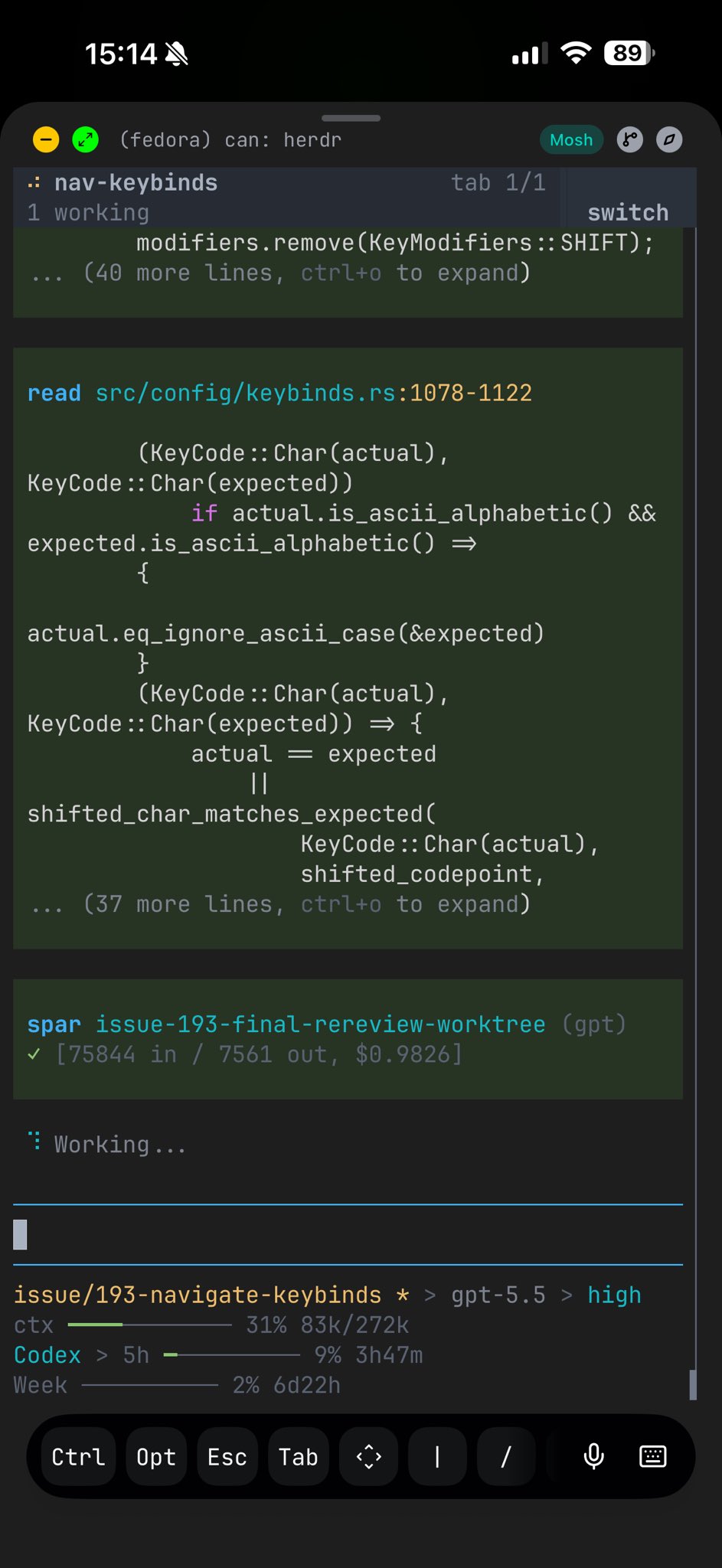
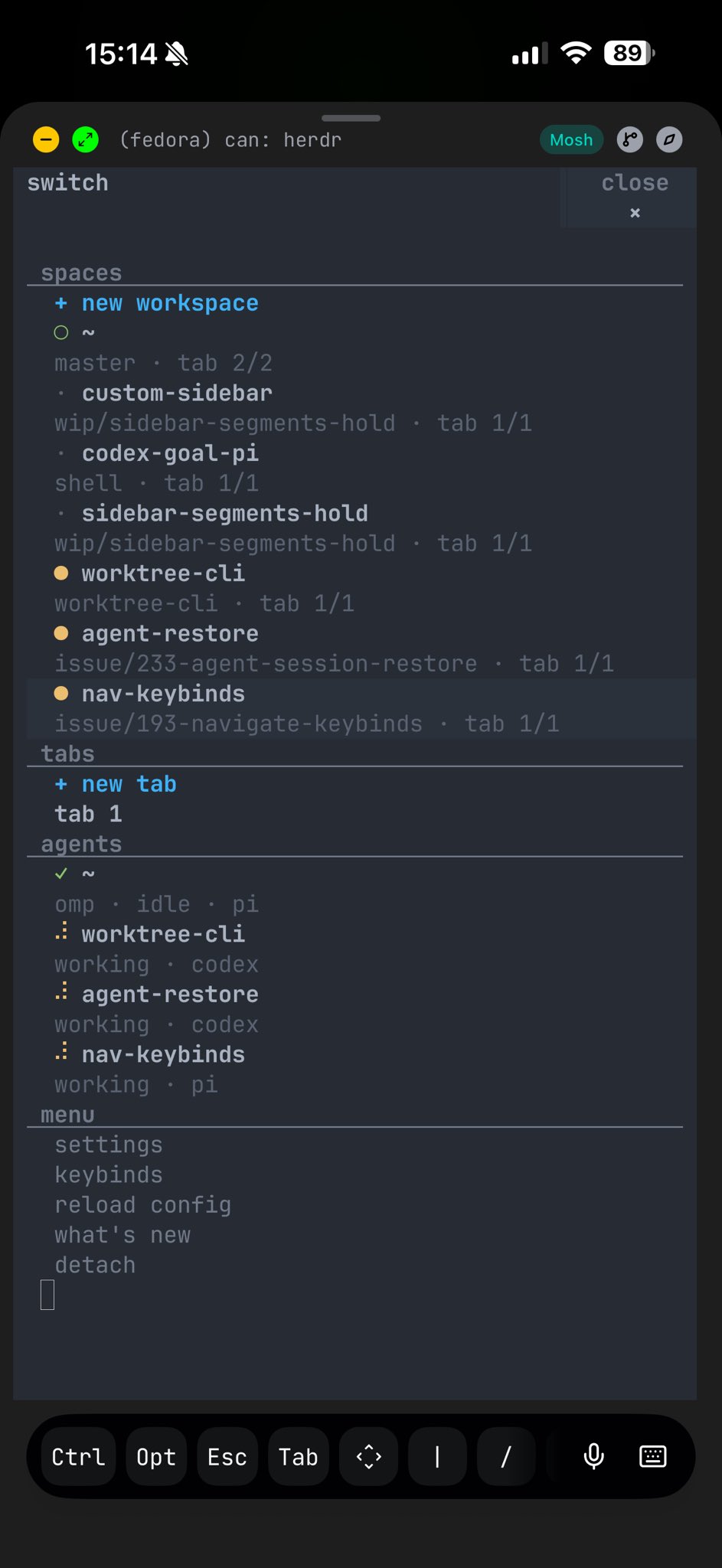
Remote work from your local terminal
Section titled “Remote work from your local terminal”Attach through SSH without opening a shell first:
herdr --remote workboxherdr --remote ssh://you@server:2222The remote server keeps the panes running and sends their terminal content and session state over SSH. Your local Herdr draws the UI using your local theme and presentation settings.
Use this path when you want the remote session to feel local. The client runs on your machine, so local desktop features such as image clipboard paste can be bridged to the remote server. If you SSH first and run herdr on the server, Herdr runs entirely on that server and cannot read your local desktop clipboard.
For repeat targets, put the host in your SSH config:
Host workbox HostName server.example.com User you Port 2222Then attach with:
herdr --remote workboxWhich path to use
Section titled “Which path to use”Use herdr for local work. Use ssh you@server then herdr when you want Herdr to behave like tmux on that remote shell or when you are using a phone SSH client. Use herdr --remote <host> for a local UI attached to one remote session, including local clipboard image paste. To keep Local and several SSH machines in one window, save them with herdr machine add <host> --label <label>; see Connecting machines.
For remote bootstrap details, named remote sessions, custom binaries, and direct terminal attach, see Persistence and remote access.